Email Notifications
Send email notifications to users on various auction events.
Description
In the Email Templates section of the app, you can manage auction-related email notifications (e.g., Outbid, Auction Won) from a grid. You can enable or disable specific templates, preview their content, and control which notifications are sent. Emails are delivered only if the template is set to On and the customer has opted into marketing emails in Shopify, ensuring both compliance and relevance. This feature helps boost bidder engagement and drive post-auction conversions.
Video Tutorial
How it works
Step 1: Open Email Templates
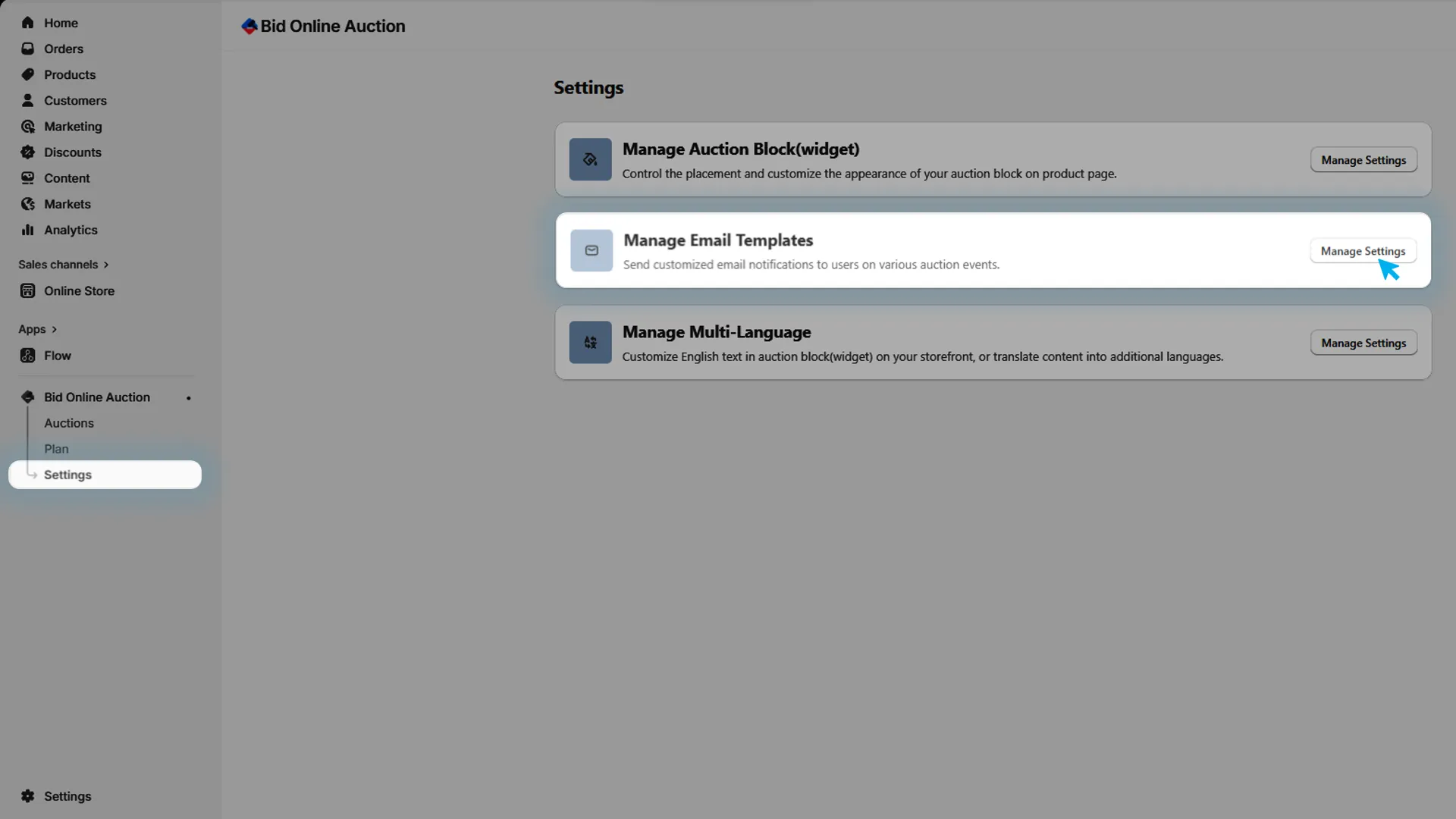
In the installed app, go to Settings and in that Manage Email Templates to manage all auction-related email notifications.
Step 2: Enable or Disable
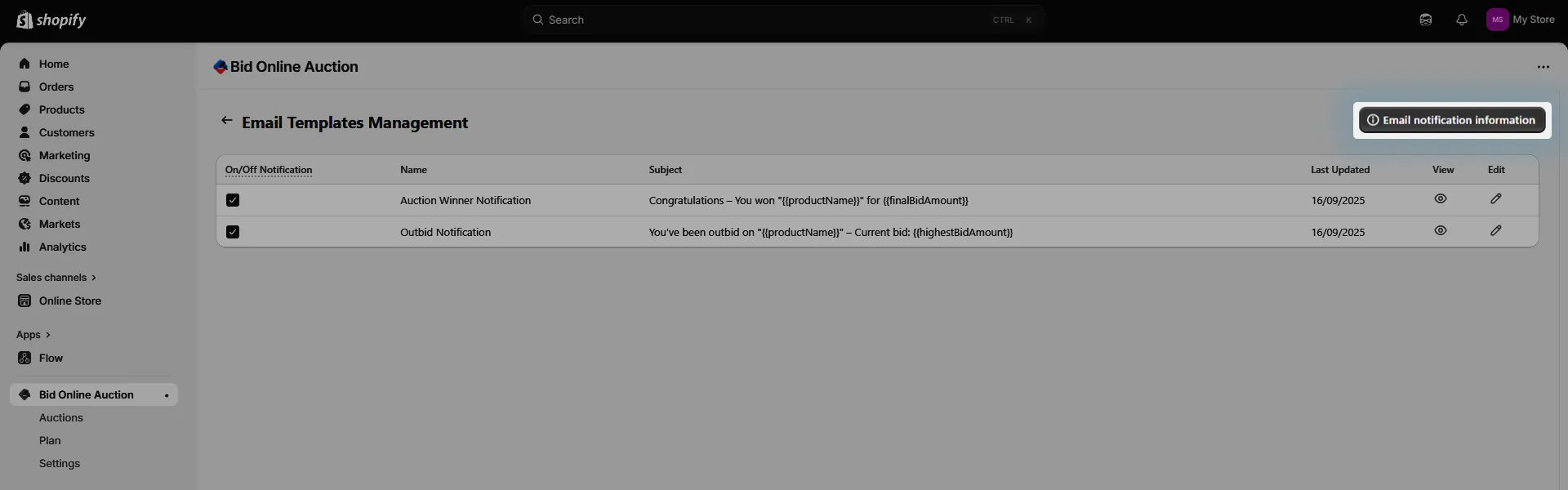
Use the checkbox to turn a template On or Off, depending on whether you want that notification to be sent.

Step 3: View Email Content
Click the View icon in the email template grid to review the subject and body of that email template.

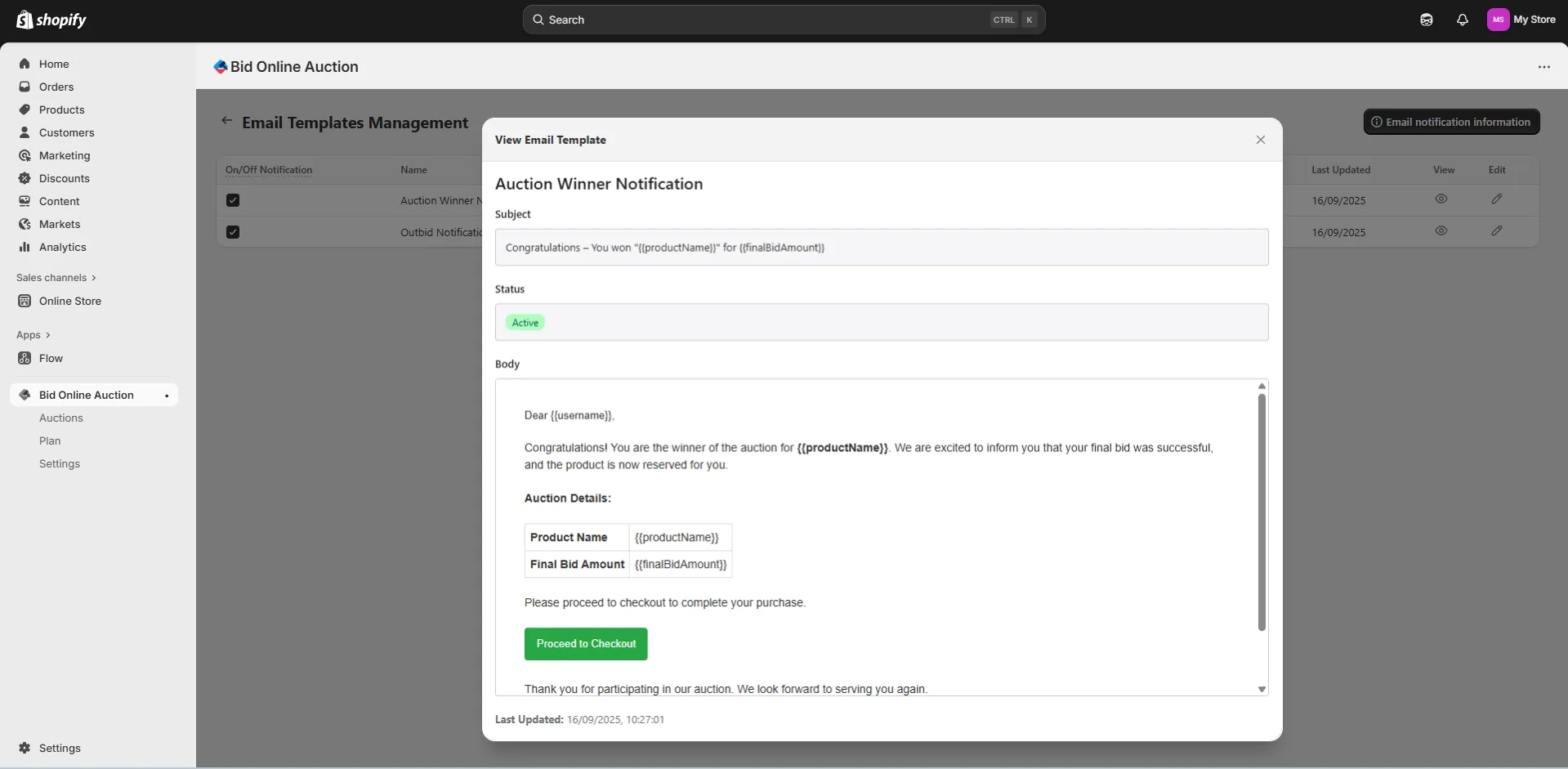
Step 4: When Emails Are Actually Sent
Emails are delivered when a particular event (e.g., outbid, winner) occurs, and only if all three of the following are true:
- The notification template is set to On in the app, and
- The customer has opted in to receive marketing emails in Shopify
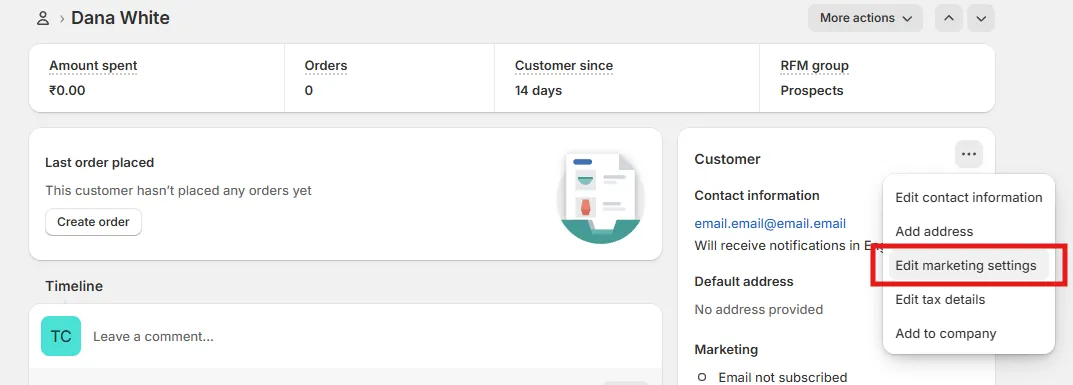
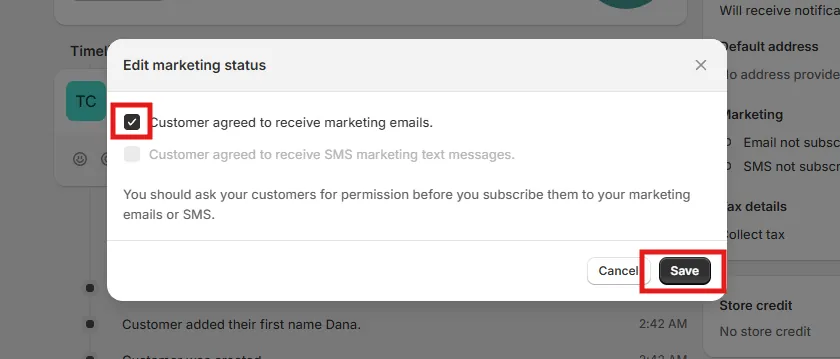
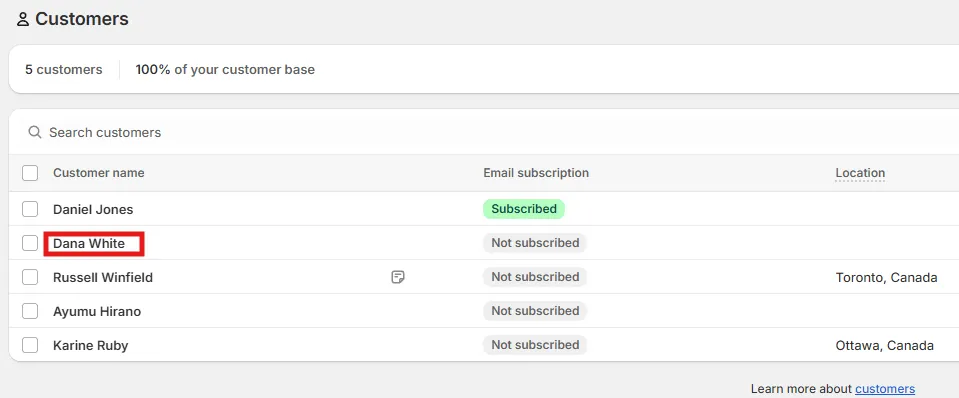
How to Subscribe a Customer to Emails (Shopify)
- Go to the Customers page in your Shopify admin.
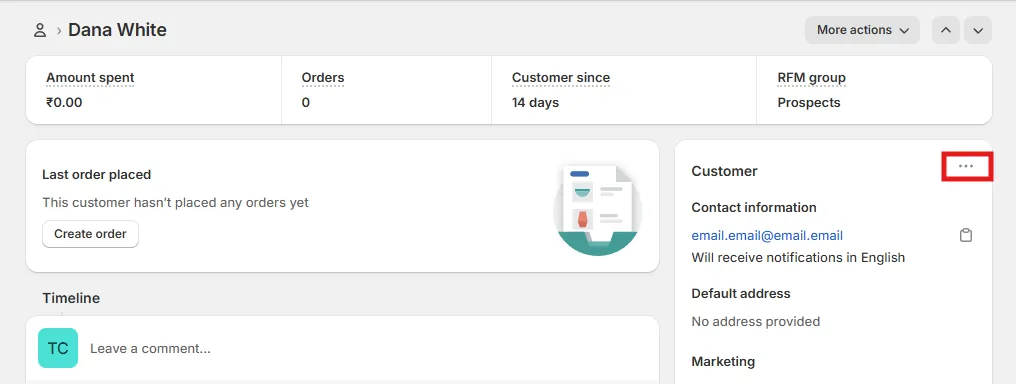
- Select the customer.
- Click the three dots (⋯) in the customer section.
- Click Edit marketing settings.
- Check the Email option and click Save.