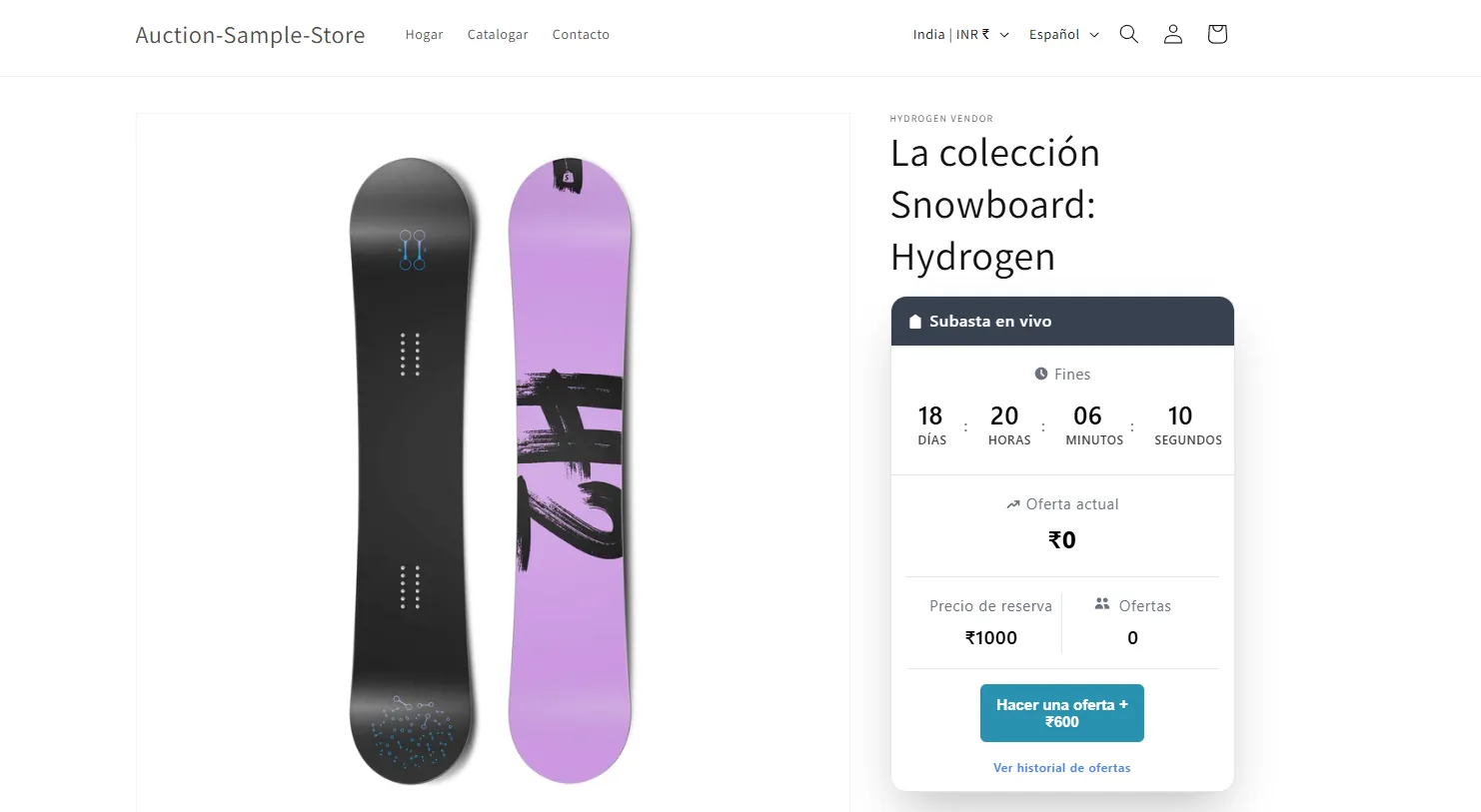
Multi-Language Support
Display auction block text in your desired language with full customization and translation capabilities.
Description
The Multi-Language Support feature allows subscribers to customize and translate auction block text into multiple languages, providing a localized experience for international customers. Users can add new languages, manage translations through a comprehensive interface, preview changes in real-time, and activate/deactivate languages as needed. The feature integrates with Shopify's published languages and automatically falls back to English if a language is not available or inactive. By default, translations are provided for the languages added to the store, ensuring broad accessibility.
Video Tutorial
How it works
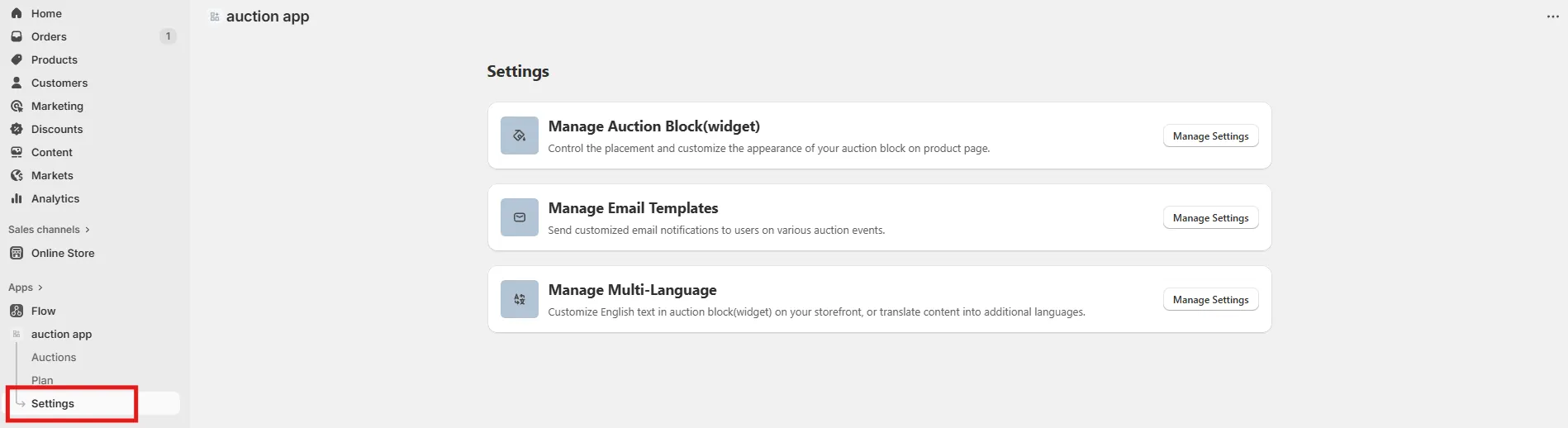
Step 1: Access Settings Page
Go to the Settings page in your installed app to access various configuration options.
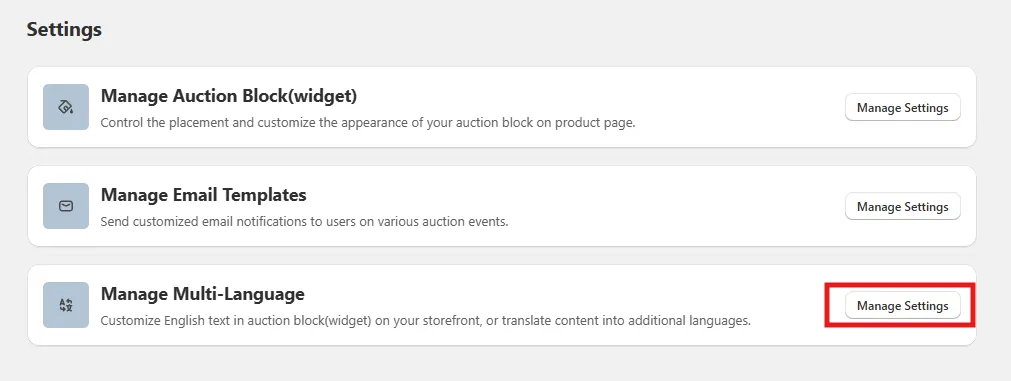
Step 2: Open Multi-Language Management
In the settings page, locate the Manage Multi-Language block and click the Manage Settings button to open the language management interface.
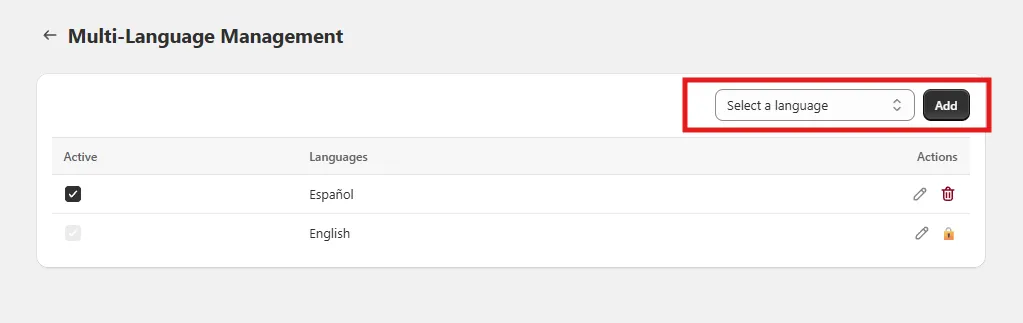
Step 3: Add New Languages
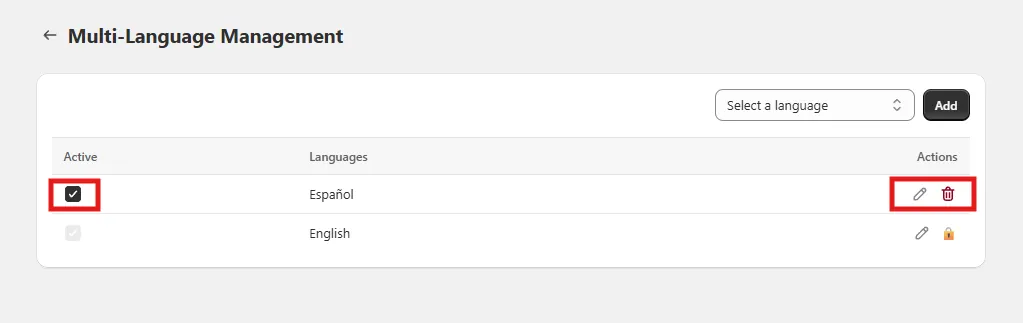
The multi-language management page displays a grid of available languages. Above the grid, there is a language dropdown and an Add button. You can select a language from the dropdown and click Add to include it in your auction block. Each new language automatically generates default translations for all text keys.
Note: By default, the languages provided by the store will be automatically added if they are supported and set to active.
Step 4: Manage Language Settings
The language grid contains three columns:
- Active: Checkbox to activate/deactivate each language
- Languages: Name of the language
- Actions: Edit and Delete icons for each language
Note: English is the default language and cannot be deactivated or deleted.
Step 5: Edit Translations
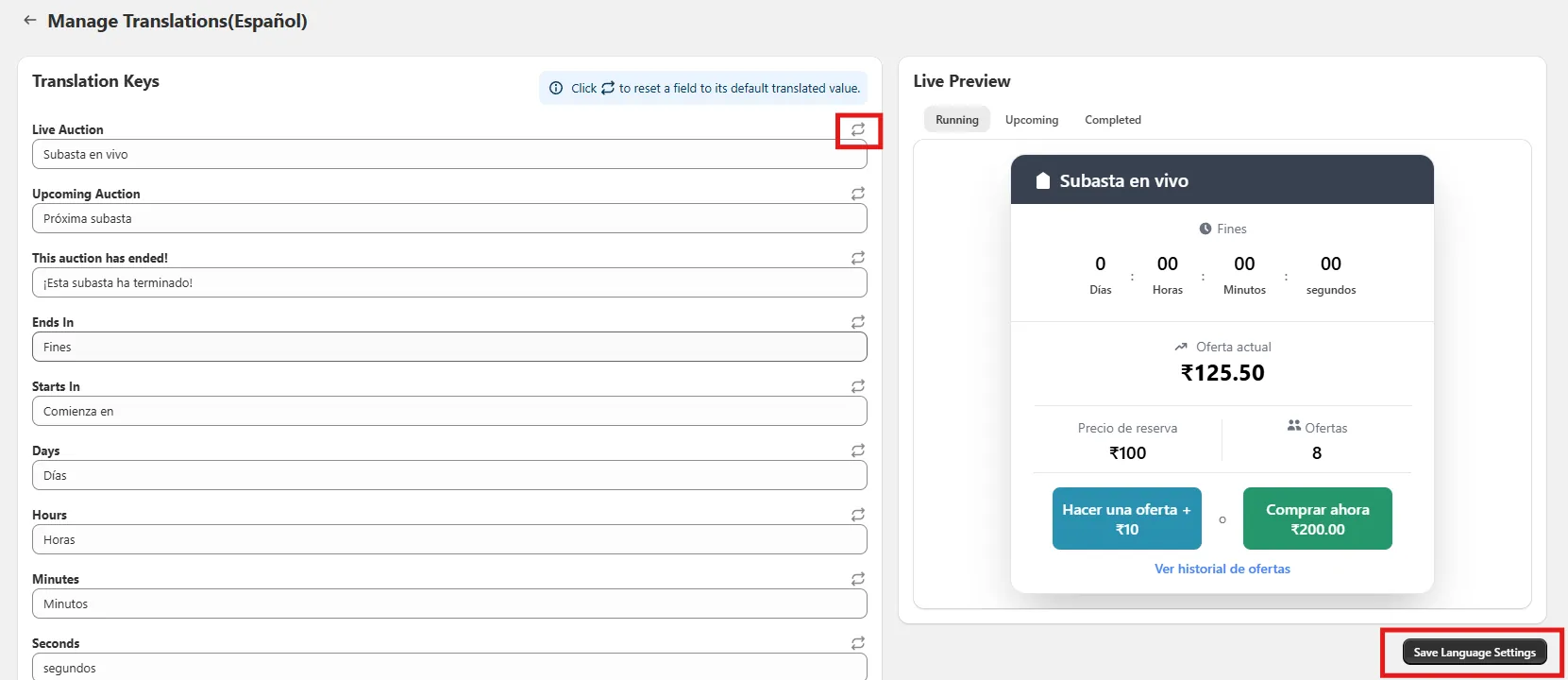
Click the Edit icon for any language to open the translation management page. This page has two main sections:
- Translation Keys: Where you can modify the translated text for each key
- Live Preview: Shows how your auction block will appear on the storefront
Step 6: Customize Translation Keys, Preview and Save Changes
In the translation keys section, you can modify any text value.
- Each key has a refresh icon that restores the default translation for that specific key if needed. Use the live preview section to see how your auction block will display with the current translations. Once satisfied with the changes, click Save to apply the translations.
Step 7: Store Language Requirements
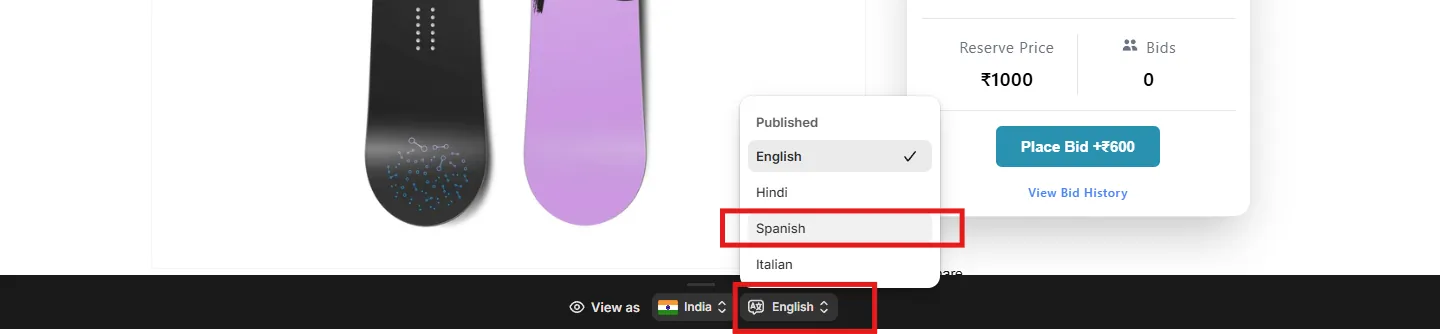
To see the changes on your storefront, ensure your store is published in the desired language. The system will show you a list of languages in which your store is currently published at the bottom of the page.
Step 8: View on Storefront
Change your store's language to the one you've configured. If the language is added, active, and properly translated, your auction block will display in that language. Otherwise, it will default to English.