
Hide Auction Block
Hide the auction block from product pages after completion, allowing normal product sales to resume.
Description
The Hide Auction Block feature allows subscribers to automatically or manually hide the auction block from product detail pages after an auction completes. During auction creation, you can set an optional date/time to hide the block (must be after the auction end date). For completed auctions, you can use a checkbox in the edit page to immediately hide the block. Once hidden, the product page returns to normal with Add to Cart and Buy Now options, allowing you to sell the item as a regular product even after an auction was created.
Video Tutorial
How it works
Step 1: Access Add Auction Page
Go to the Dashboard and navigate to the Add Auction page to create a new auction.
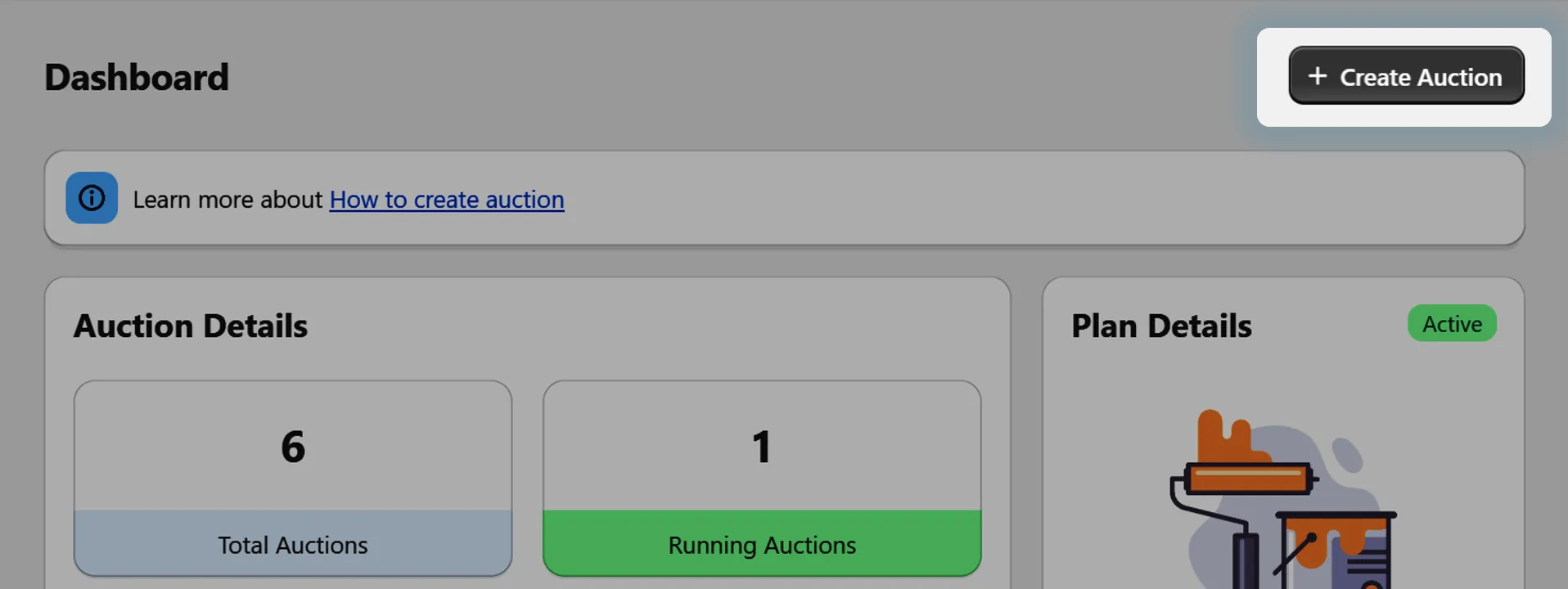
Step 2: Set Hide Auction Block Date/Time
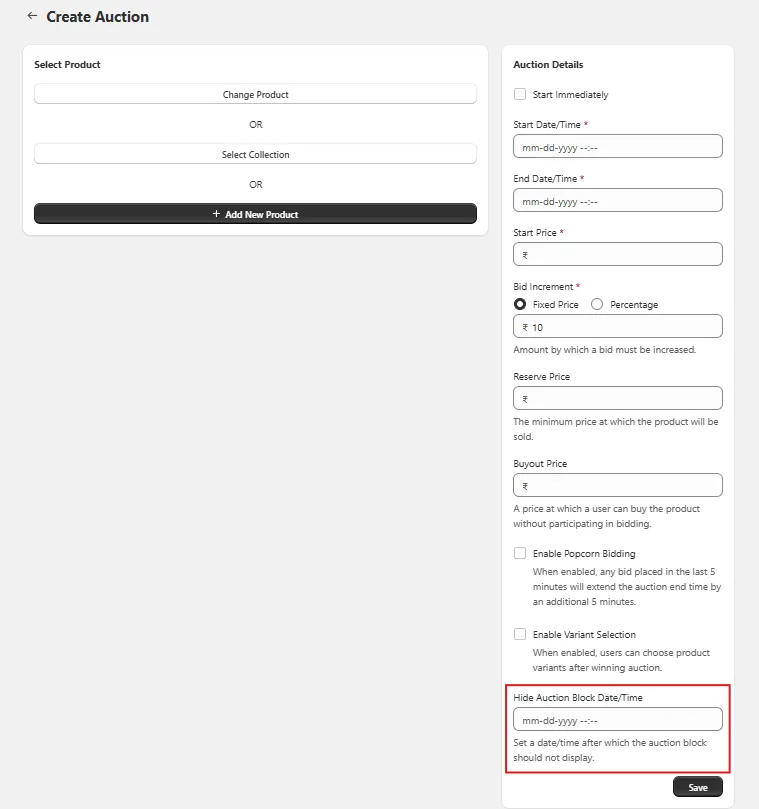
On the Add Auction page, you'll find a "Hide Auction Block Date/Time" field.
Note: This field is optional - if left empty, the auction block will remain visible after the auction ends.
Step 3: Validate Date/Time Selection
If you select a date/time to hide the auction block, it must be greater than the auction end date/time. The system will validate this requirement before allowing you to save the auction.
Step 4: Automatic Hiding
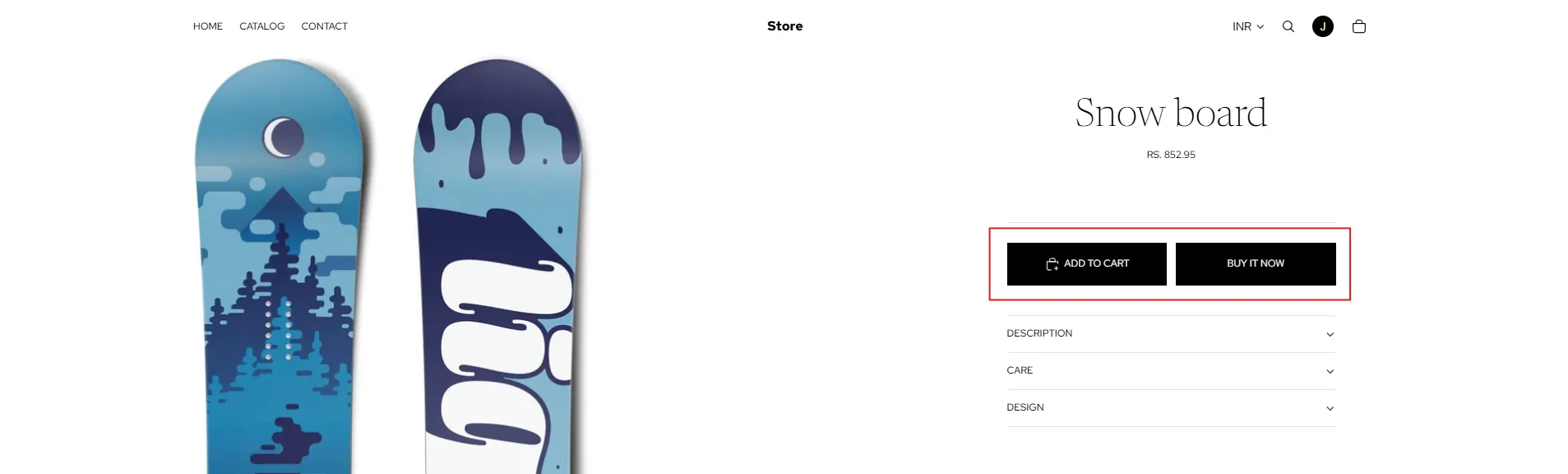
Once the selected hide date/time passes, the auction block will automatically disappear from the product detail page. The normal product page with Add to Cart and Buy Now options will become visible again, allowing you to sell the item as a regular product.
Step 5: Hide Completed Auction Block
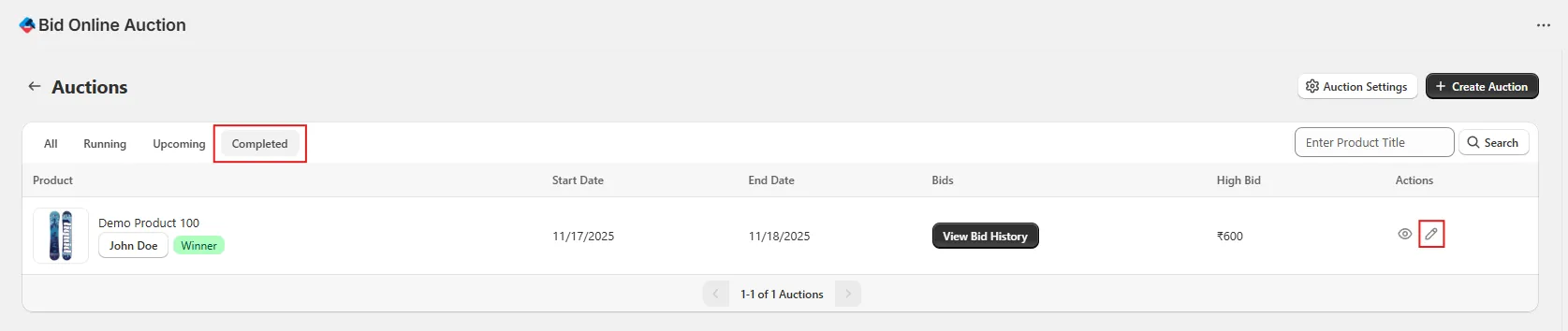
If an auction is already completed and you haven't set a hide date/time, you can still hide the auction block. Go to the Auction List page and click the Edit icon for the completed auction.
Step 6: Use Hide Checkbox
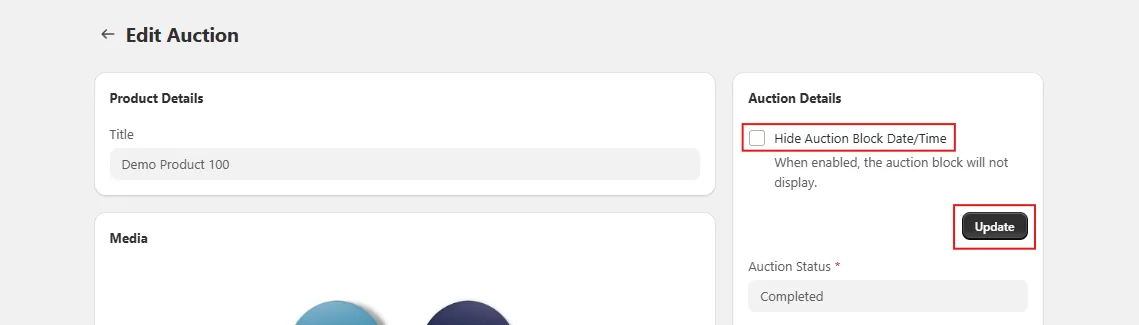
On the Edit Auction page, you'll see a "Hide Auction Block" checkbox. Check this box and click Update to immediately hide the auction block.
Note: This checkbox is only available for auctions with Completed status.
Step 7: Verify on Storefront
After hiding the auction block, visit the product detail page on your storefront. The auction block will no longer appear, and customers will see the standard product page with regular purchase options.