Auction Widget Display Settings
Customize what auction information appears on product cards.
Description
The Auction Widget Display Settings feature gives you complete control over which elements are visible in the auction widget on product detail pages. Using simple checkboxes, you can show or hide specific informations. This flexibility allows you to display only the most relevant auction details to your customers, creating a clean and focused shopping experience while maintaining transparency and engagement.
Video Tutorial
How it works
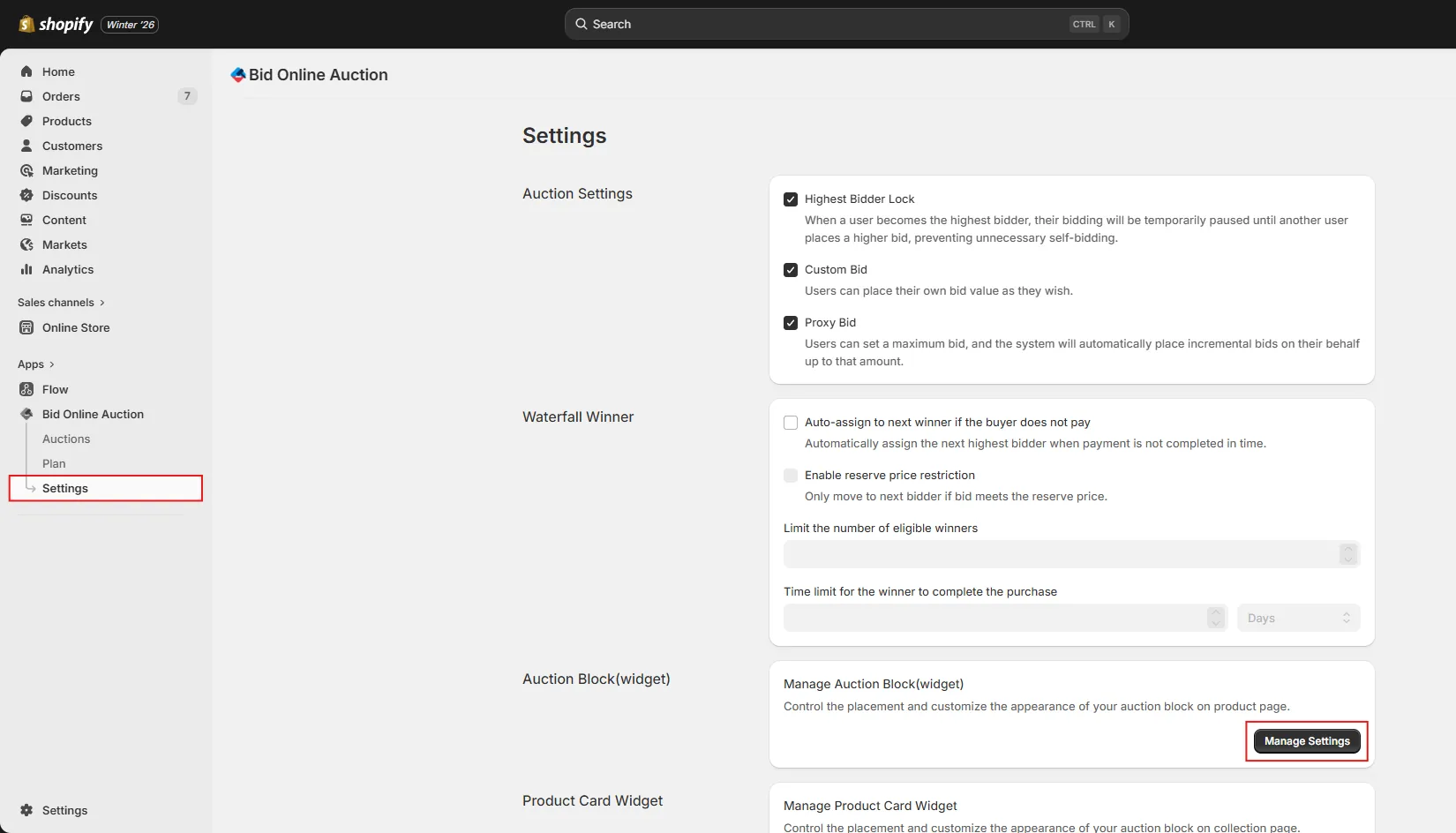
Step 1: Go to Auction Block(widget) Management
In the installed app, go to Settings, then locate the Auction Block (Widget) section. Click the Manage Settings button to open the auction block configuration page.
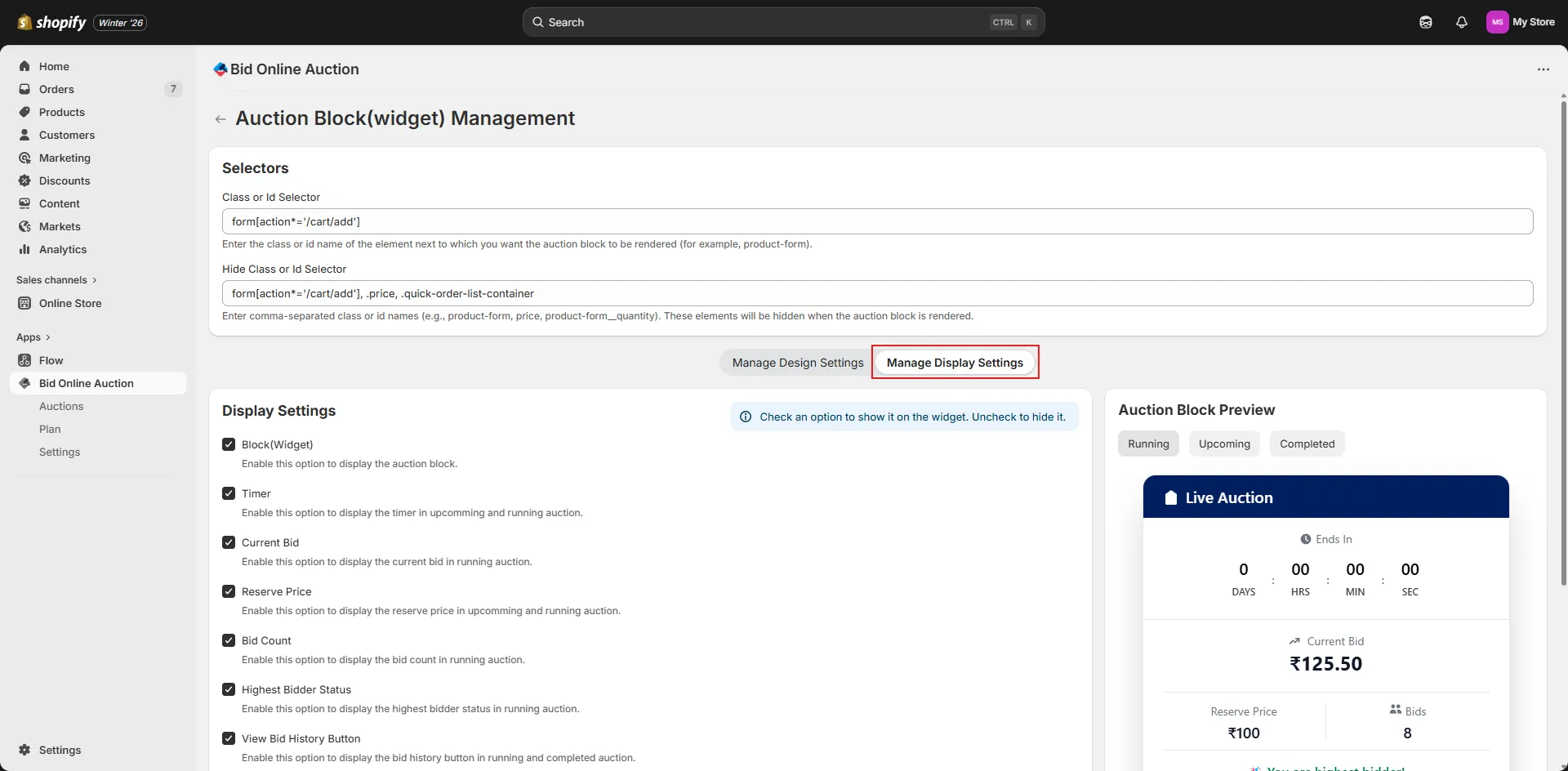
Step 2: Navigate to Display Settings Tab
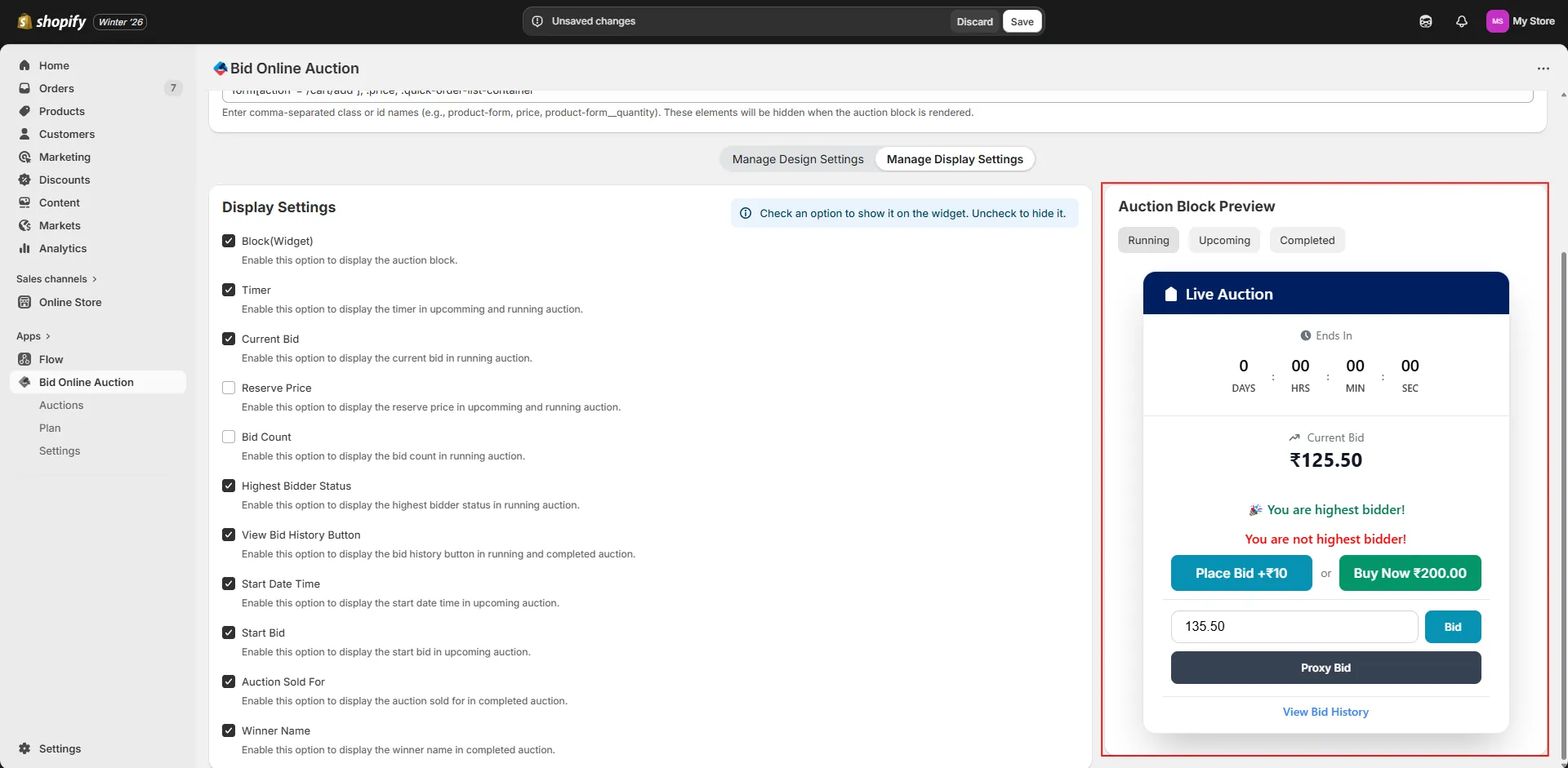
On the auction block settings page, click on the Manage Display Settings tab. This section contains all the visibility controls for different auction information elements.
💡 Note: You can find the same display settings for the Product Card Widget as well. Simply navigate to Manage Product Card Widget instead, and you'll see a similar Manage Display Settings tab there.
Step 3: Configure Display Elements
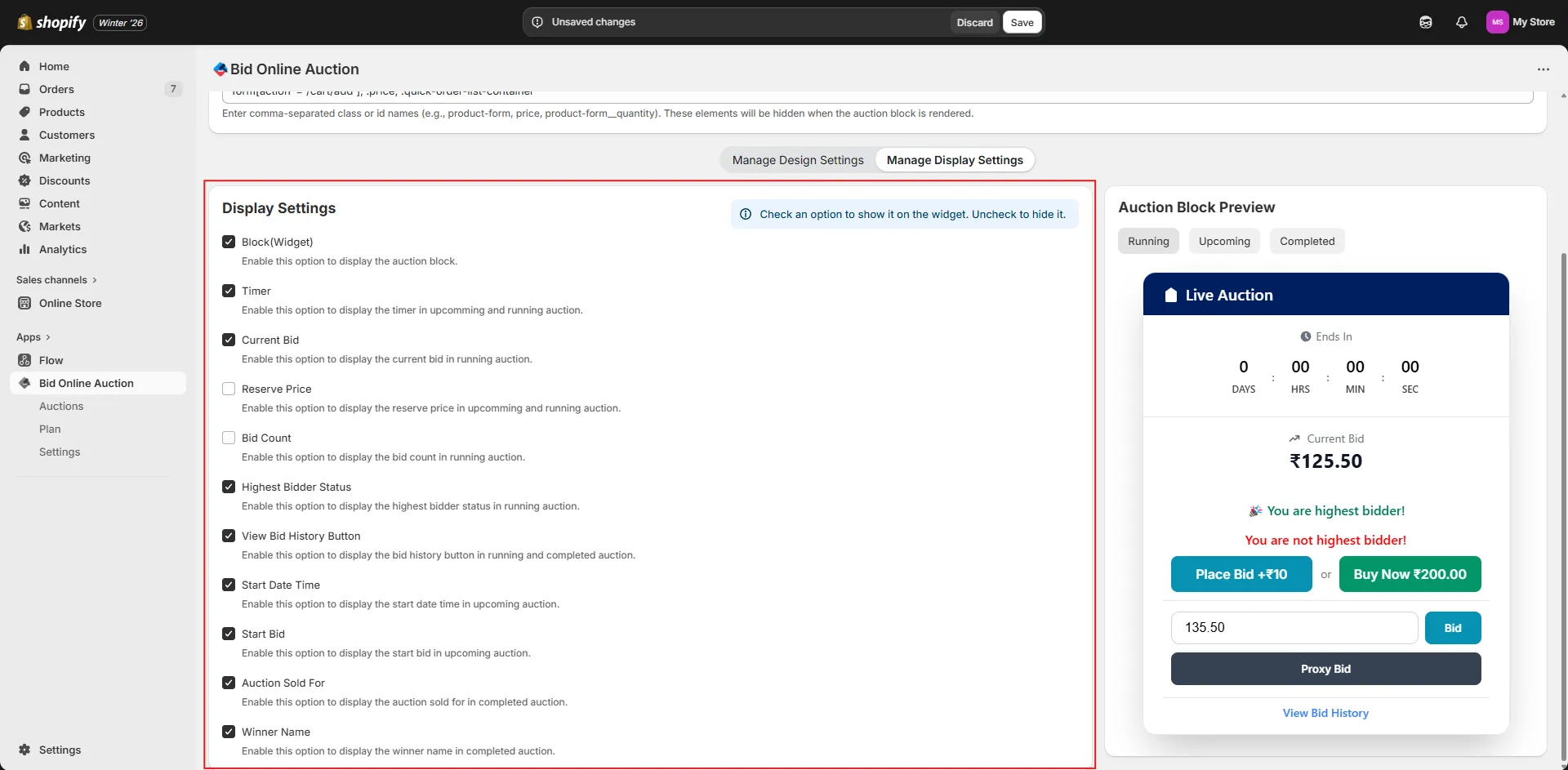
You'll find checkbox options for each display element. Uncheck any item to hide it from the auction widget on product detail pages.
Available display elements include:
- ⏱️ Timer — Shows the countdown timer for active auctions
- 📅 End Date Time — Displays the auction ending date and time for running auctions
- 💰 Current Bid — Displays the current highest bid amount
- 🔒 Reserve Price — Shows whether the reserve price has been met
- 🔢 Bid Count — Displays the total number of bids placed
- 🏆 Highest Bidder Status — Shows if the current user is the highest bidder
- 📜 View Bid History Button — Allows customers to view complete bid history
- 📅 Start Date Time — Displays when the auction begins
- 🎯 Start Bid — Shows the starting bid amount for upcoming auctions
- ✅ Auction Sold For — Displays the final winning bid amount (for ended auctions)
- 👤 Winner Name — Shows the name of the auction winner (for ended auctions)
- 📦 Entire Block — Controls visibility of the complete auction widget
- 🔢 Thousand Separator — Enable this option to display all amounts with thousand separators
- ⚙️ Date & Time Settings — Customize the Date Format, Time Format, and choose to show or hide seconds in date/time stamps
Simply check or uncheck each option based on what you want to display to your customers.
Step 4: Preview Your Changes
As you modify the display settings, refer to the Auction Block Preview section on the same page.
This preview shows you exactly how the auction widget will appear on product detail pages with your current settings applied.
The preview updates dynamically to reflect different auction states (upcoming, live, ended) based on which elements you've enabled or disabled.
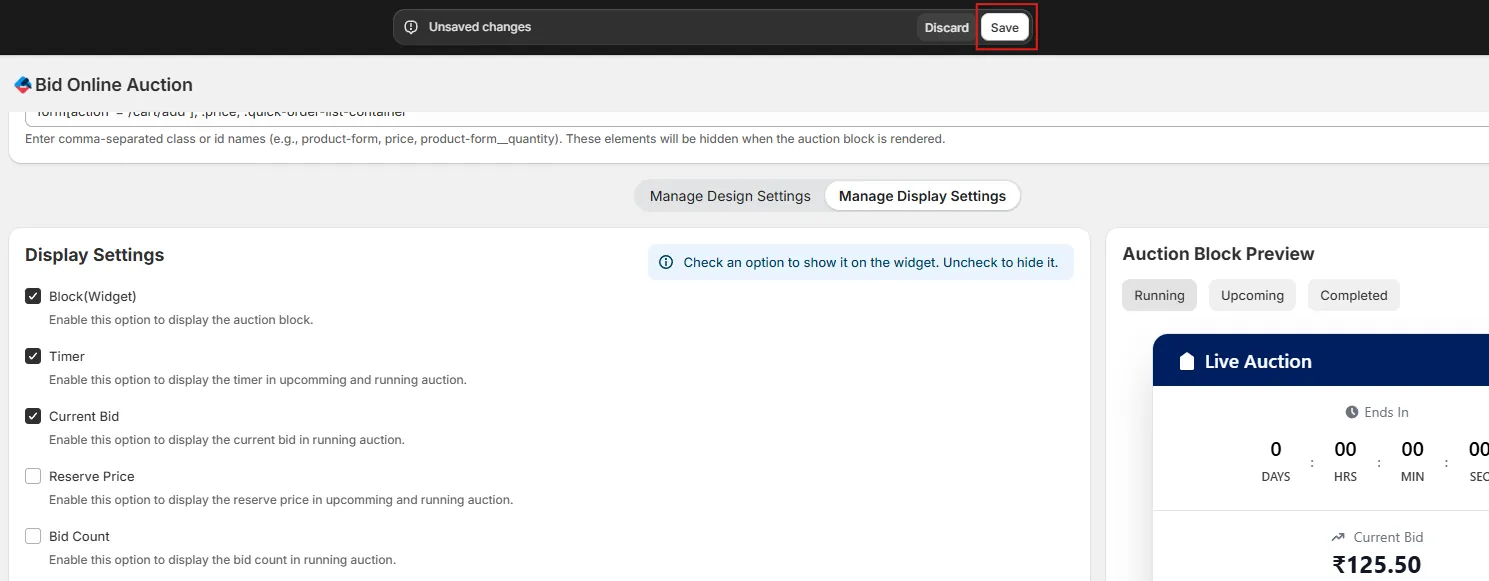
Step 5: Save Your Display Settings
Once you're satisfied with your configuration, click the Save button to apply your changes.
The auction widget on your product detail pages will now display only the elements you've selected.