Wishlist
Let customers add auctions to their wishlist and bid on them later.
Description
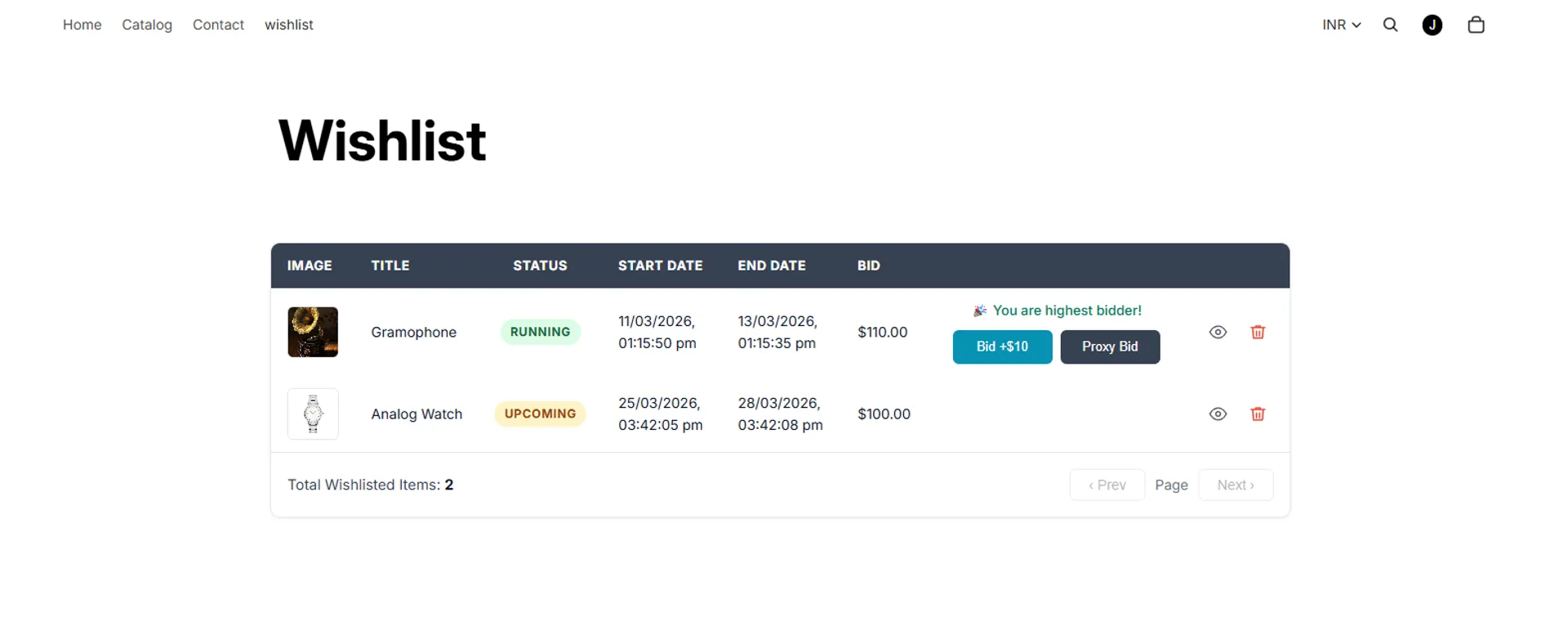
The Wishlist feature allows customers to save their favorite auctions for later consideration. Customers can view all their saved items in one place, open the auction page directly, place bids, or remove items from the list, making it easy to track and engage with preferred products.
Video Tutorial
How it works
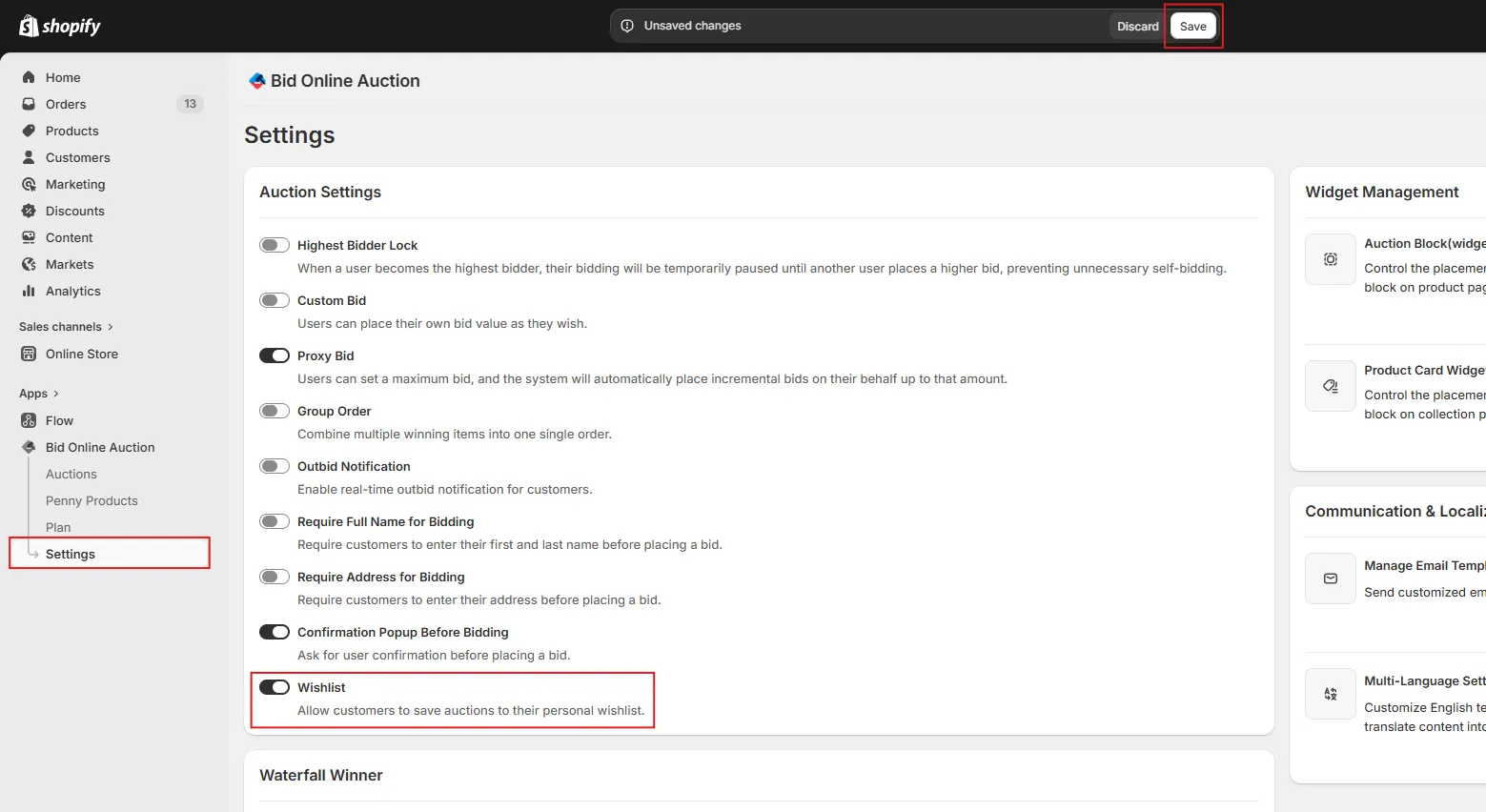
Step 1: Enable Wishlist in App Settings
First go the Settings page.
Enable the Wishlist feature and click Save to activate it.
Step 2: Go to Online Store → Edit Theme
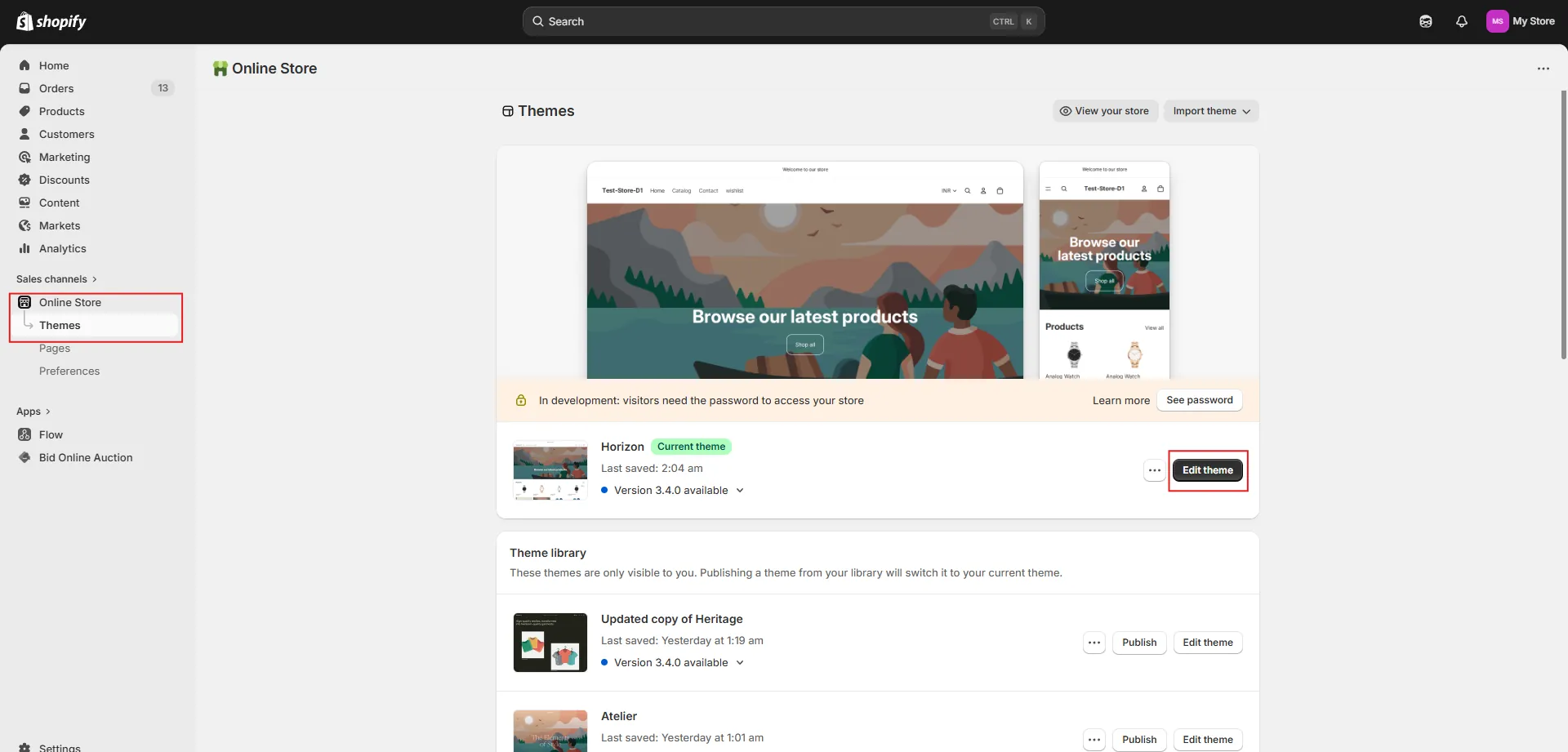
From your Shopify admin, navigate to Online Store and click Edit Theme for your active theme.
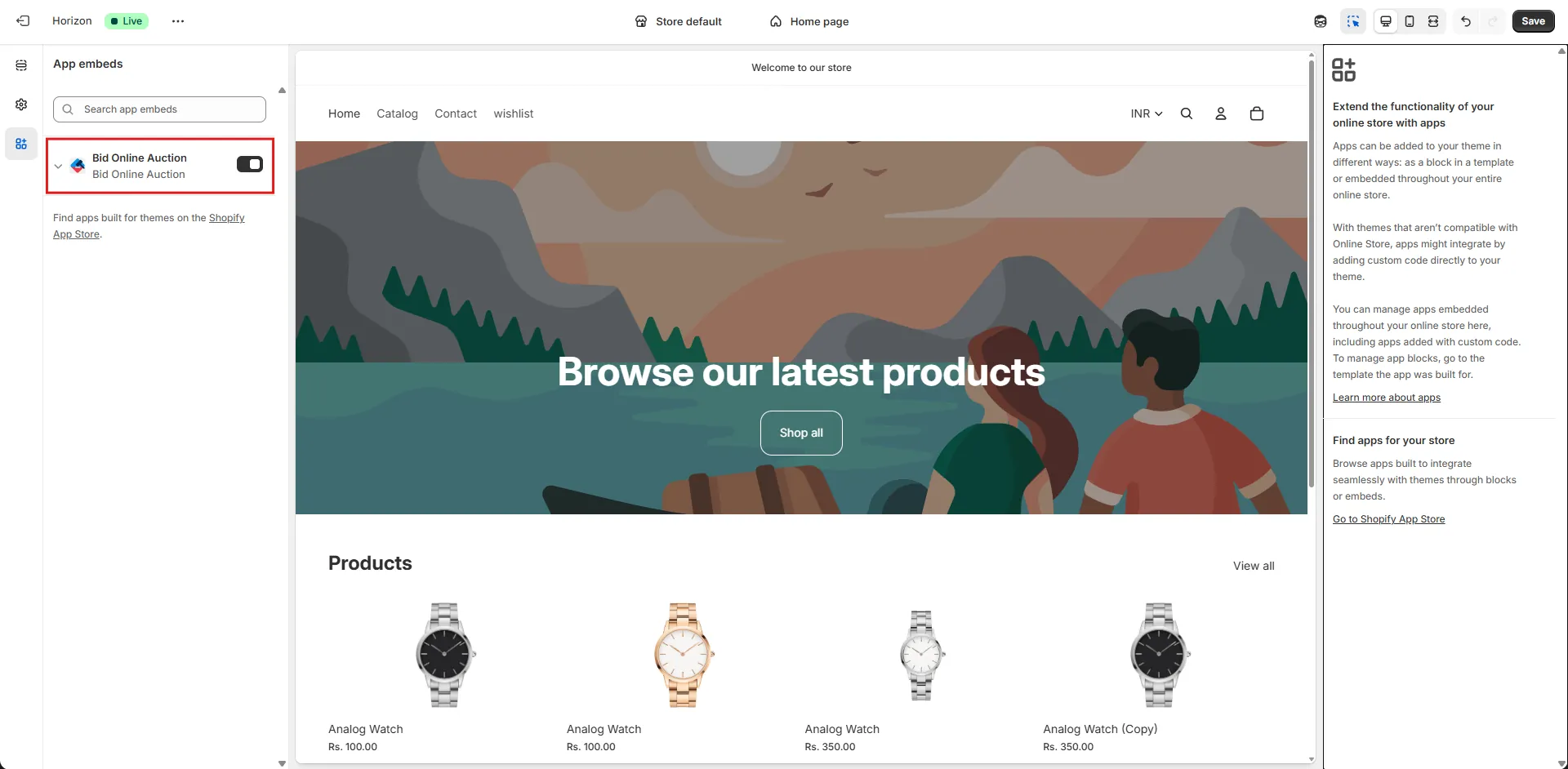
Step 3: Enable App Embed
Inside the theme editor, open App Embeds and make sure the app embed for this app is enabled.
This is required for the wishlist feature to work properly on the storefront.
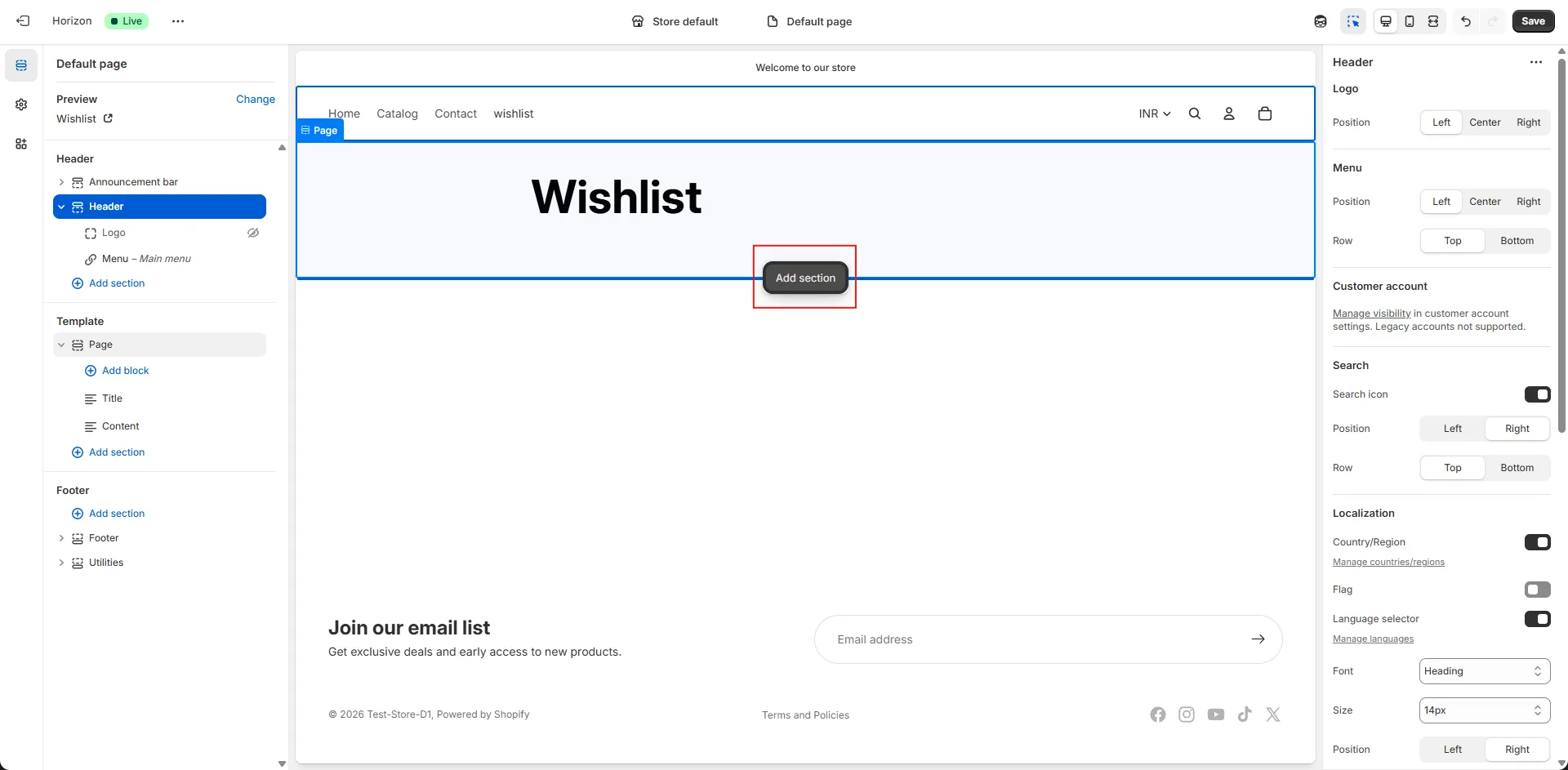
Step 4: Add Wishlist Block to a Page
Navigate to the page where you want to display the Wishlist Table.
Click Add Section at the position where you want the wishlist to appear.
Step 5: Select Wishlist Block
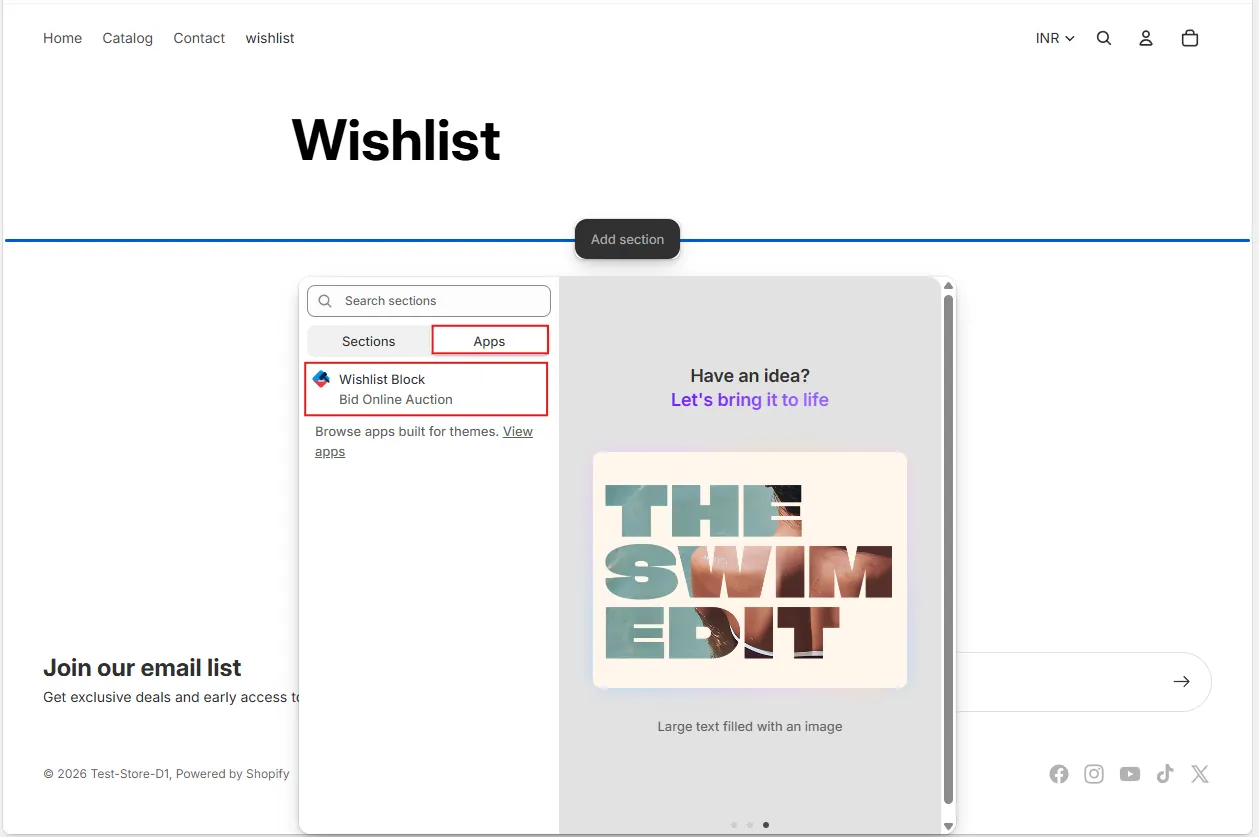
In the popup that appears:
- Go to the Apps tab
- Select the My Auctions Block
This will add the wishlist table section to your page.
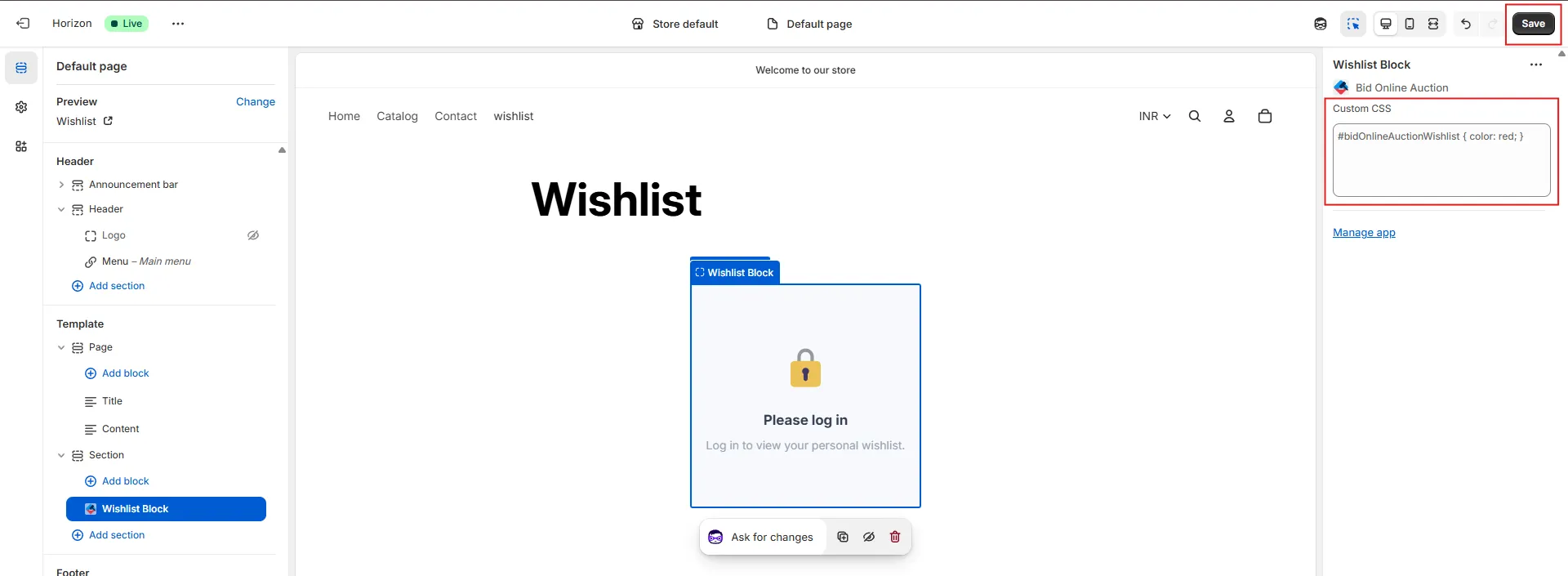
After making your changes, click Save in the theme editor.
Step 6: Customize the Wishlist Block (Optional)
You can also add custom CSS in the block settings to modify the design or appearance of the wishlist table according to your theme.
After making your changes, click Save in the theme editor.
Step 7: Add Auctions to Wishlist
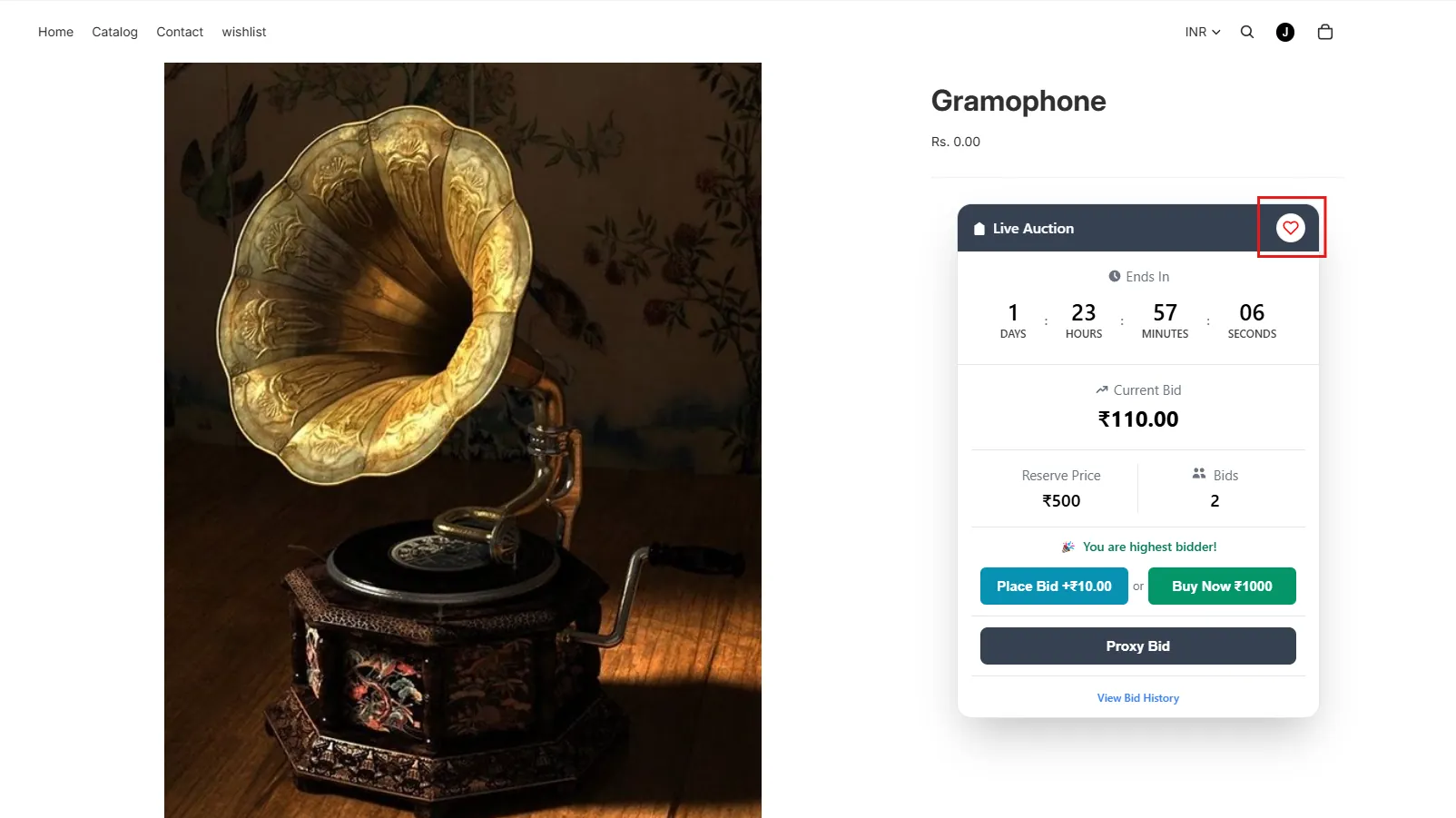
On the storefront, customers will now see a ❤️ Heart icon button on the auction block.
Customers can click this button to add the auction to their wishlist.
Step 8: View Wishlist Table
When customers visit the page where the My Auctions Block was added, they will see their Wishlist Table displaying all the auctions they have added.
From this table, customers can:
- 👁 View Auction – Click the eye icon to open the auction page
- 🗑 Remove from Wishlist – Click the trash icon to remove an auction from the wishlist
- 💰 Place Bids – Directly place bids on wishlisted auctions