
Dutch Auction
Start at a high price that drops automatically at set intervals until a buyer purchases the item.
Description
Dutch Auctions allow merchants to create dynamic auctions where the price starts high and continuously decreases over time based on your configuration. When a customer clicks Buy Now, the auction automatically closes, and the buyer can claim their item.
How it works
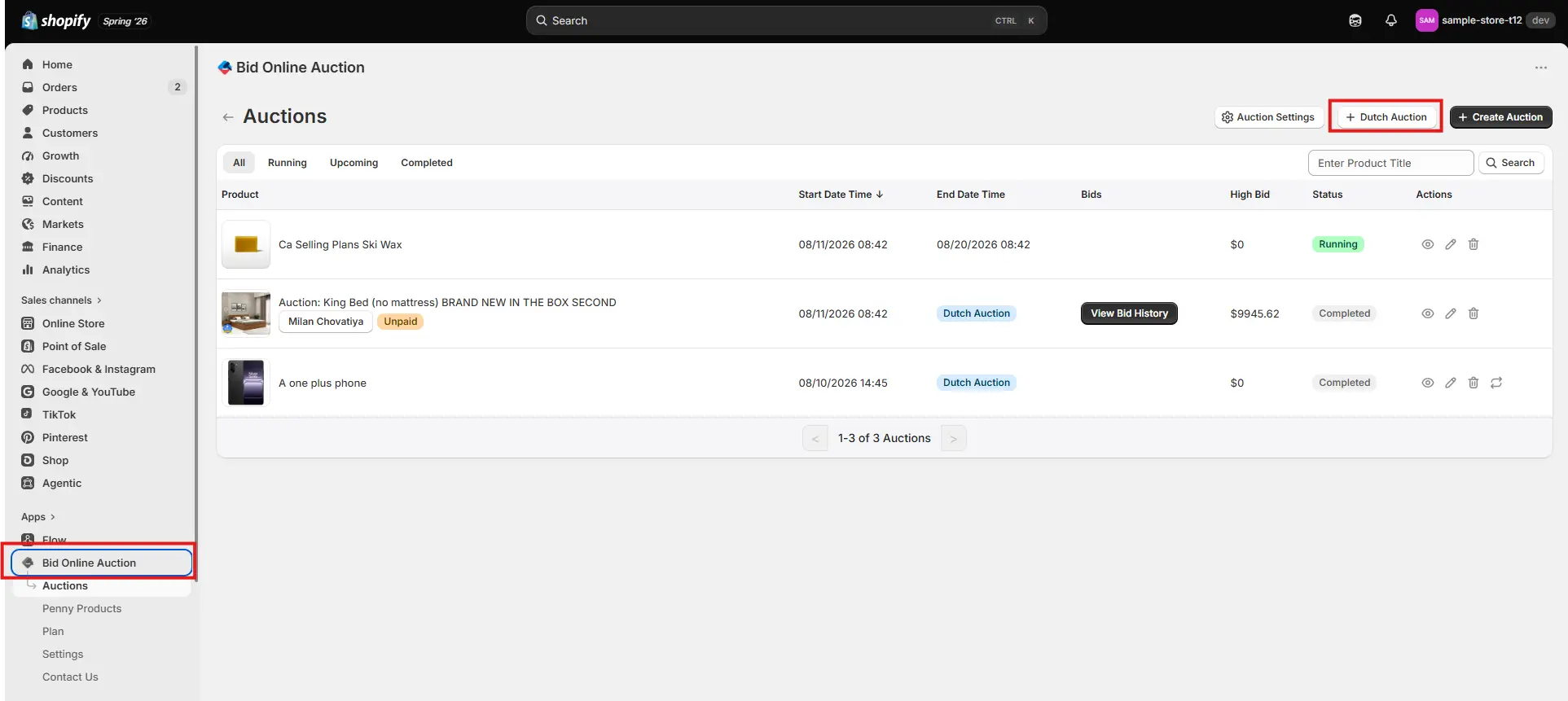
Step 1: Navigate to Auctions & Click Create Dutch Auction
Go to the Auctions section in your app admin dashboard. Click on the Create Dutch Auction button to start setting up a new dynamic price drop auction.
Step 2: Configure Dutch Auction Settings & Fields
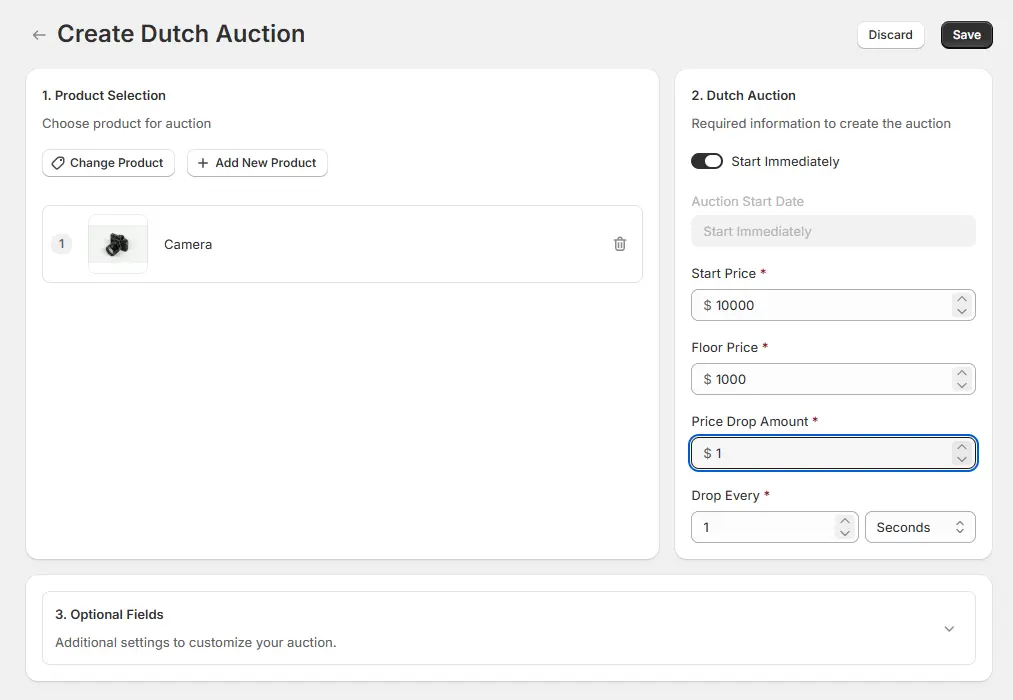
Fill in all required fields to customize your pricing and price drop frequency:
- Select Product: Choose the product or variant to place on auction.
- Start Price: Set the initial high starting price.
- Floor Price (Reserve Price): Set the minimum floor price below which the price will not drop.
- Price Drop Amount: Specify the exact amount by which the price will drop on every tick.
- Drop Every: Define the interval time and unit (Seconds, Minutes, or Hours) for each price drop.
- Auction Start Date & Time: Schedule when the live price drop starts.
- Enable Variant Selection: Allow buyers to choose specific product variants upon purchase.
- Hide Auction Block Date/Time: Optionally set a date/time to hide the block after auction completion.
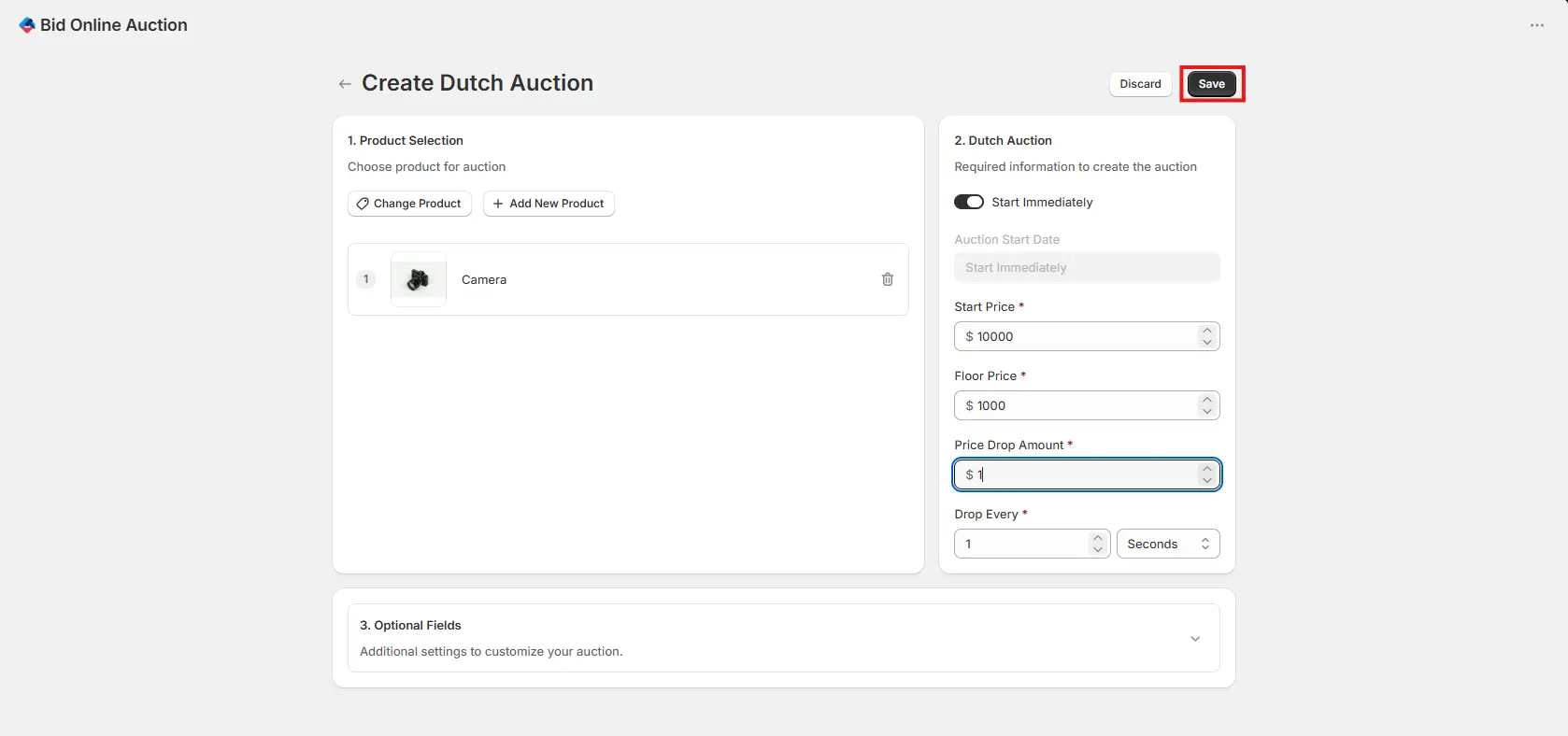
Step 3: Save & Launch Dutch Auction
Click Save to activate your Dutch auction. Once active, the auction appears on your product page on the storefront, and the price continuously drops in real-time according to your configured drop interval and drop amount.
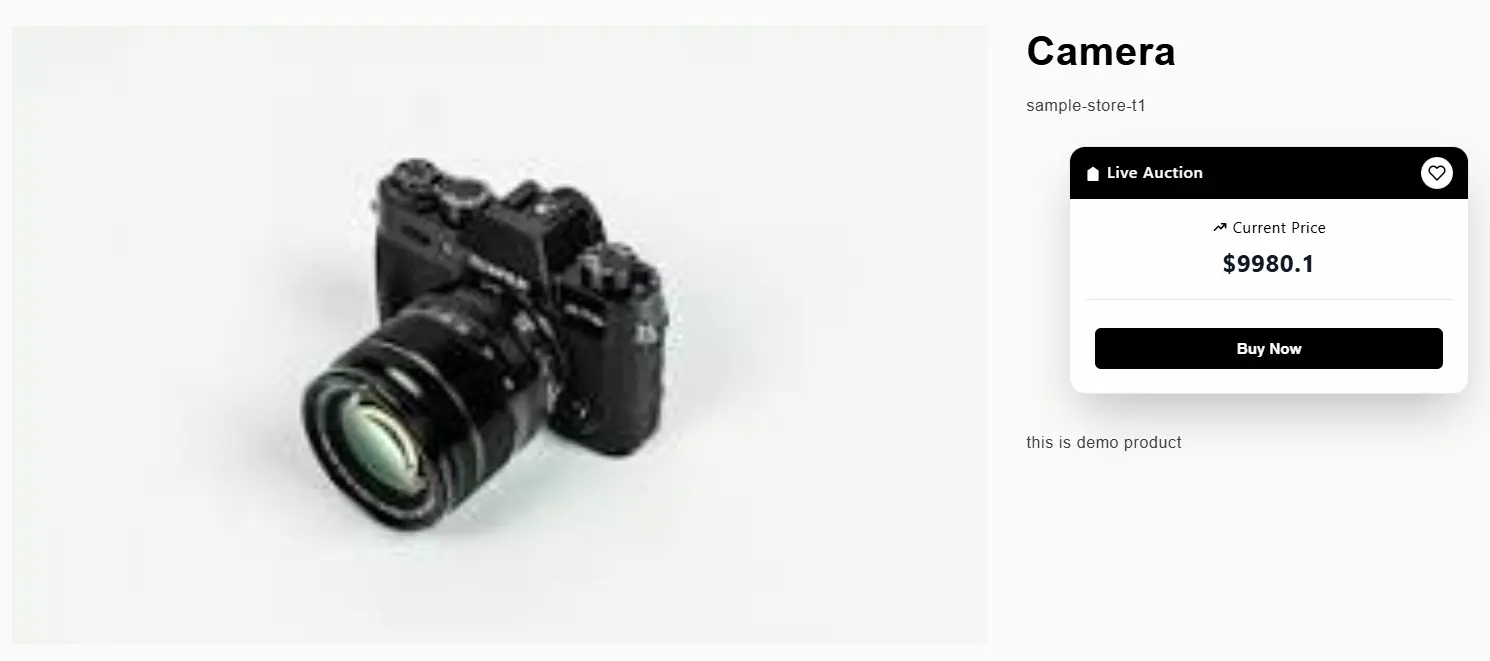
Step 4: Real-time Storefront Price Drop
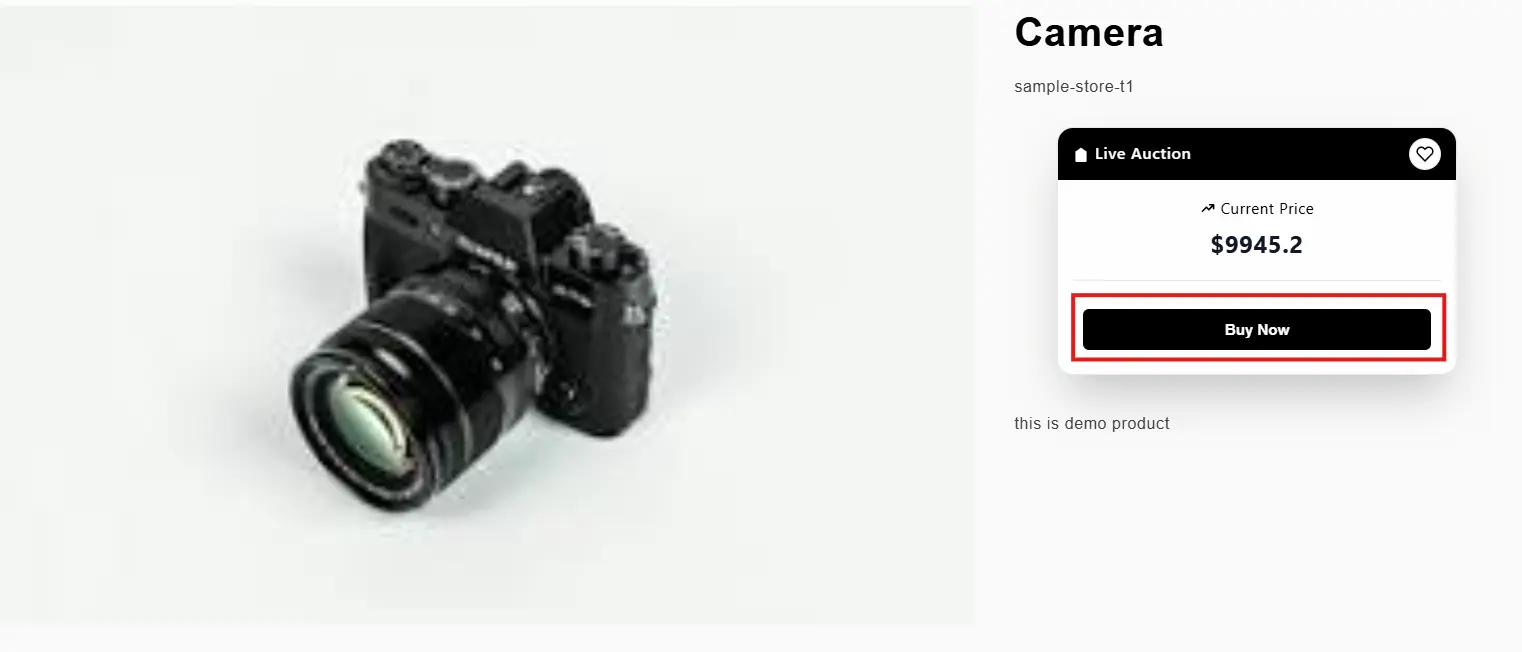
On your storefront, buyers see the price continuously dropping live in real-time according to your configured drop interval and price drop amount.
Step 5: Instant Buyout & Winner Claim
When a customer clicks Buy Now, the auction automatically closes immediately, status locks to COMPLETED, and the winning customer can claim their item.
Step 6: Customize Upcoming & Completed Block Displays
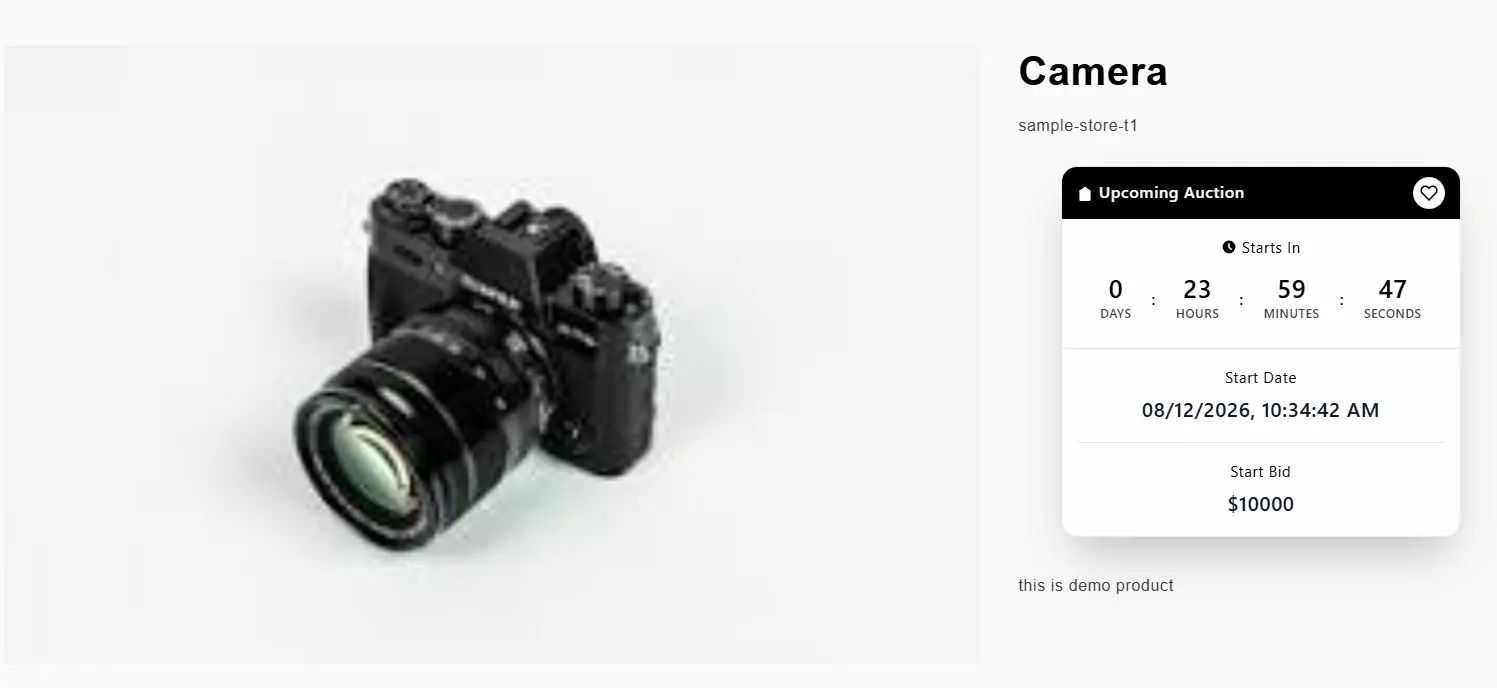
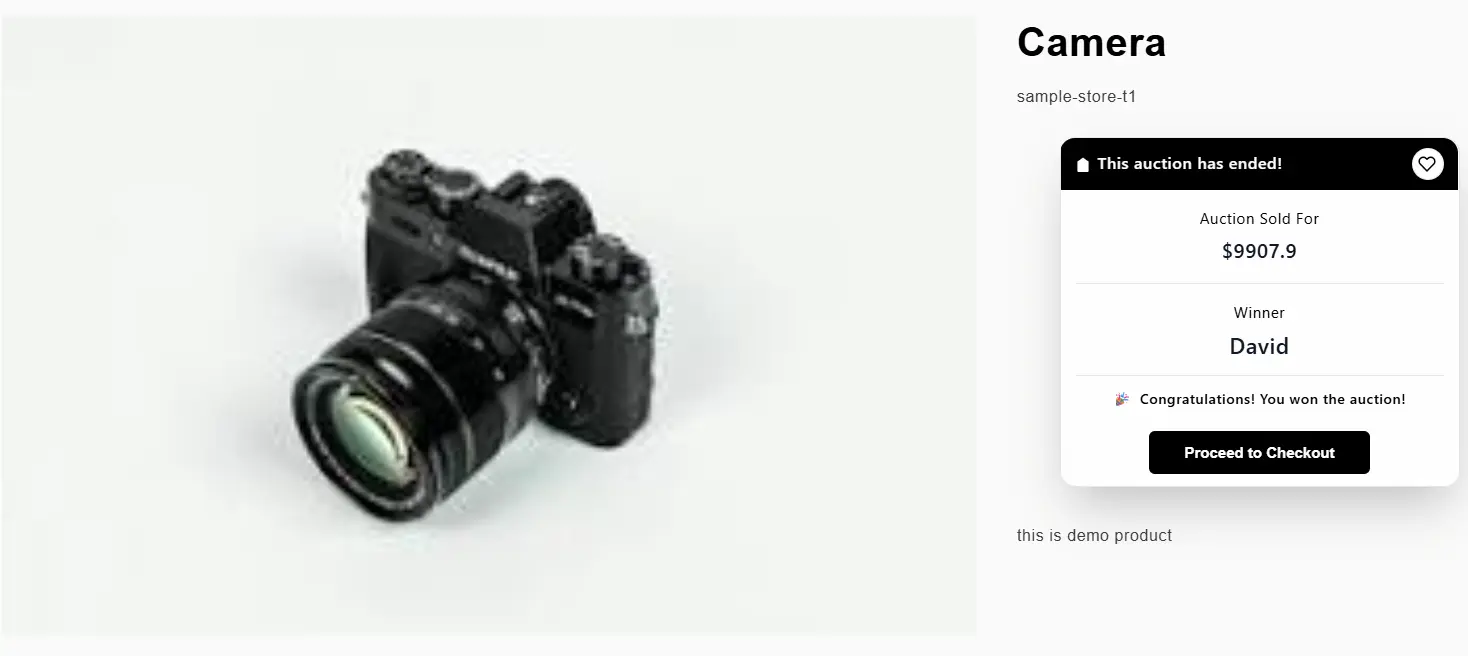
You can customize the Auction Widget Display Settings to hide unnecessary fields in the upcoming or completed auction blocks for a clean and sleek storefront appearance.
Note: Multi-Currency support and Bid Confirmation Popup setting are not available in Dutch Auctions.