
Relist Unsuccessful Auctions
Give your unsold items unlimited second chances by easily relisting unsuccessful auctions with updated settings.
Description
The Relist Unsuccessful Auctions feature allows user to easily relist auctions that didn't sell due to no bids or bids below the reserve price. Users can identify unsuccessful auctions in the auction list, click the relist icon, and update all auction parameters while keeping the same product. The feature includes a confirmation modal warning about data deletion and creates a new auction without affecting the auction creation count, giving unsold items unlimited second chances.
Video Tutorial
How it works
Step 1: Access Auction List
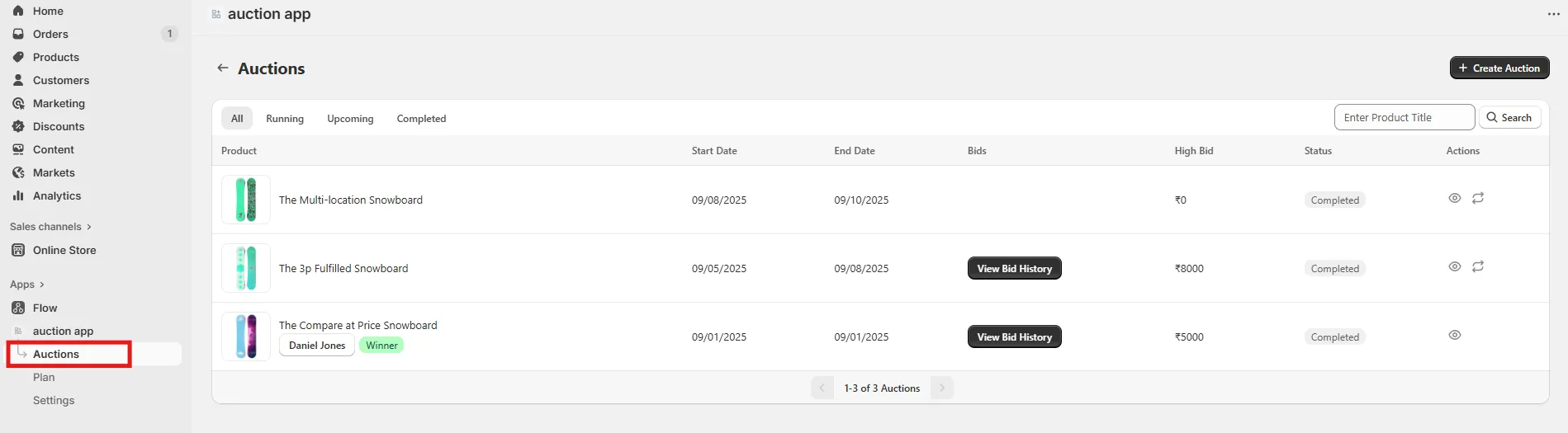
Go to the Auction List page in your installed app to view all your auctions.
Step 2: Identify Unsuccessful Auctions
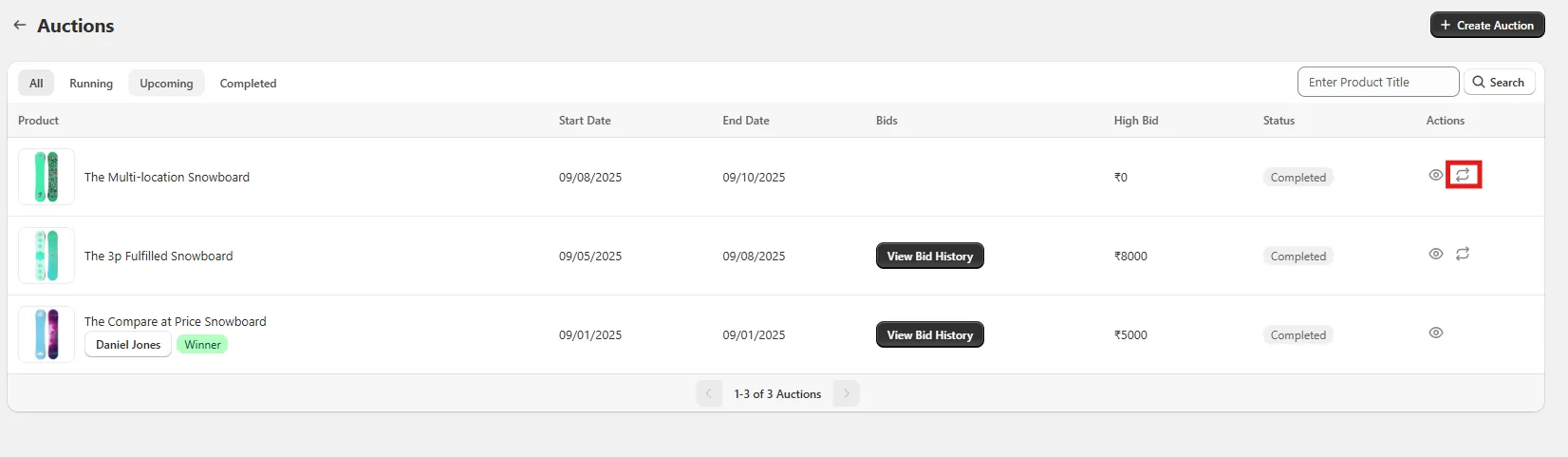
Look for auctions with "Completed" status that are unsuccessful, you'll see a Relist icon in the action column. These are auctions where either no bids were placed or the highest bid was below the reserve price. Click this Relist icon to start the relisting process.
Step 3: Update Auction Settings
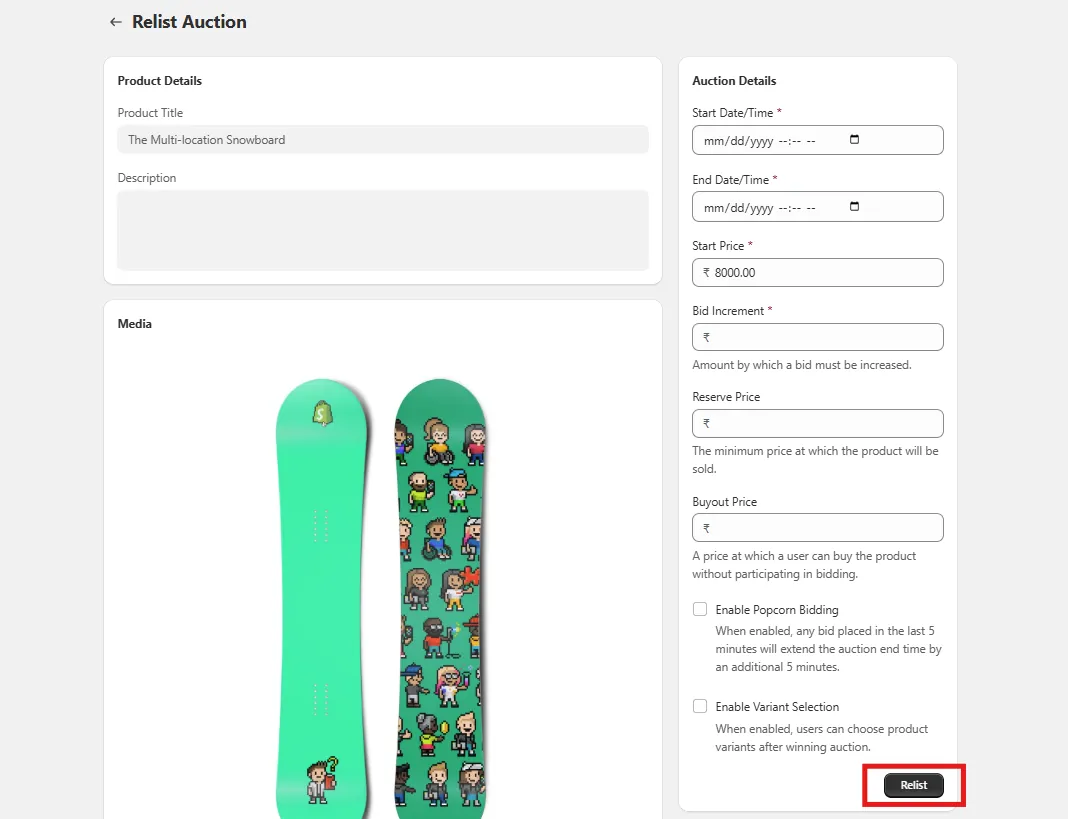
The relist page will open with your product already selected (you cannot change the product). From here, you can update all auction details:
- Starting price
- Auction duration
- Reserve price
- Buyout price
- All other auction parameters
Step 4: Confirm Relisting
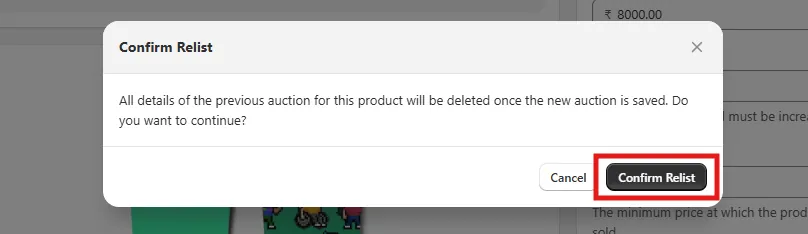
Once you've adjusted your settings, click the Relist button. A confirmation modal will appear with a warning that all previous auction data will be deleted.
Step 5: Complete Relisting
If you confirm the relisting, your auction will be created as a new auction with the updated settings.
- Note: Relisting won’t affect your auction creation limit.