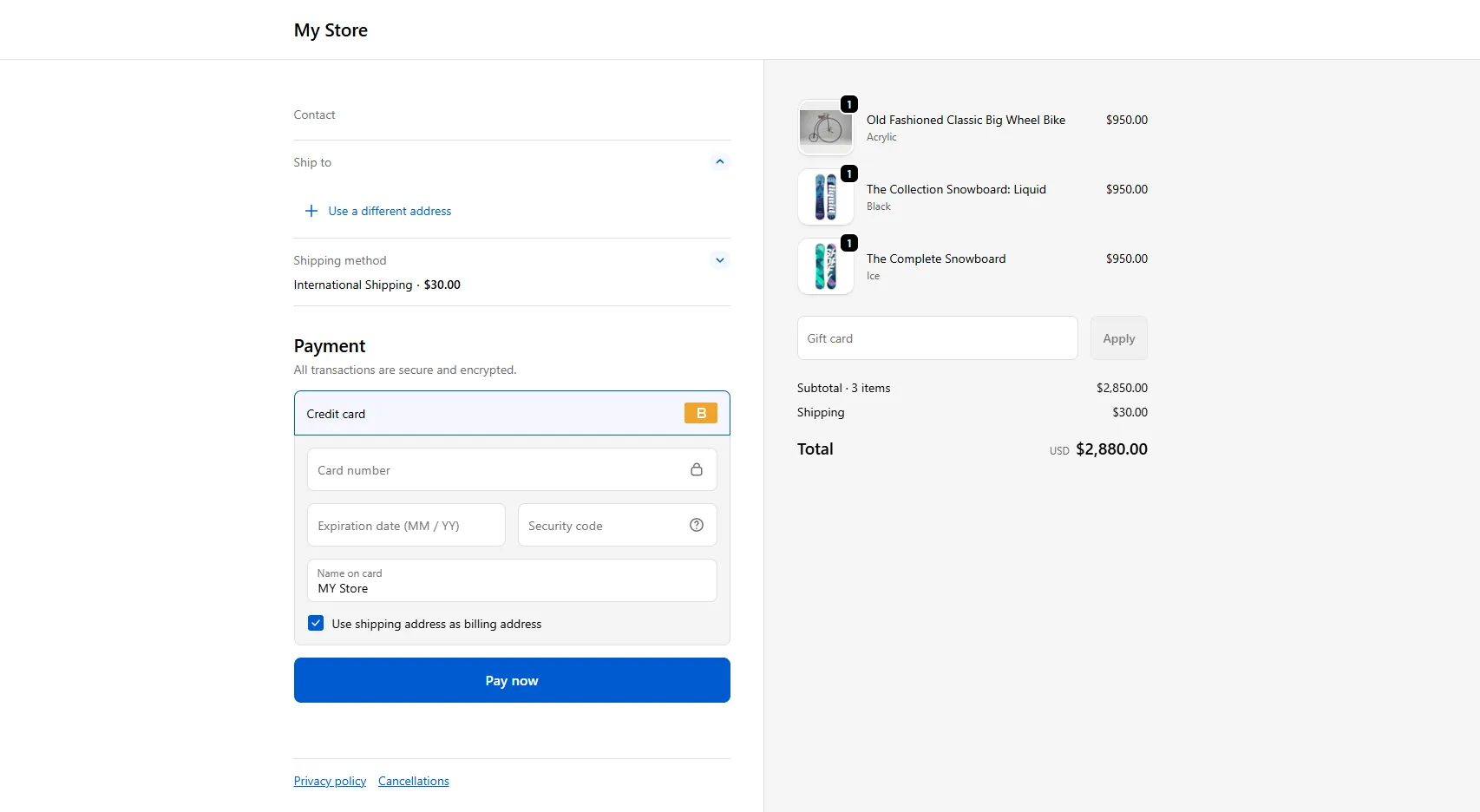
Group Order
Combine multiple auction wins into a single order for easy purchase and management.
Description
Group Order lets customers combine multiple items they’ve won in auctions into a single order, making checkout faster for customers and easier for merchants to manage orders.
Video Tutorial
How it works
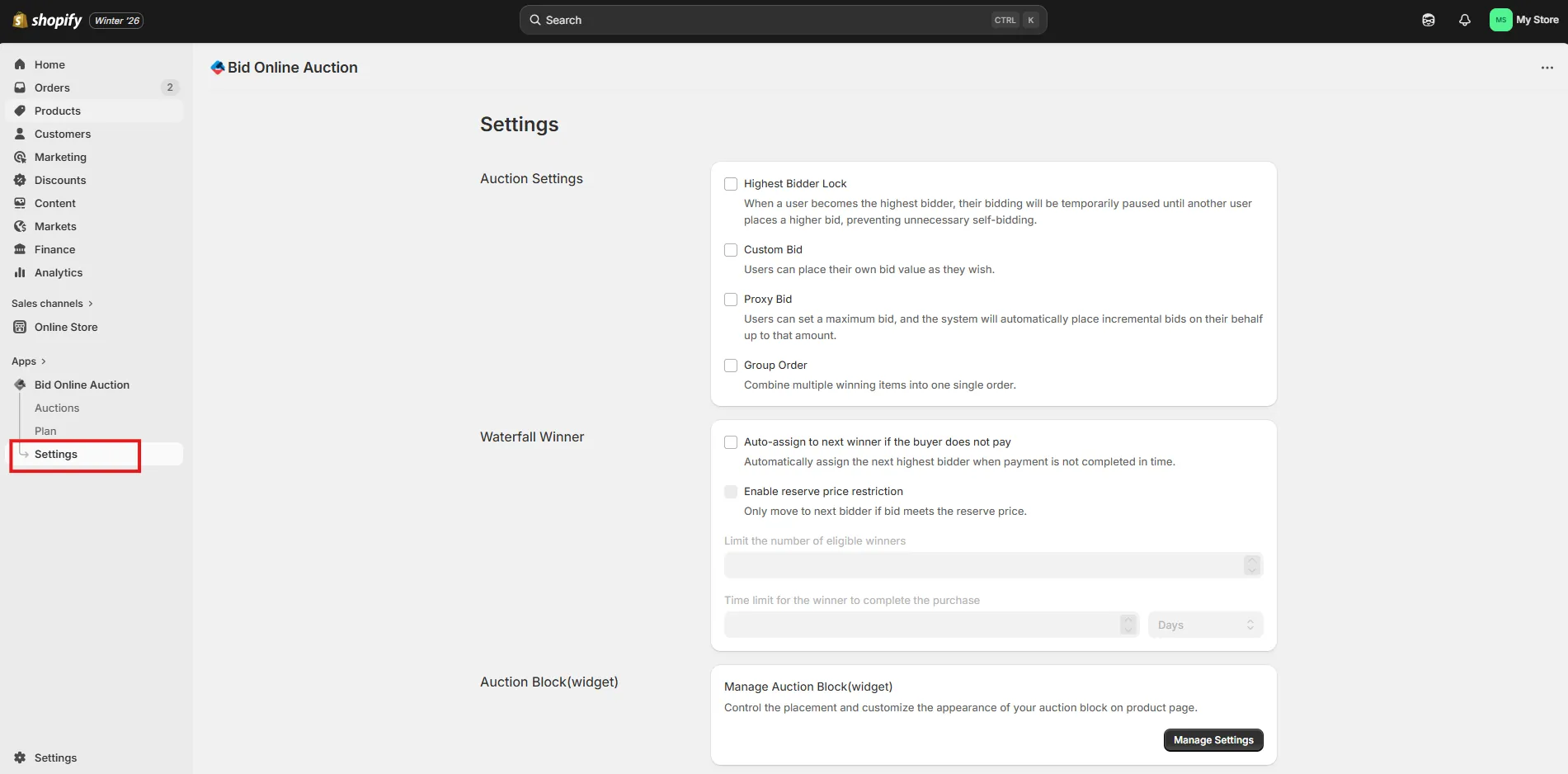
Step 1: Access Settings Page
Go to the Settings page in your installed app to access various configuration options.
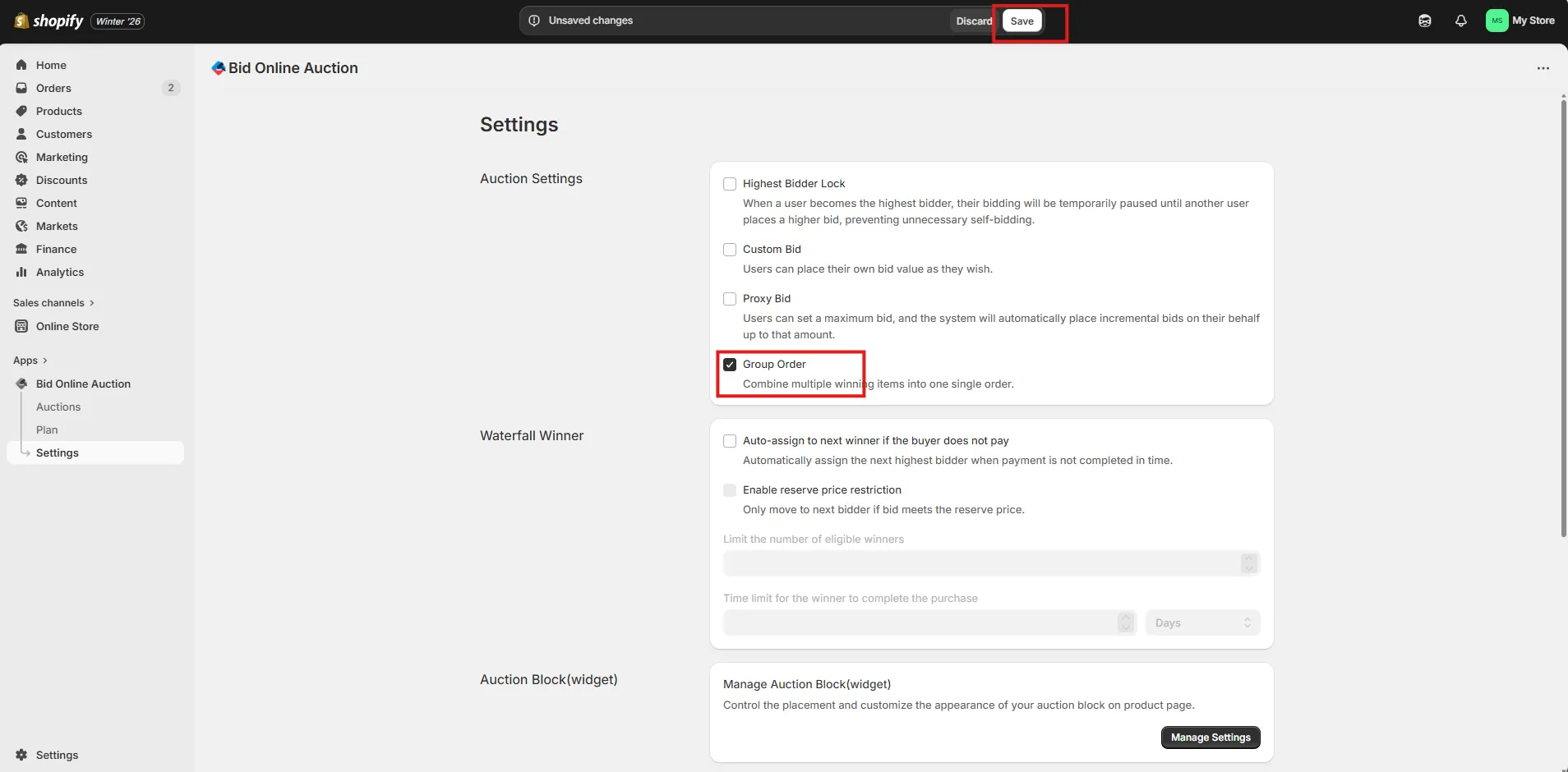
Step 2: Enable Group Order
Check the Group Order option.
When enabled, customers can combine multiple winning auctions into a single order. This makes checkout faster for buyers and simplifies order management for merchants.
After enabling the feature, click Save Settings to update your auction settings.
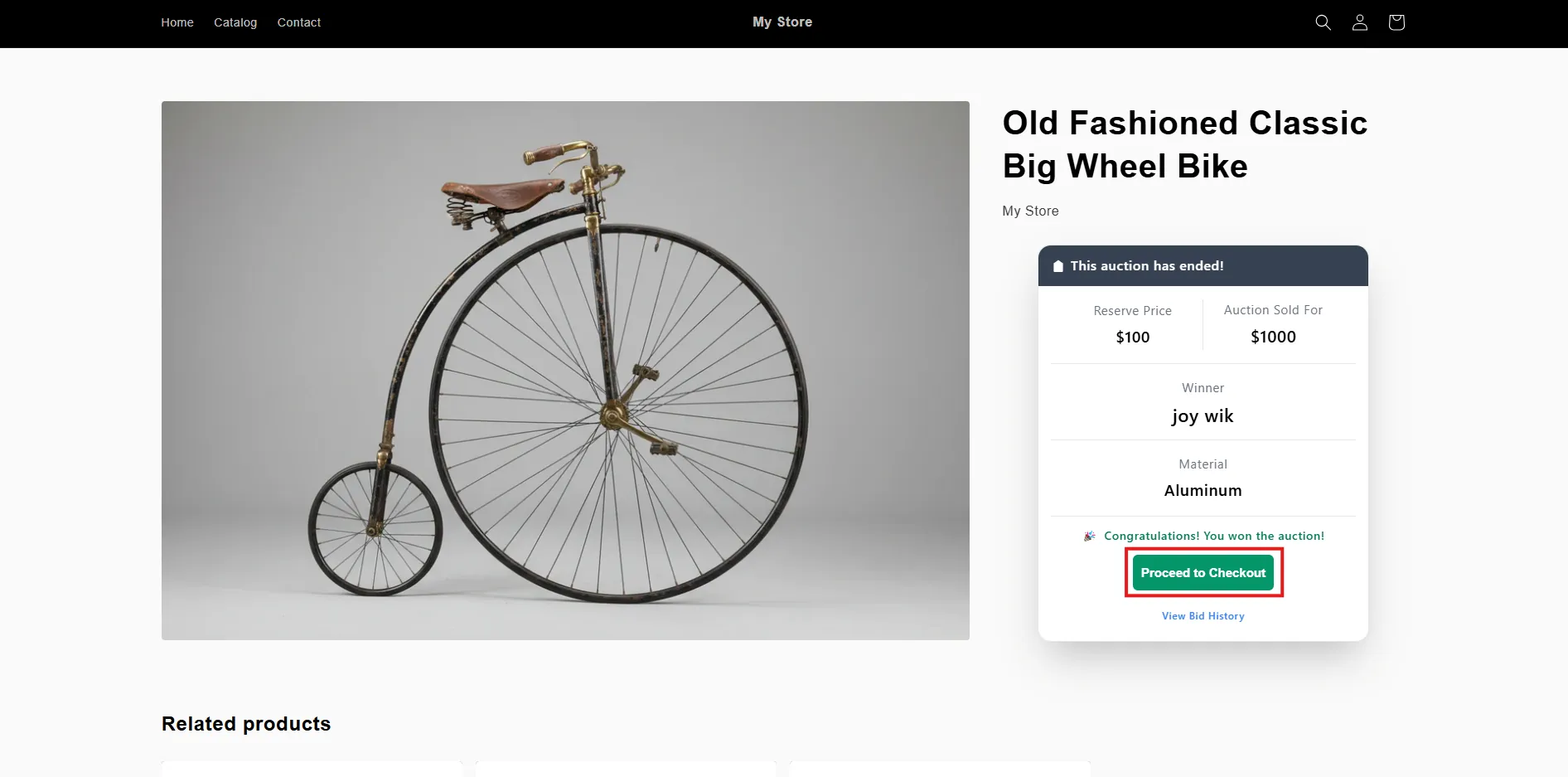
Step 3: Click the "Proceed to Checkout" Button on Auction Page
On the live auction page, winner will see a "Proceed to Checkout" button inside the auction block.
Click this button to open the Group Order modal.
Step 4: Select the Items for Checkout
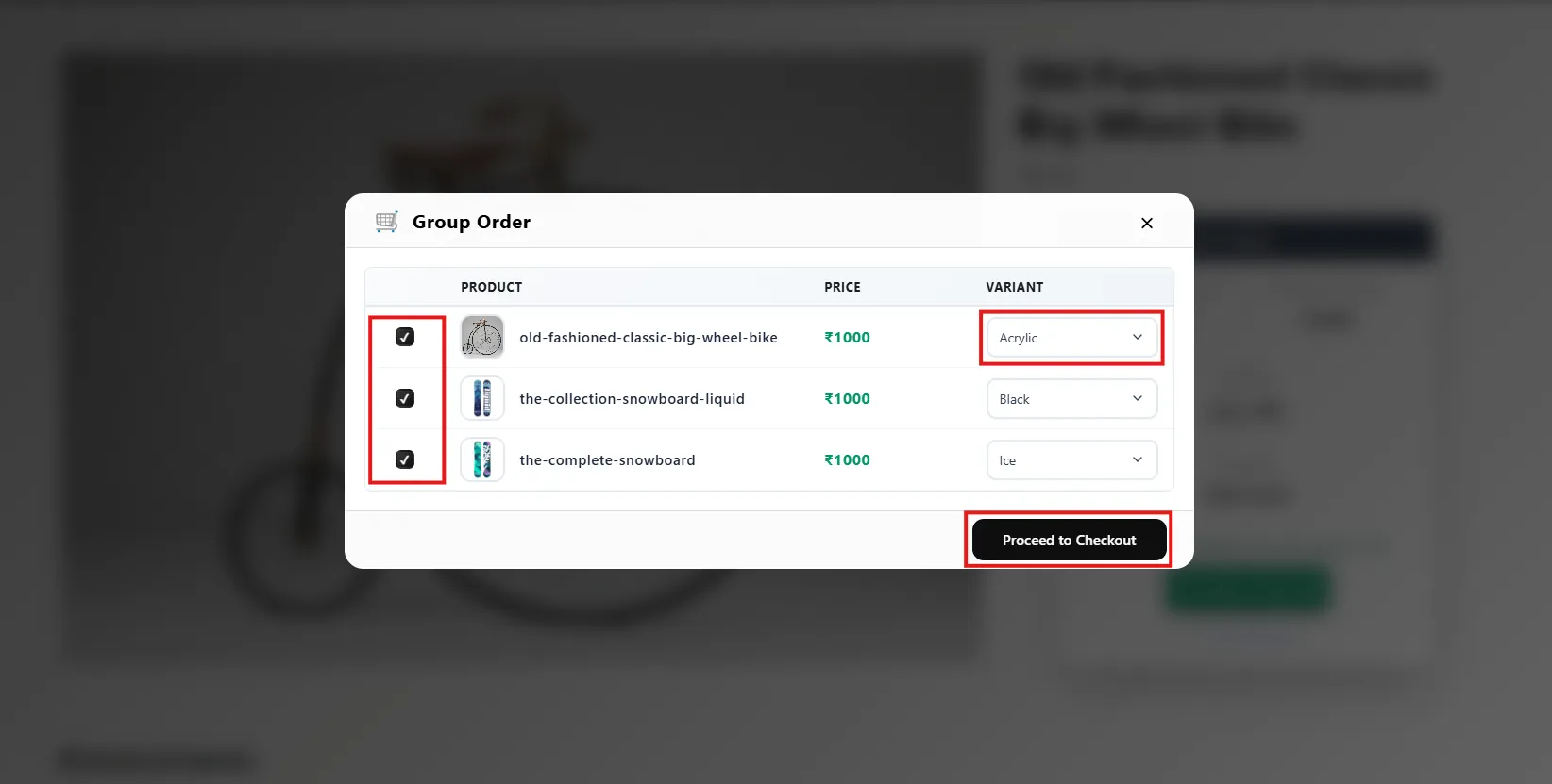
A modal popup will appear containing all of your winning auction items, along with all cart items.
Select the desired items and variants, then click the "Proceed to Checkout" button.
Step 5: Group Order Checkout
Once the group order is created:
You will be redirected to the checkout page where all selected auction items will be grouped together in a single order.