
Product Card Widget
Show auction details directly on product cards in collection pages.
Description
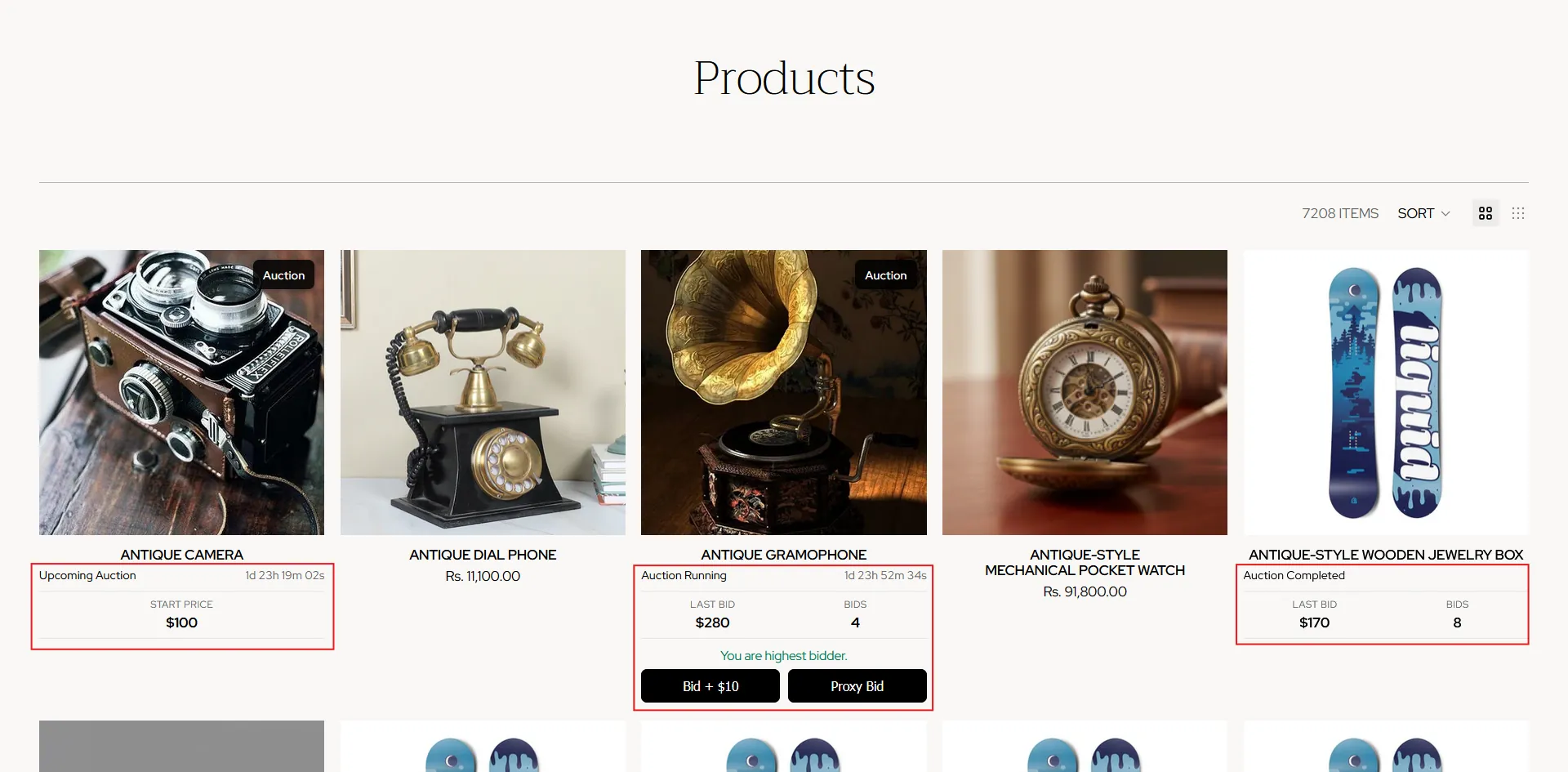
The Product Card Widget feature allows merchants to display an auction widget directly on product cards across collection pages. It showcases live auction status, current bid, and countdown timers, helping customers discover auctions faster and increasing engagement without navigating to the product page.
- If you need any assistance setting up Product Card Widget, feel free to contact our support team at info@bidonlineauction.com.
- If you are a Pro+ plan subscriber, we can also create a custom auction block design for your product cards.
Video Tutorial
How it works
Step 1: Go to Product Card Widget Management
In the installed app, go to Settings, then navigate to Manage Product Card Widget to configure the auction widget for product cards on your storefront.
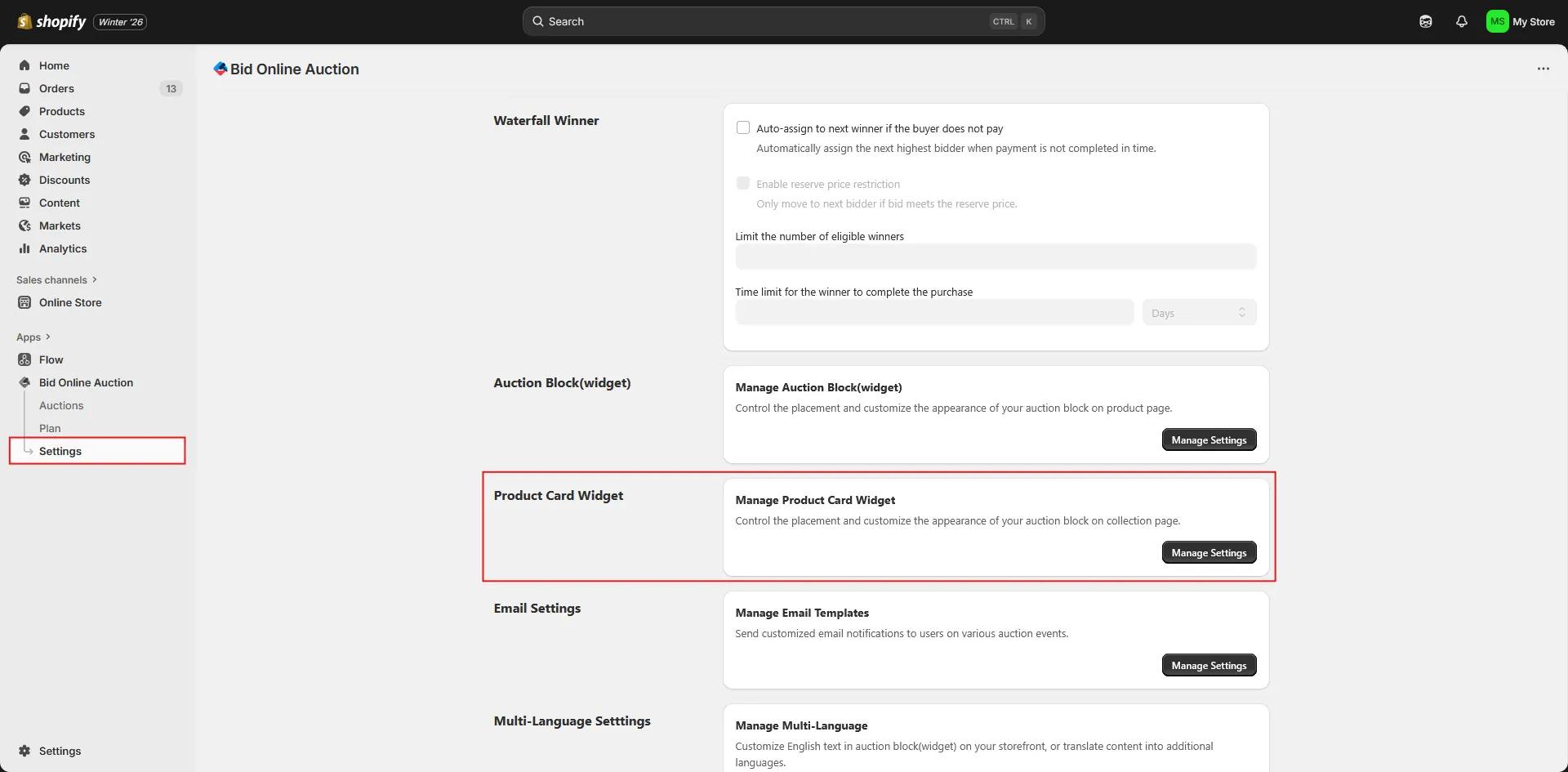
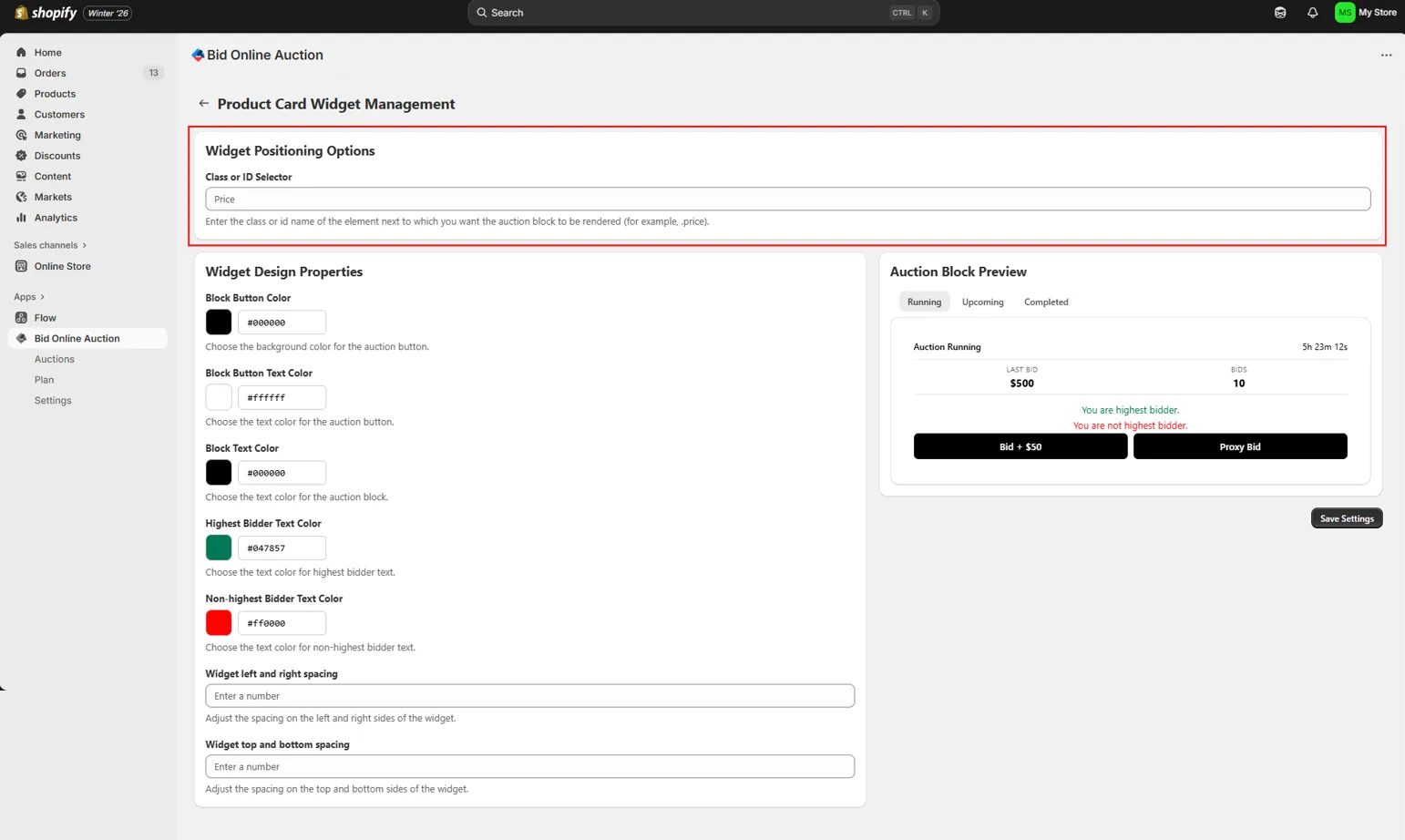
Step 2: Configure Widget Positioning Options
In the Widget Positioning Options section, locate the "Class or ID Selector" field.
Add the class or ID selector of the element next to which you want the auction widget to be rendered on the product card.
For example: .price, #product-price
This tells the app exactly where to inject the auction widget within each product card on the collection page.
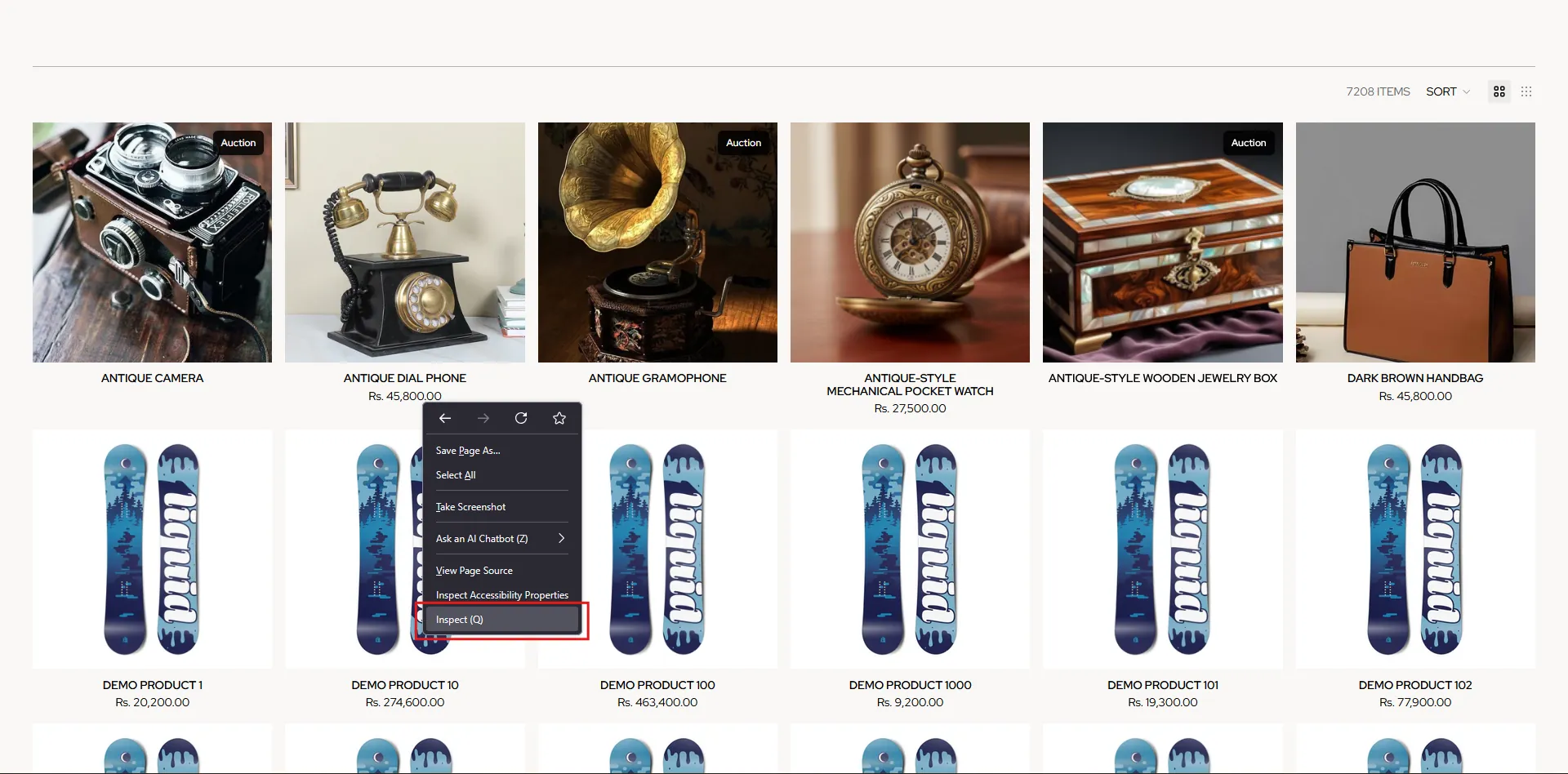
🧩 Tip: Use your browser’s developer tools (right-click → Inspect) on a collection page to identify the correct class or ID selector for accurate placement.
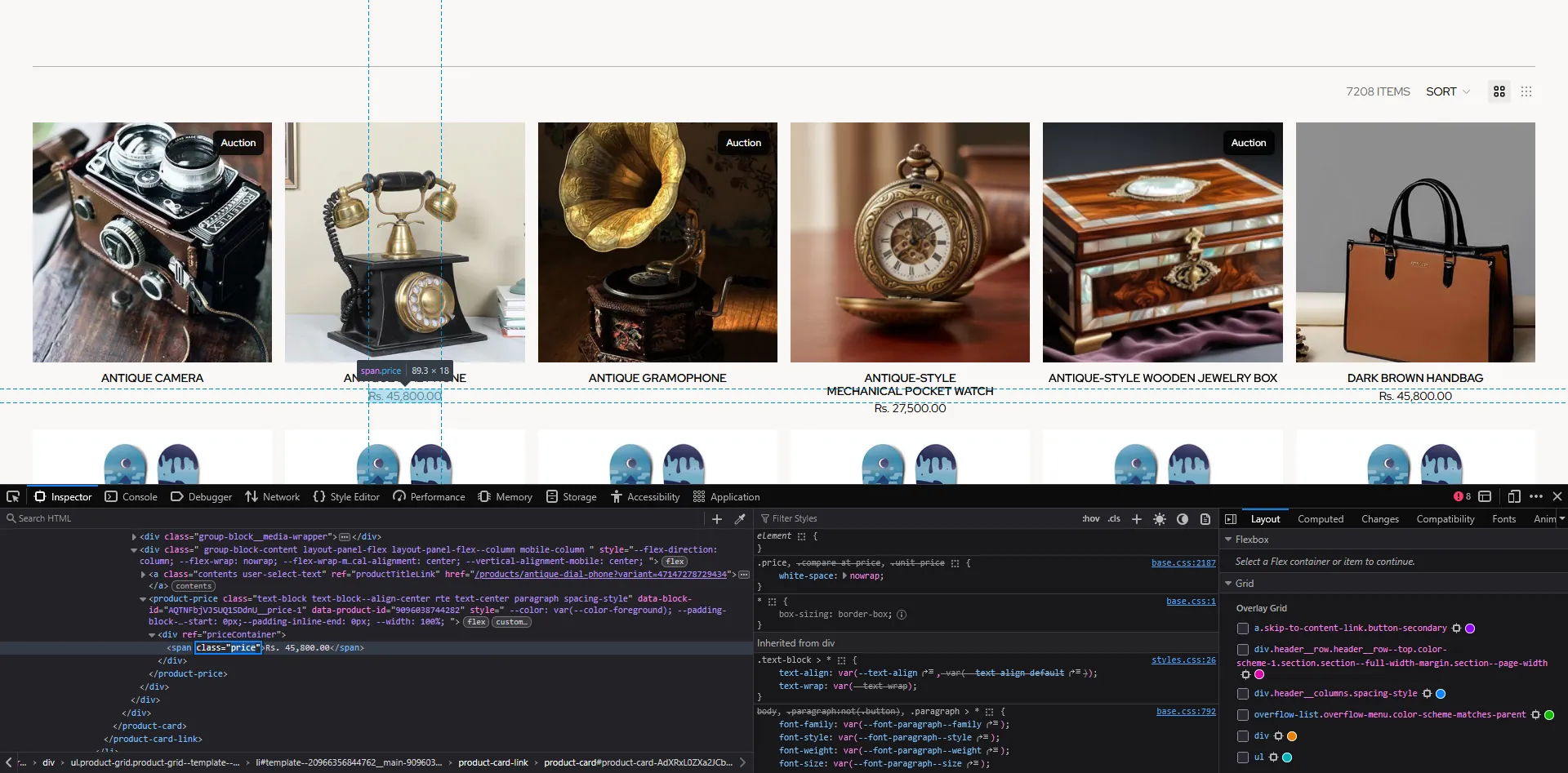
Step 3: Customize Widget Design Properties
In the Widget Design Properties section, you can personalize the visual appearance of the product card auction widget.
Available customization options include:
- 🔤 Auction Badge Text Color — Customize the text color of the badge.
- 🏷️ Auction Badge Background Color — Change the background color of the badge.
- 🔘 Block Button Color — Change the background color of the action button.
- 🔤 Block Button Text Color — Customize the text color of the button.
- 📝 Block Text Color — Adjust the text color used inside the widget.
- 🏆 Highest Bidder Text Color — Set the text color displayed for the current highest bidder.
- 👥 Non-highest Bidder Text Color — Set the text color for bidders who are not the highest.
- ↔️ Widget Left and Right Spacing — Control horizontal spacing inside the widget.
- ↕️ Widget Top and Bottom Spacing — Control vertical spacing inside the widget.
- 📏 Font Size — Adjust the font size of the text.
- 🔤 Font Weight — Customize the font weight of the text.
The changes you make will be reflected in different views of the auction block depending on the auction status (e.g., upcoming, live, ended).
You can preview each state in the Preview section beside the respective design settings.
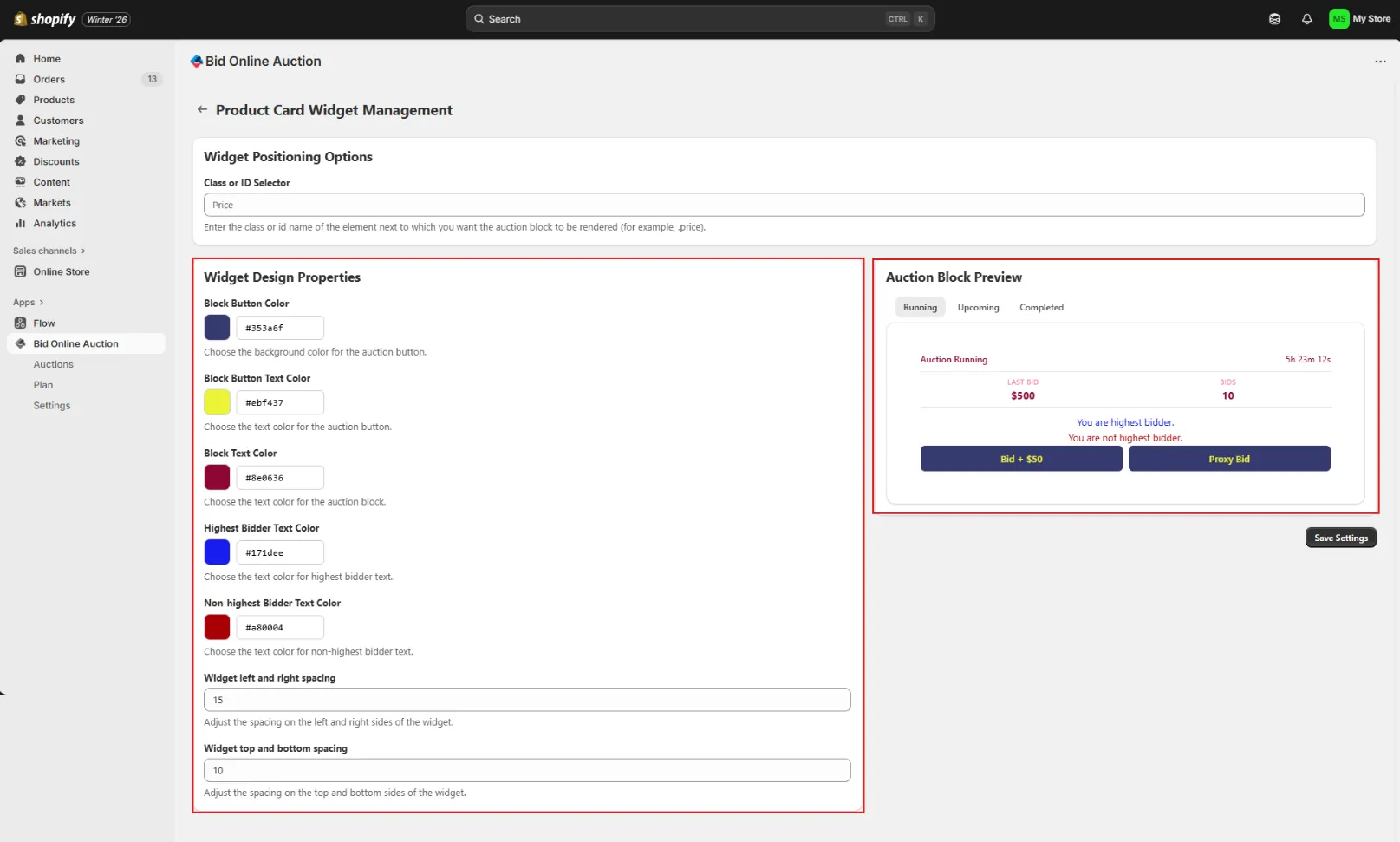
Step 4: Save and Apply Changes
Once you’re satisfied with the positioning and design, click Save to apply your changes.
The auction widget on the product cards of your collection pages will now reflect your selected styles and positioning.
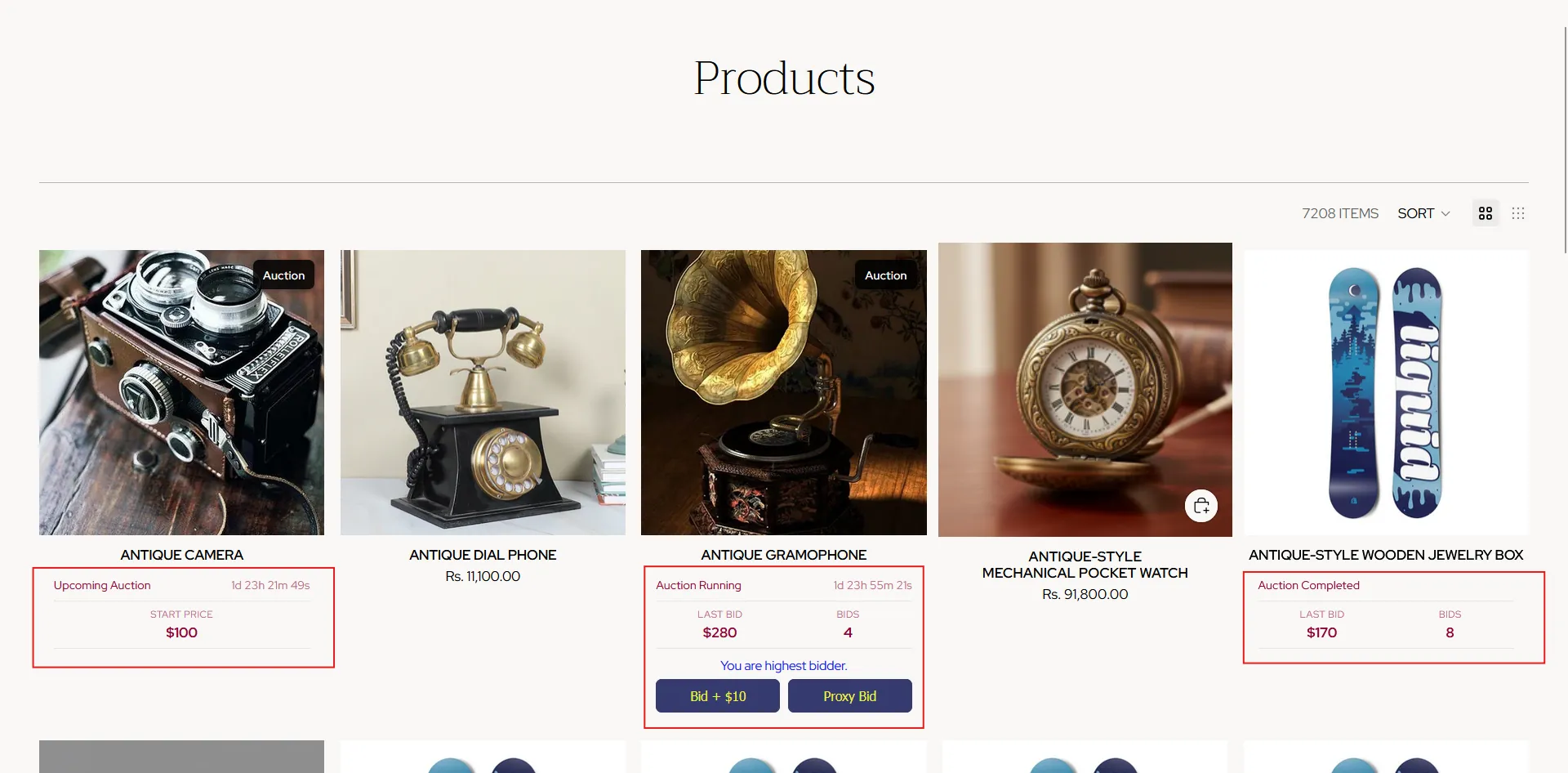
📩 Need Help?
If you need any assistance setting up or customizing the Product Card Widget, feel free to contact our support team at info@bidonlineauction.com. We’re happy to help!