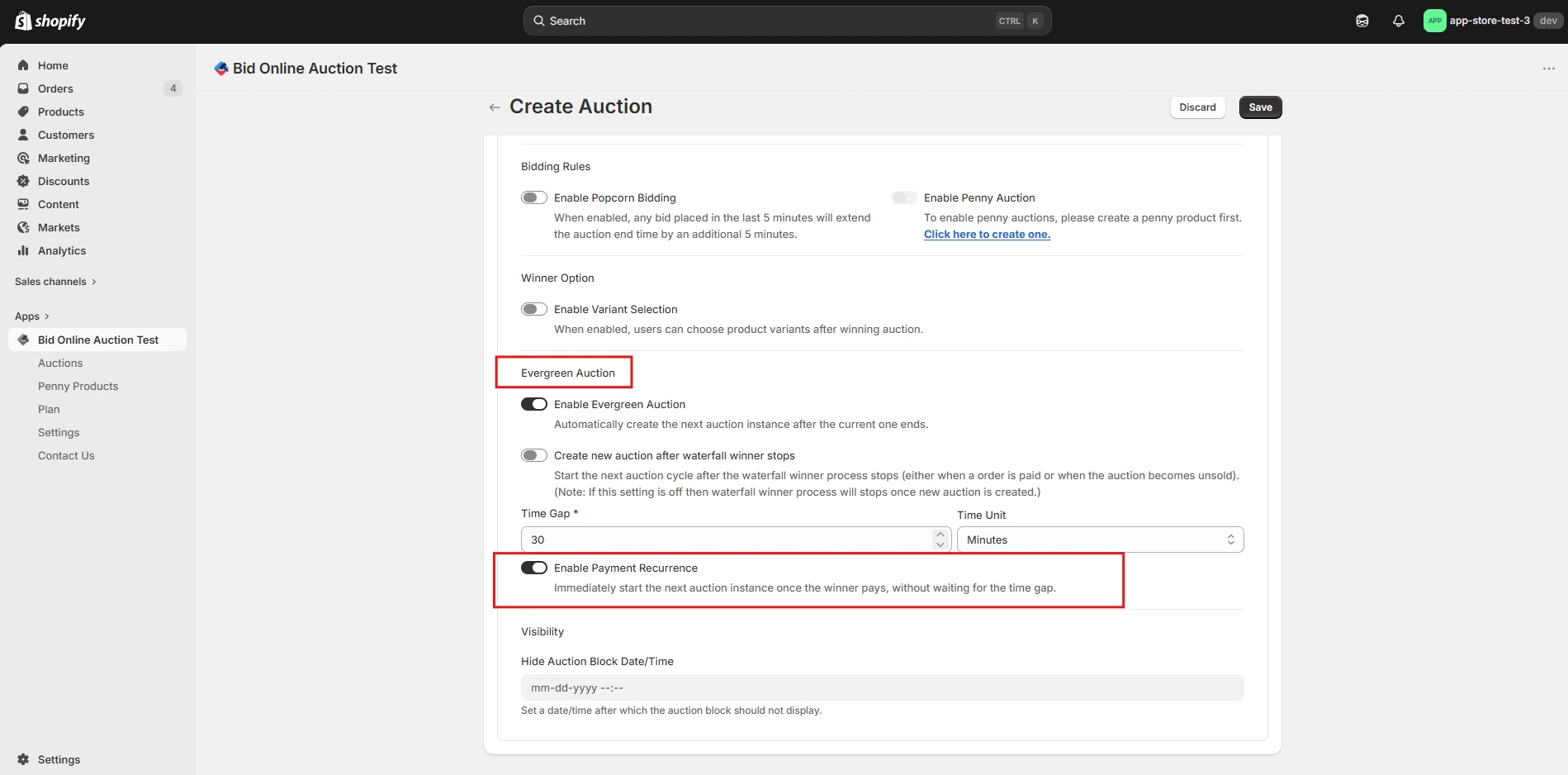
Evergreen Auction
Automate and reschedule recurring auction cycles continuously with zero manual effort.
Description
Evergreen Auction allows merchants to configure a product auction once and let the system continuously manage and reschedule recurring auction cycles automatically. It is designed to save time, keep store engagement high, and ensure products always have an active bidding cycle running.
Video Tutorial
How it works
Step 1: Create Auction
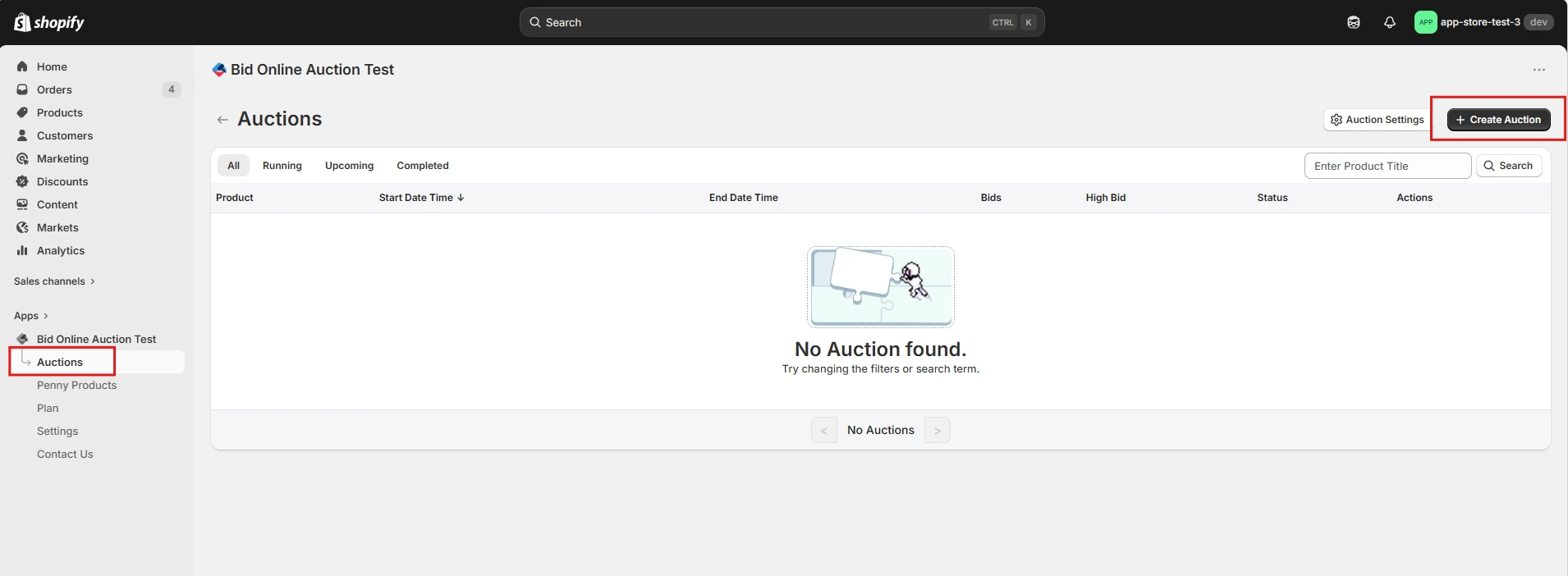
Navigate to the Auctions page in the Shopify App admin dashboard and click Create Auction button.
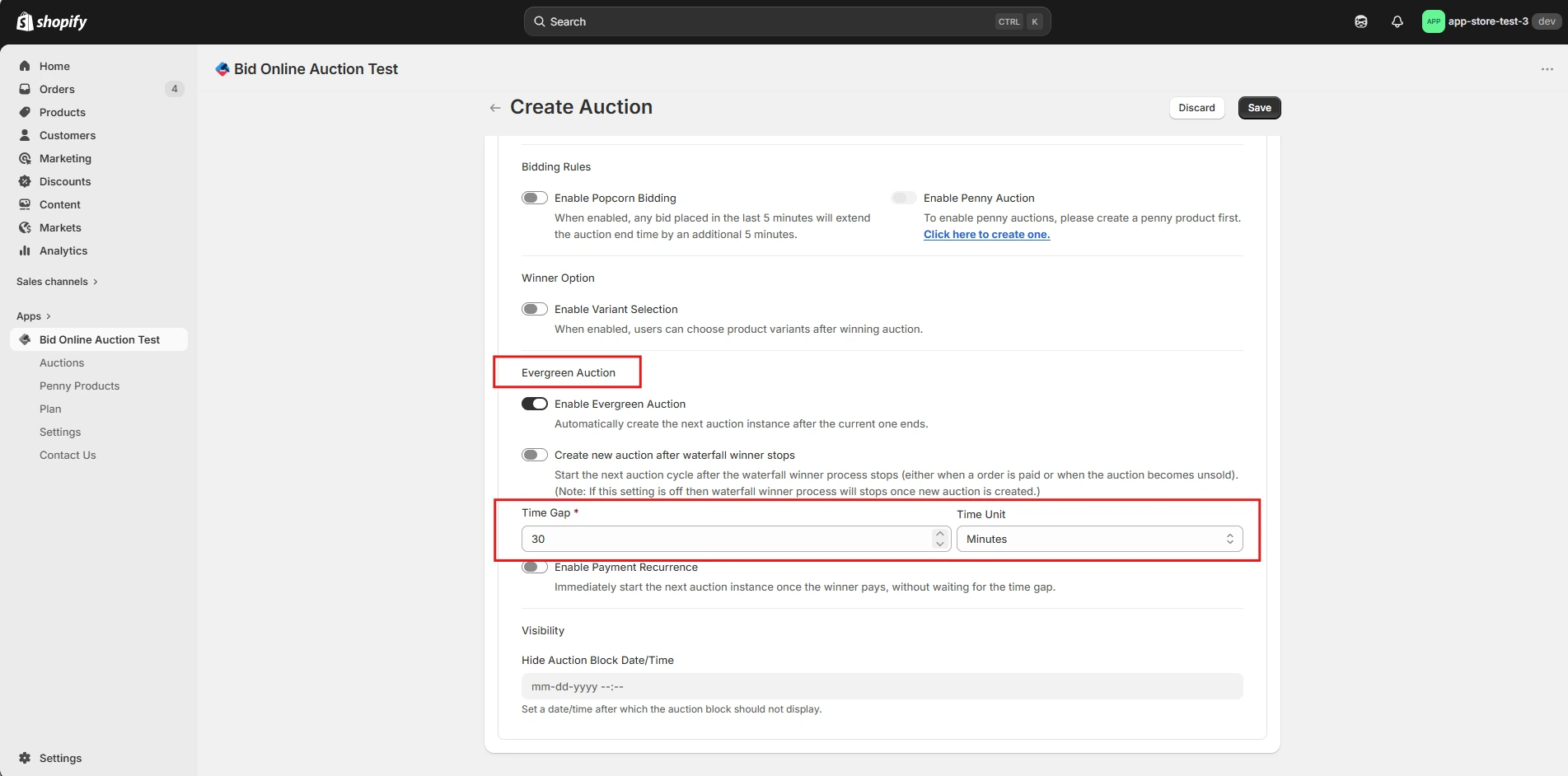
Step 2: Enable Evergreen Auction
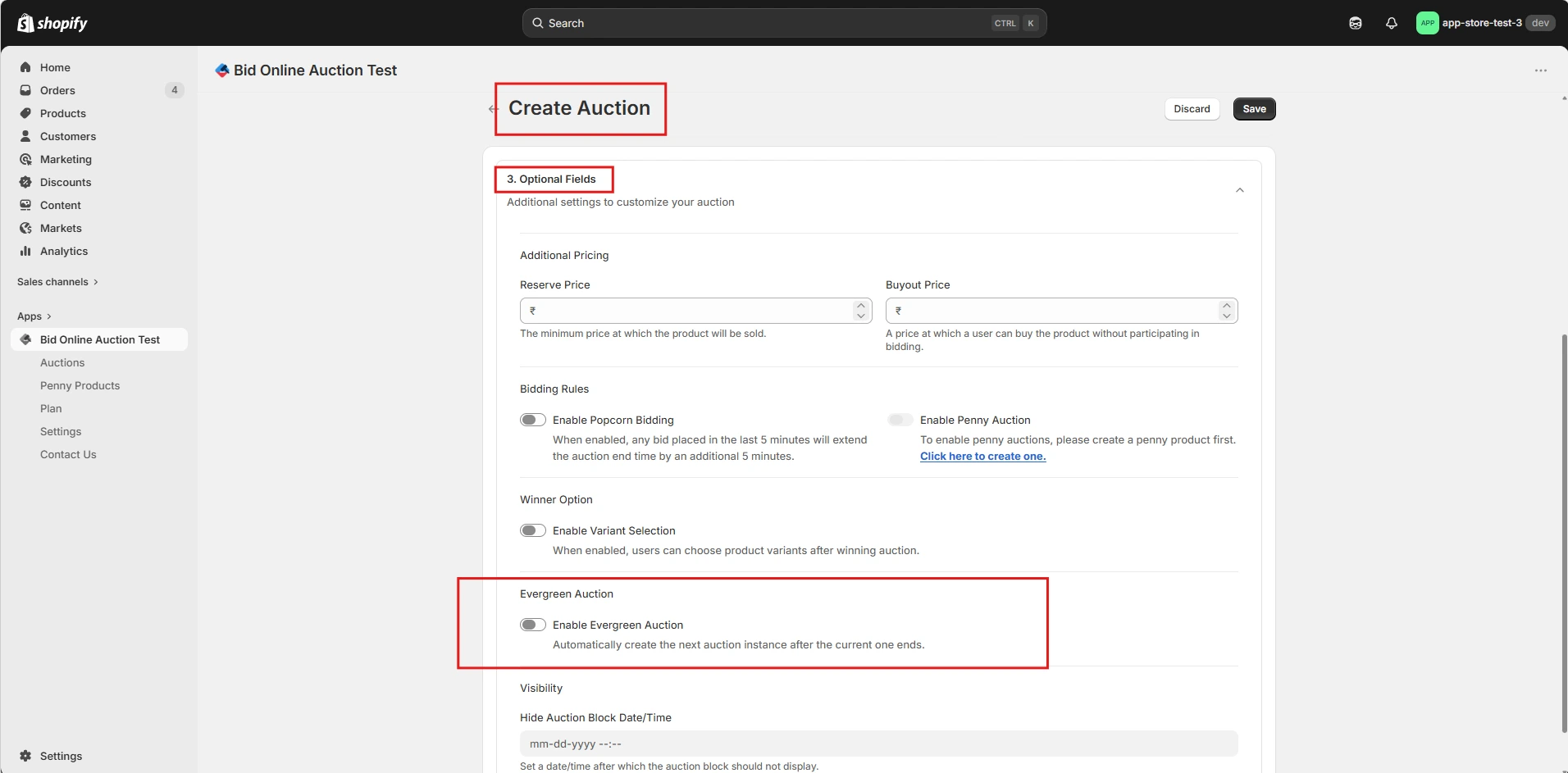
Expand Section 3: Optional Fields. Scroll down to the Evergreen Auction group and toggle Enable Evergreen Auction to ON.
Step 3: Monitor Cloned Cycle Creation
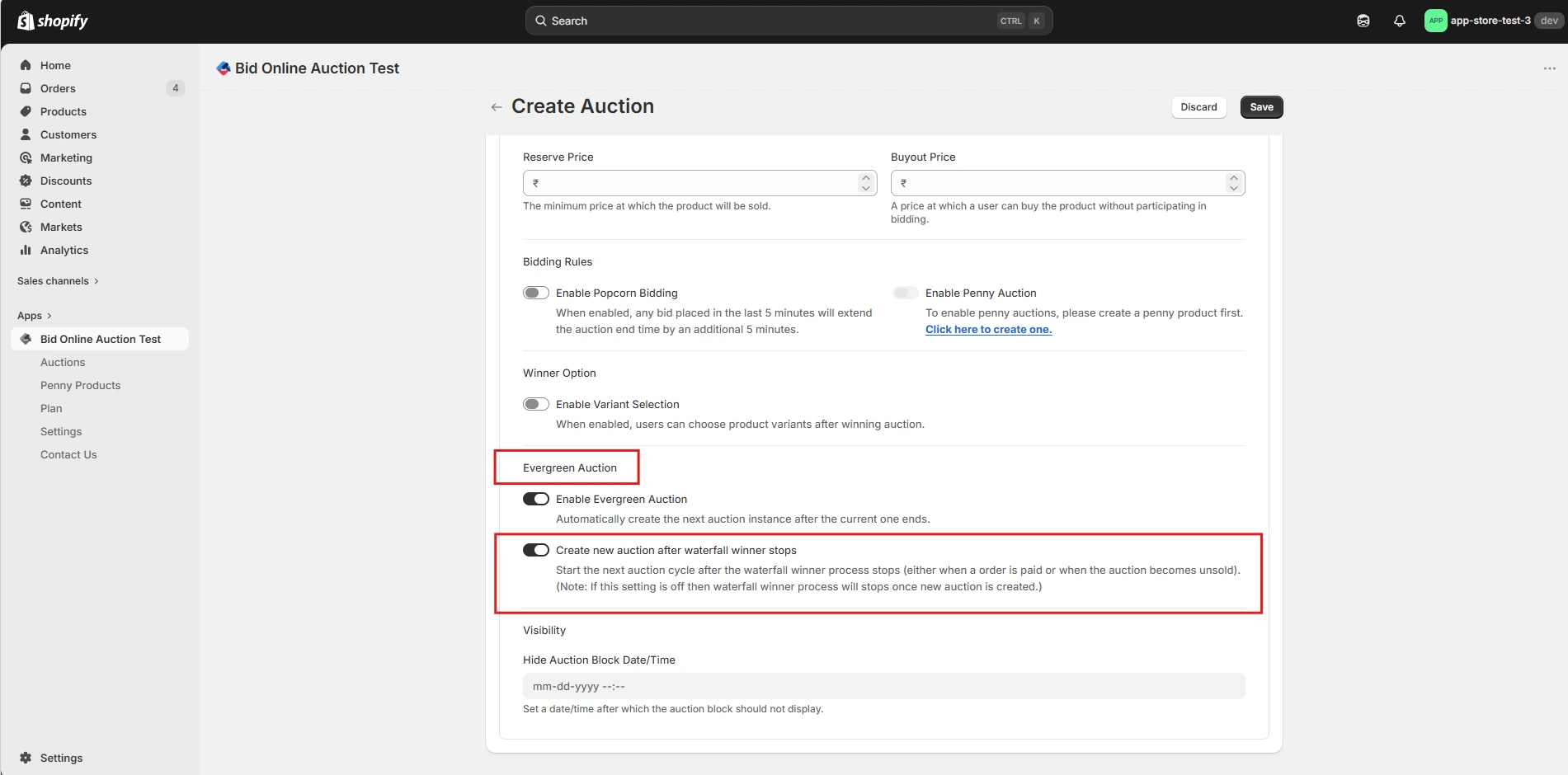
Once an auction is completed, a new cycle is automatically triggered. The background engine performs all the necessary operations to seamlessly clone the auction.
- It calculates the new start and end dates based on the parent auction's duration and copies all core configurations, such as the starting price, reserve price, bid increment, and popcorn bidding settings, to the new cycle.
- Additionally, a separate bid history is maintained for each auction cycle.
Note: The winner declaration process runs independently for each auction cycle.
Step 4: Stop the Recurring Loop
You can stop the recurring cycle at any time. On the Edit Auction page, a control button will be available to end the recurring loop.
For active auctions, click Stop Recurring & End Auction to cleanly end the recurring cycle.
Step 5: Create an Order
The winning bidder will see a Create Previous Order button on the product detail page within the auction block.
Since an Evergreen Auction runs continuously, the checkout option for previously won auctions remains available within the auction block. The winning bidder can use the Create Previous Order button to create an order and complete the payment for their winning auction.