Block Positioning
Control where the auction block appears on your product page.
Description
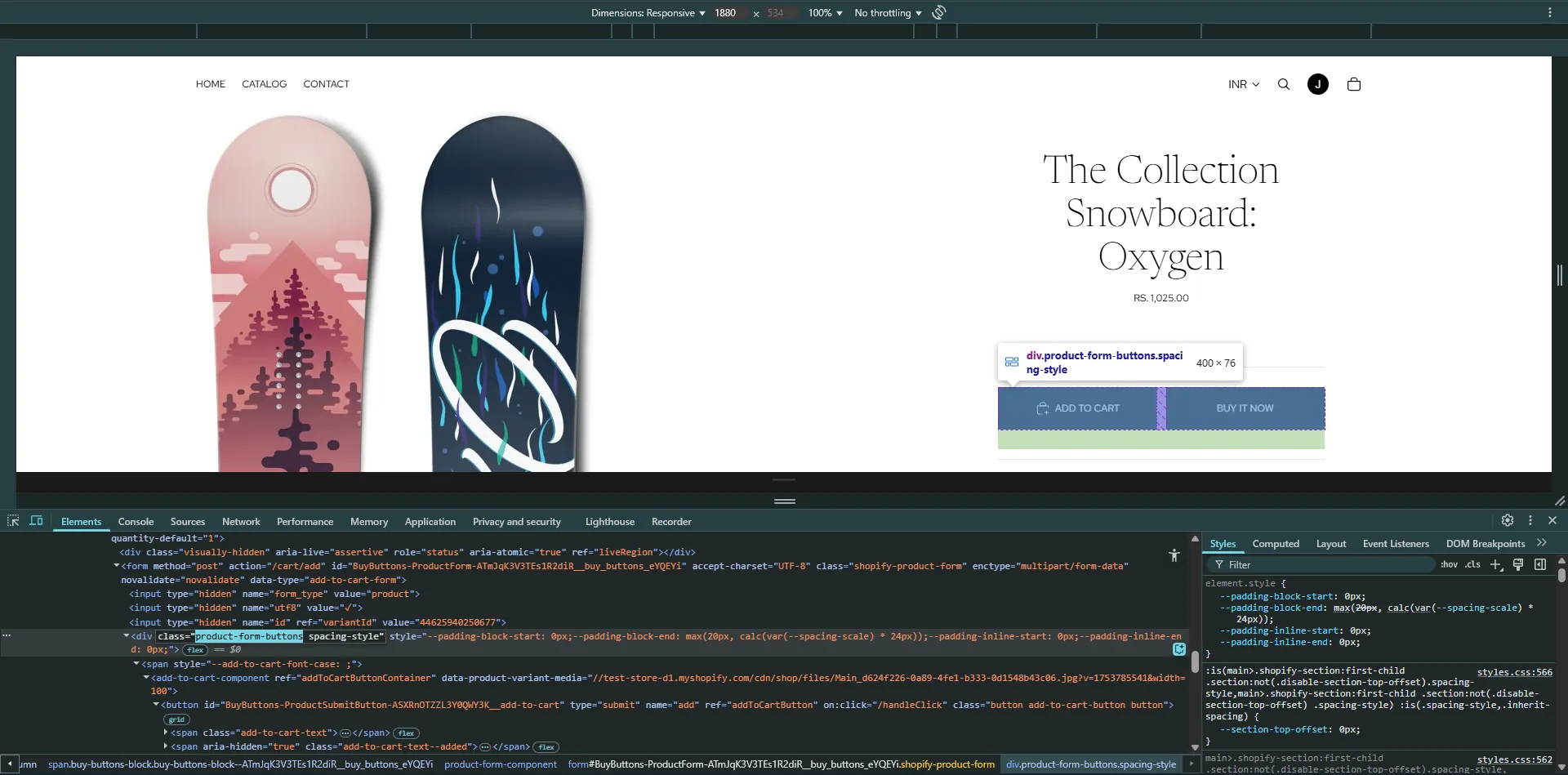
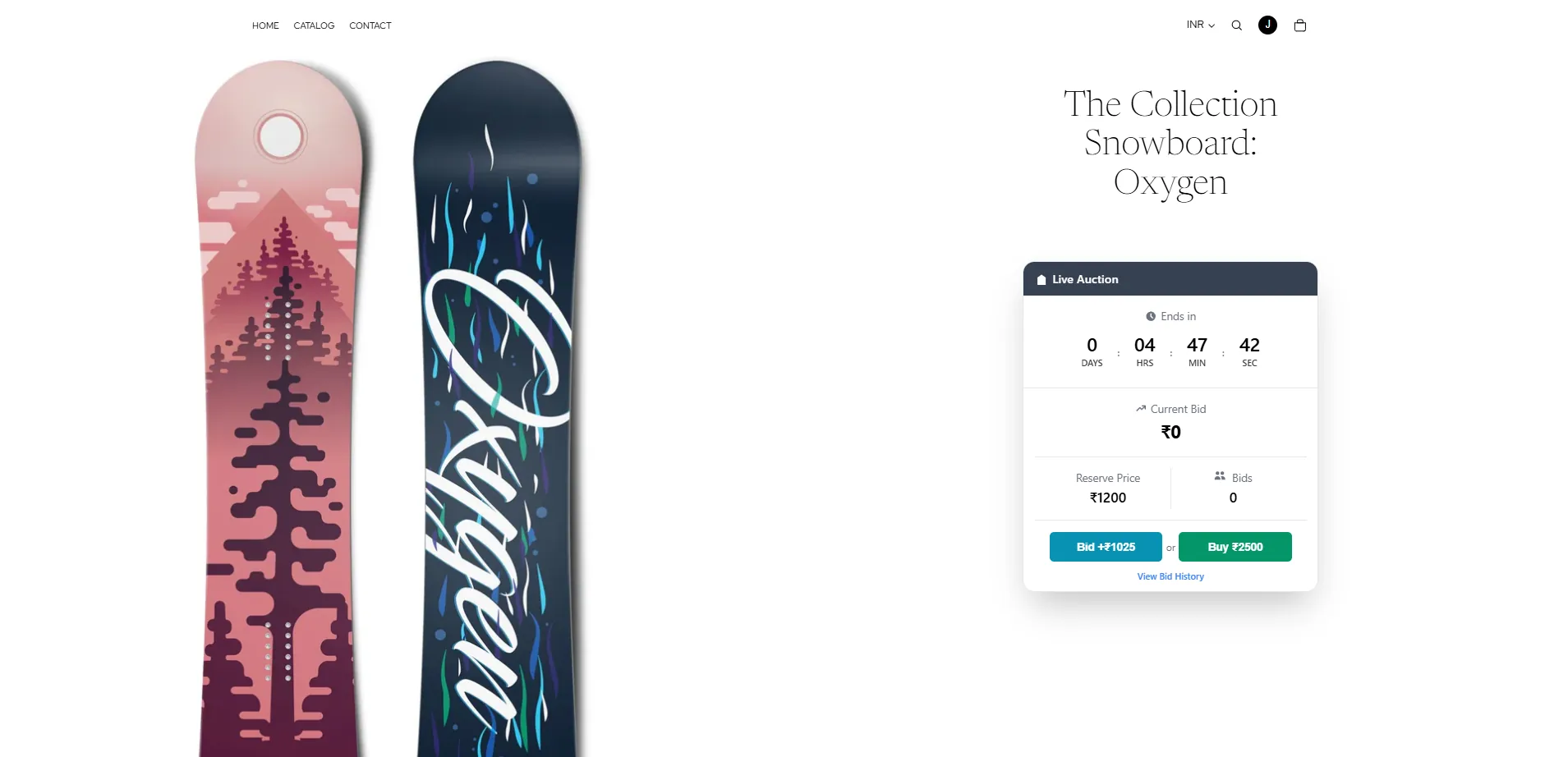
Fully compatible with all Shopify themes, the auction block works out of the box with any theme that includes the .product-form class on the product detail page, such as the Dawn theme. For custom themes, you can easily update the selector in the app's settings section to control exactly where the auction block appears. Additionally, you can specify multiple class selectors in the settings to hide specific elements on the product detail page when an auction is active.
Video Tutorial
How it works
Step 1: Use a Compatible Theme (Optional)
If you're using a Shopify theme that includes the .product-form class on the product detail page (like the Dawn theme), the auction block will automatically appear in the correct position without any setup.
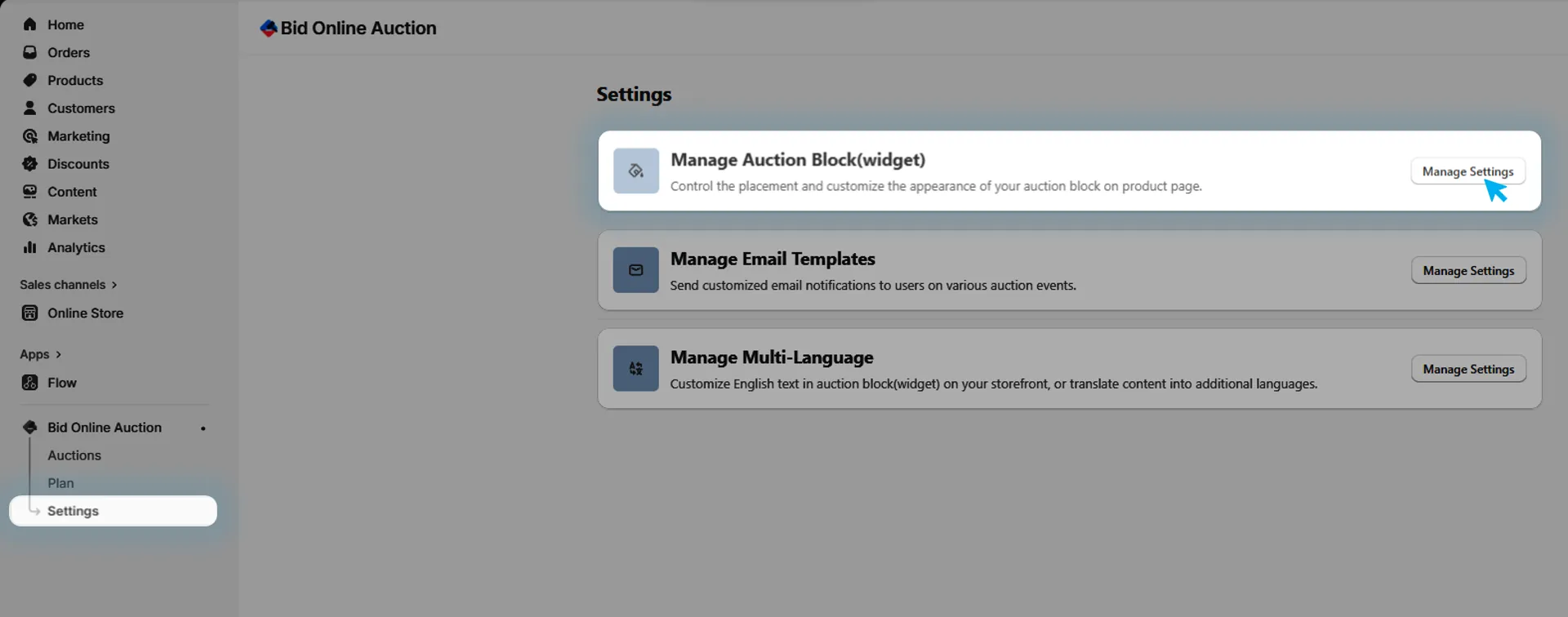
Step 2: Open Auction Block(widget) Management
In the installed app, go to Settings and in that Manage Auction Block(widget) to manage auction block(widget) positioning on store front.
Step 3: Update the Selector (For Custom Themes)
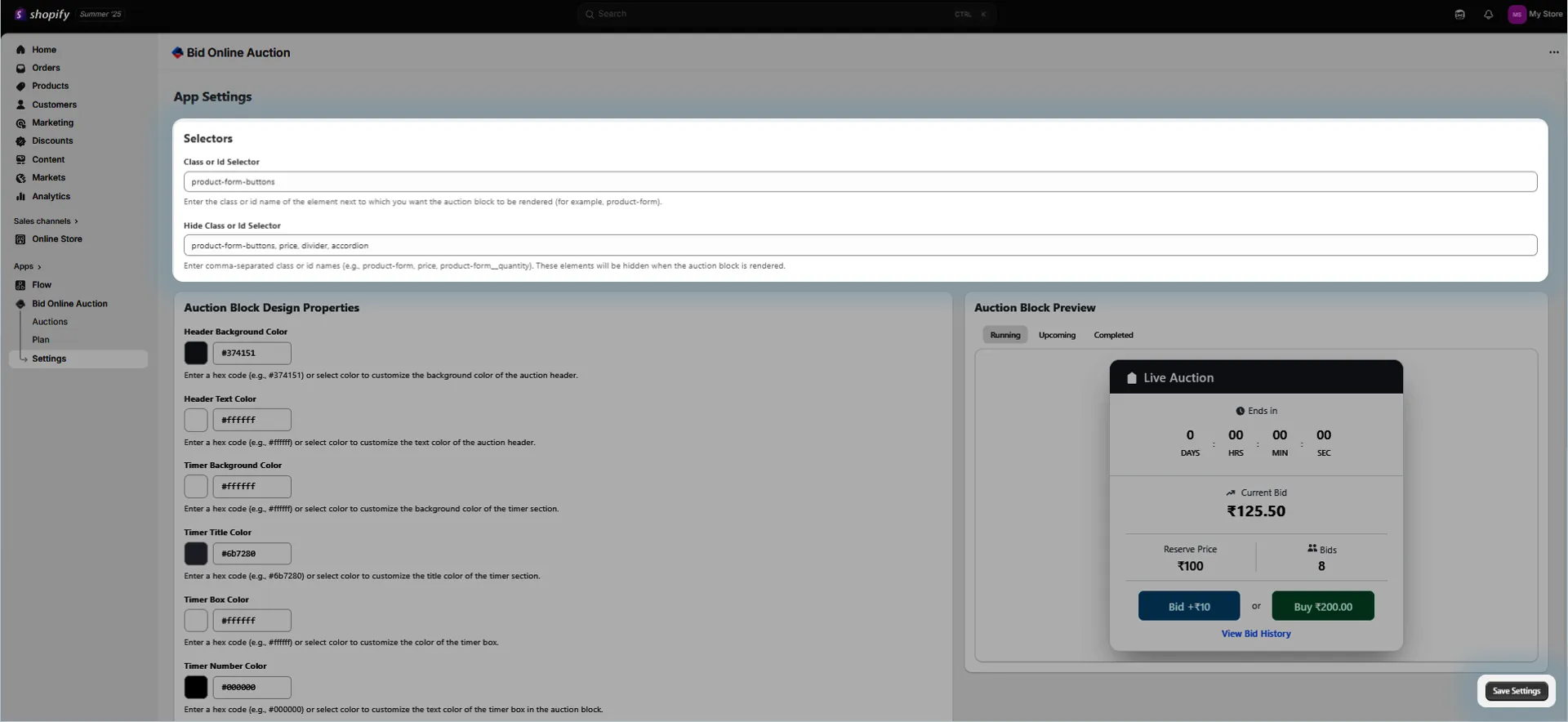
If your theme is custom or structured differently, locate the "Block Selector" input field and enter the class or id selector where you want the auction block to appear.
For example: product-section or form-container
This tells the app where to inject the auction block on your product page.
Step 4: Add Hide Selectors (Optional)
You can also specify multiple class or id selectors(comma seperated) in the settings to hide specific elements on the product detail page when an auction is active.
For example: product-price, add-to-cart
This ensures that only the auction interface is visible when applicable.
Step 5: Save and Preview
Save your settings and visit a product page with an active auction.
Confirm that:
- The auction block appears in the correct location.
- Any hidden elements are no longer visible when the auction is active.
Before
After
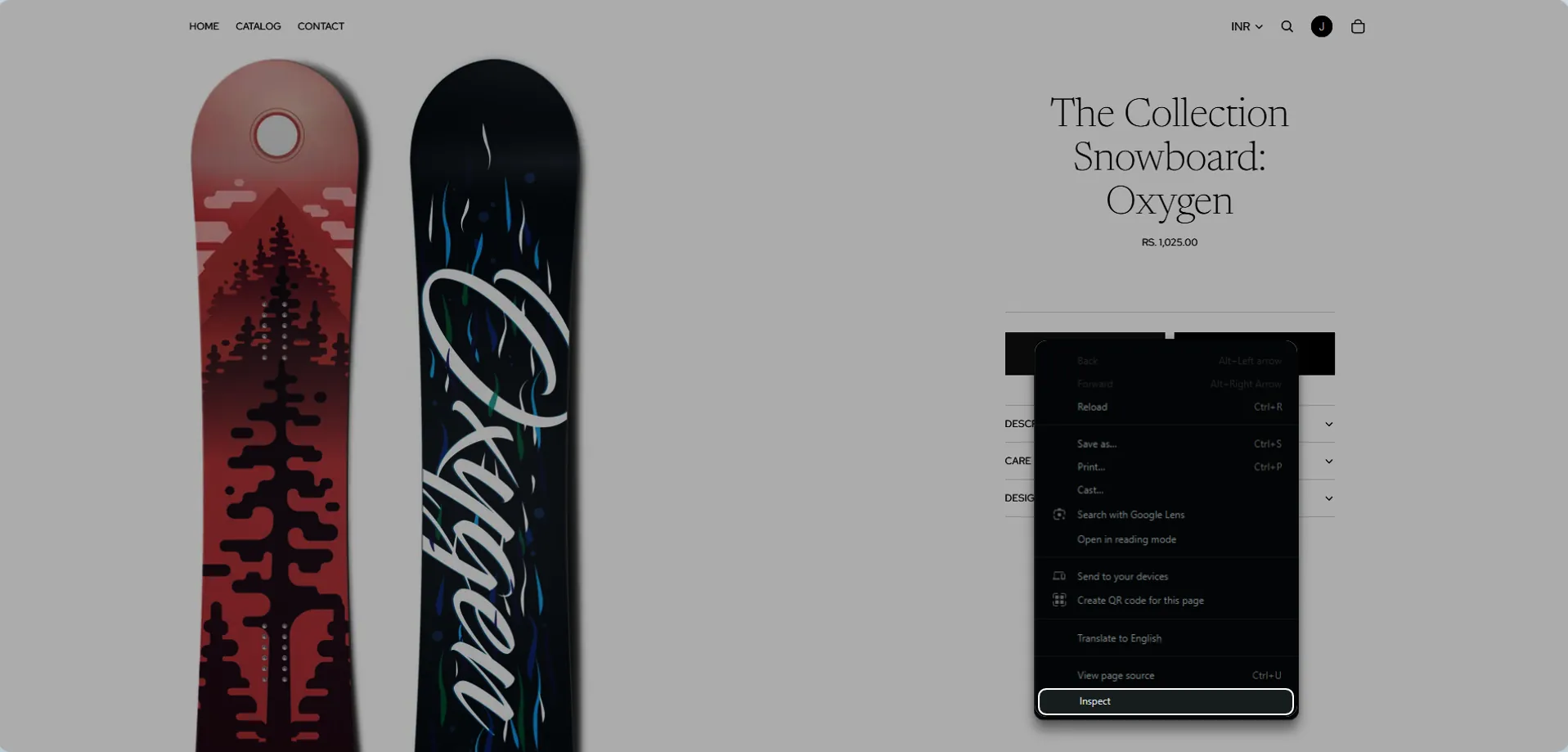
🧩 Tip: Use your browser’s developer tools (right-click → Inspect) to identify class or id selectors in your theme for accurate placement and hiding.