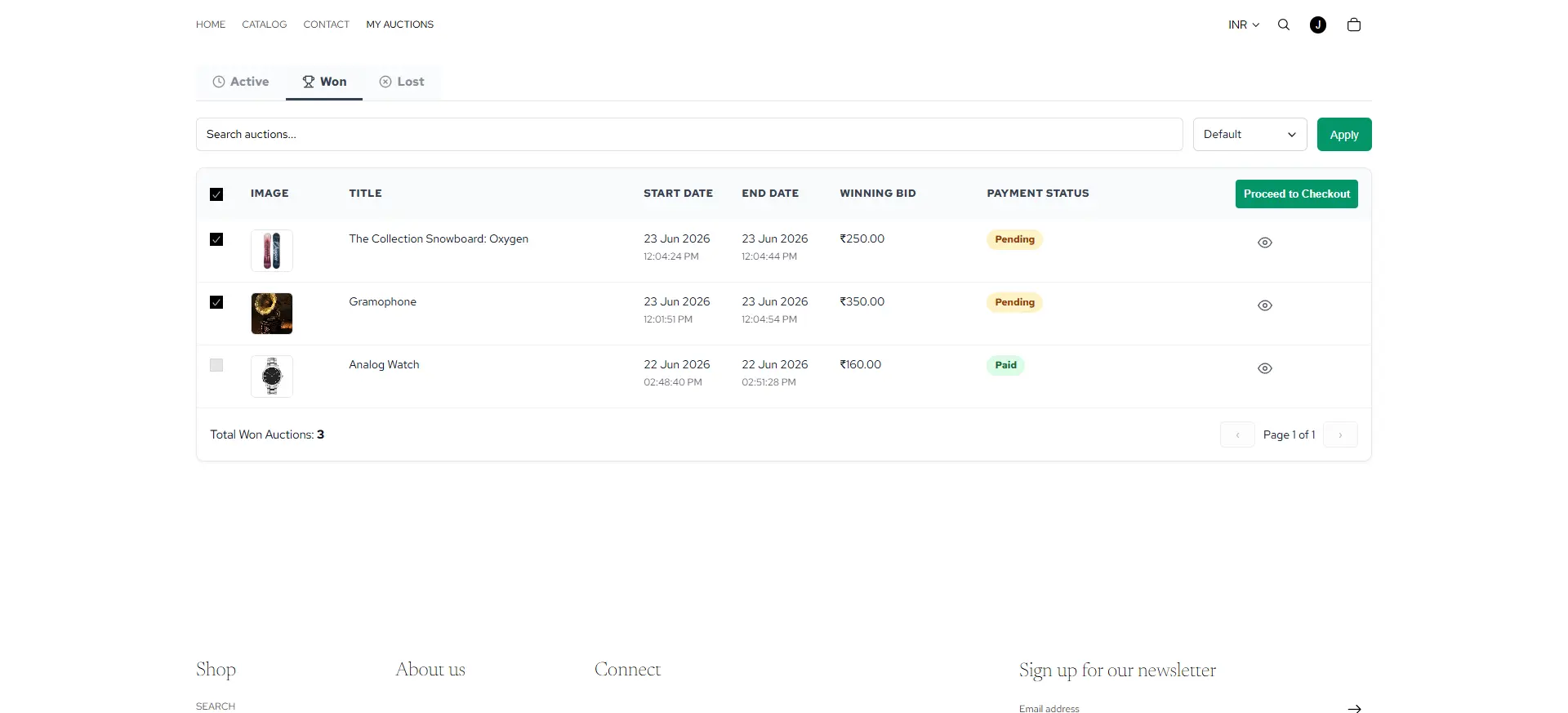
My Auctions
Let customers track all their bids, wins, and losses from a dedicated "My Auctions" page on your storefront.
Description
Give customers a dedicated hub for all their auction activity. With "My Auctions", customers can easily view active bids, place new bids, review won auctions, and access lost auction history, all from one convenient location. This seamless experience keeps bidders engaged and makes it easier to turn auction wins into sales.
Video Tutorial
How it works
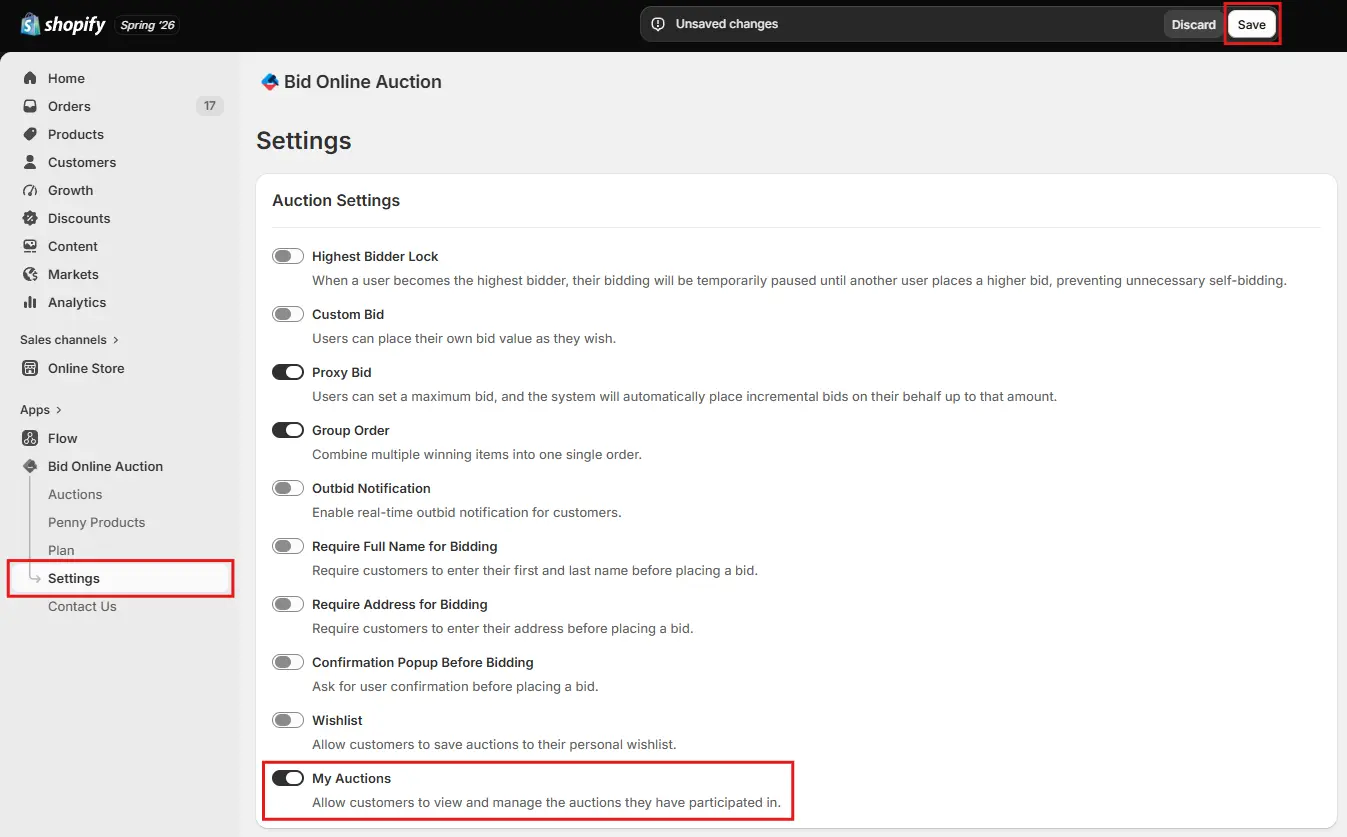
Step 1: Enable My Auctions in App Settings
First go to the the Settings page. Enable the My Auctions toggle and click Save to activate it.
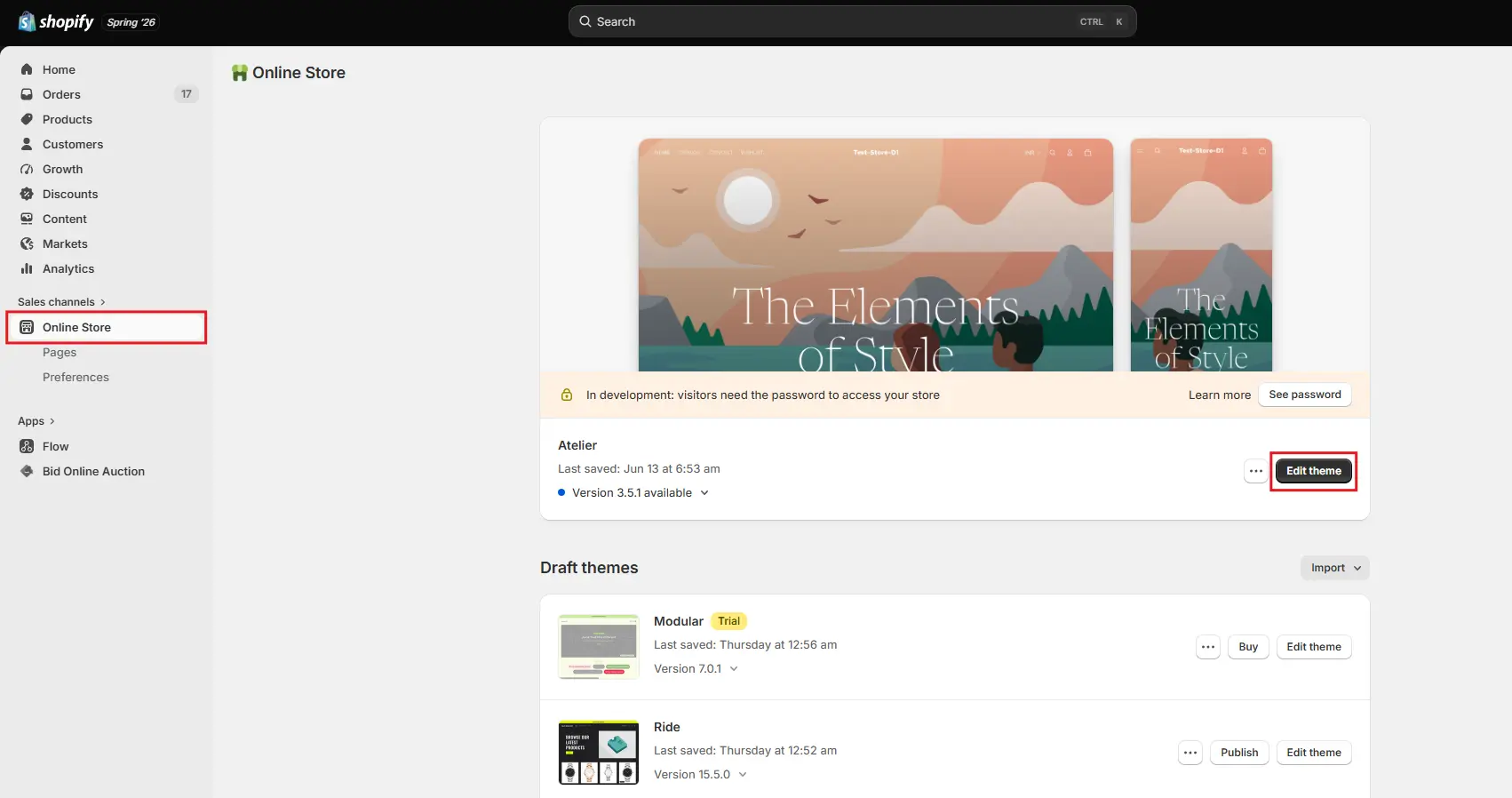
Step 2: Go to Online Store → Edit Theme
From your Shopify admin, navigate to Online Store and click Edit Theme for your active theme.
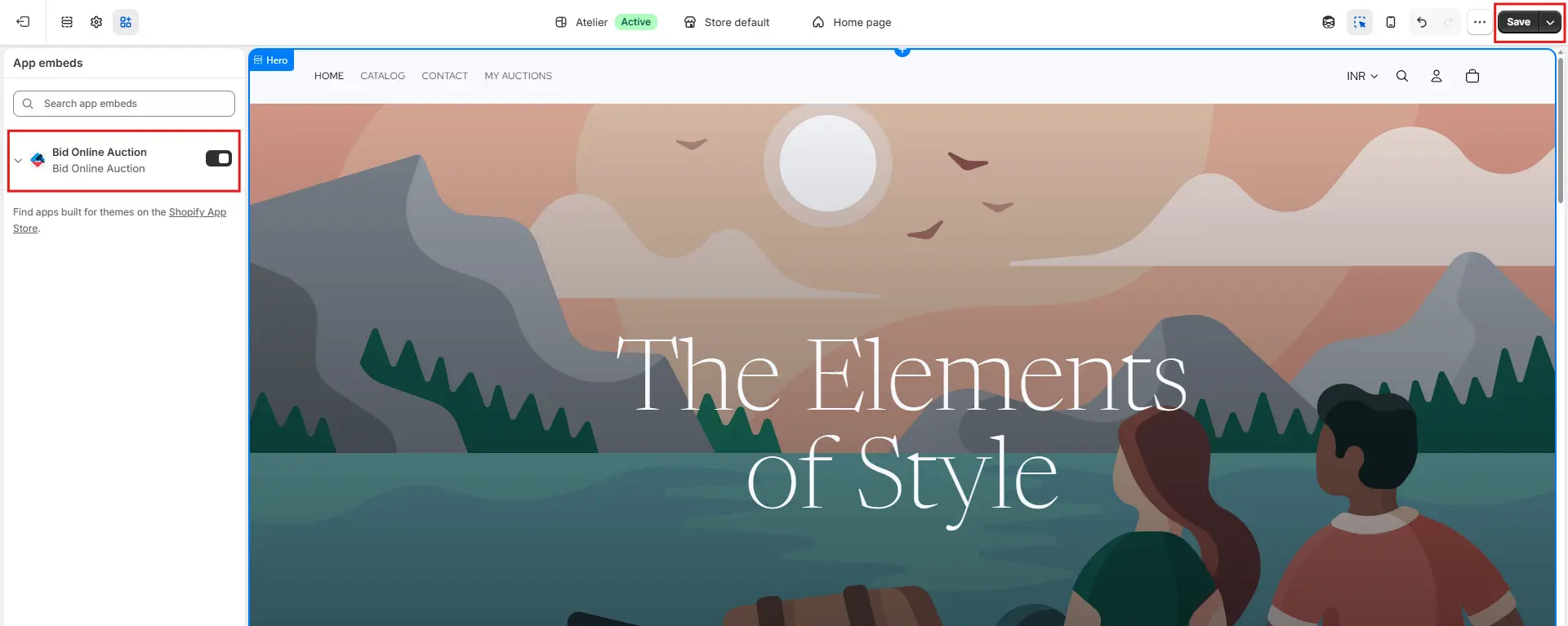
Step 3: Enable App Embed
Inside the theme editor, open App Embeds and make sure the app embed for this app is enabled. This is required for the My Auctions feature to work properly on the storefront.
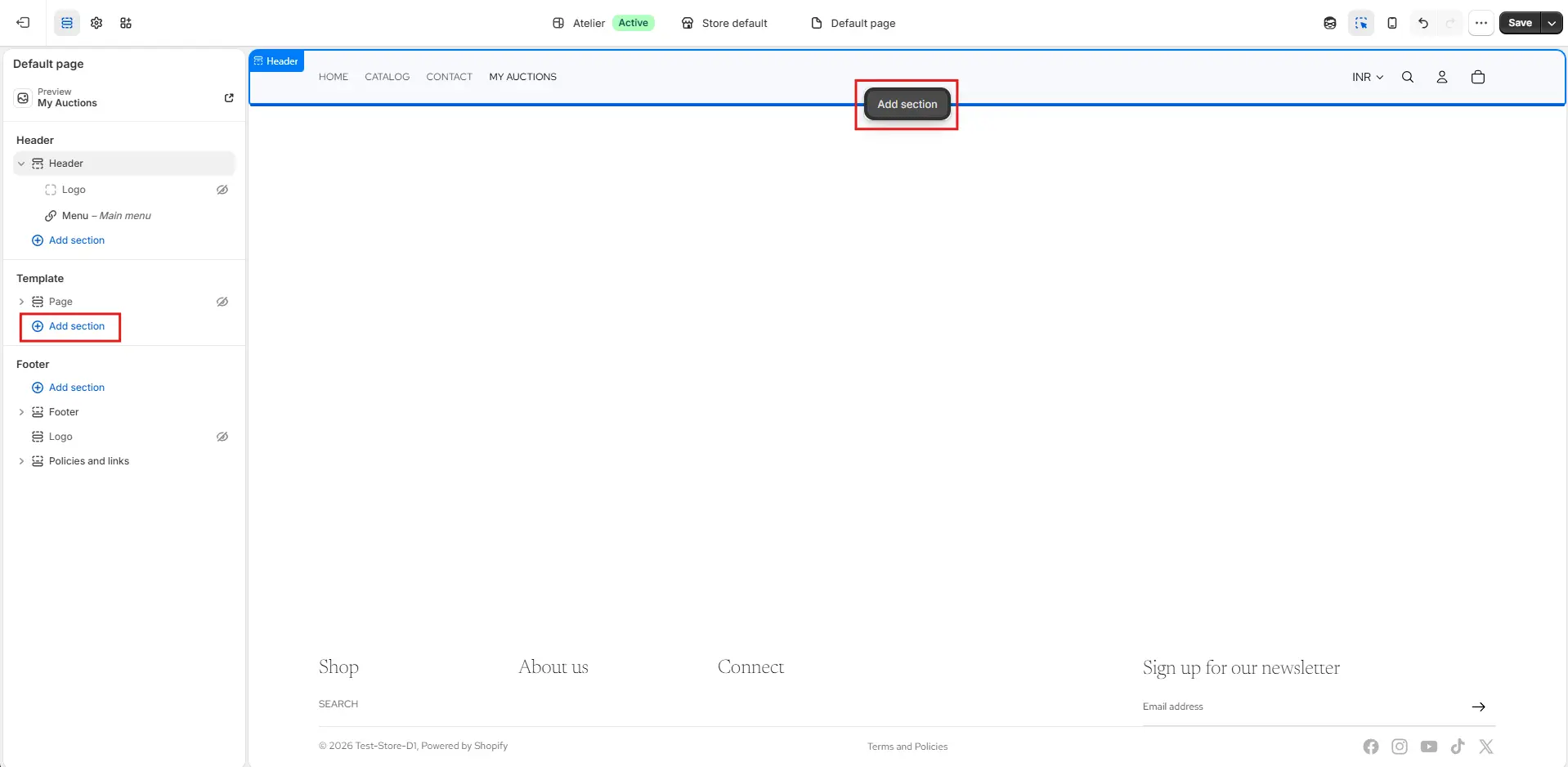
Step 4: Add My Auctions Block to a Page
Navigate to the page where you want to display the My Auctions Table. Click Add Section at the position where you want it to appear.
Step 5: Select My Auctions Block
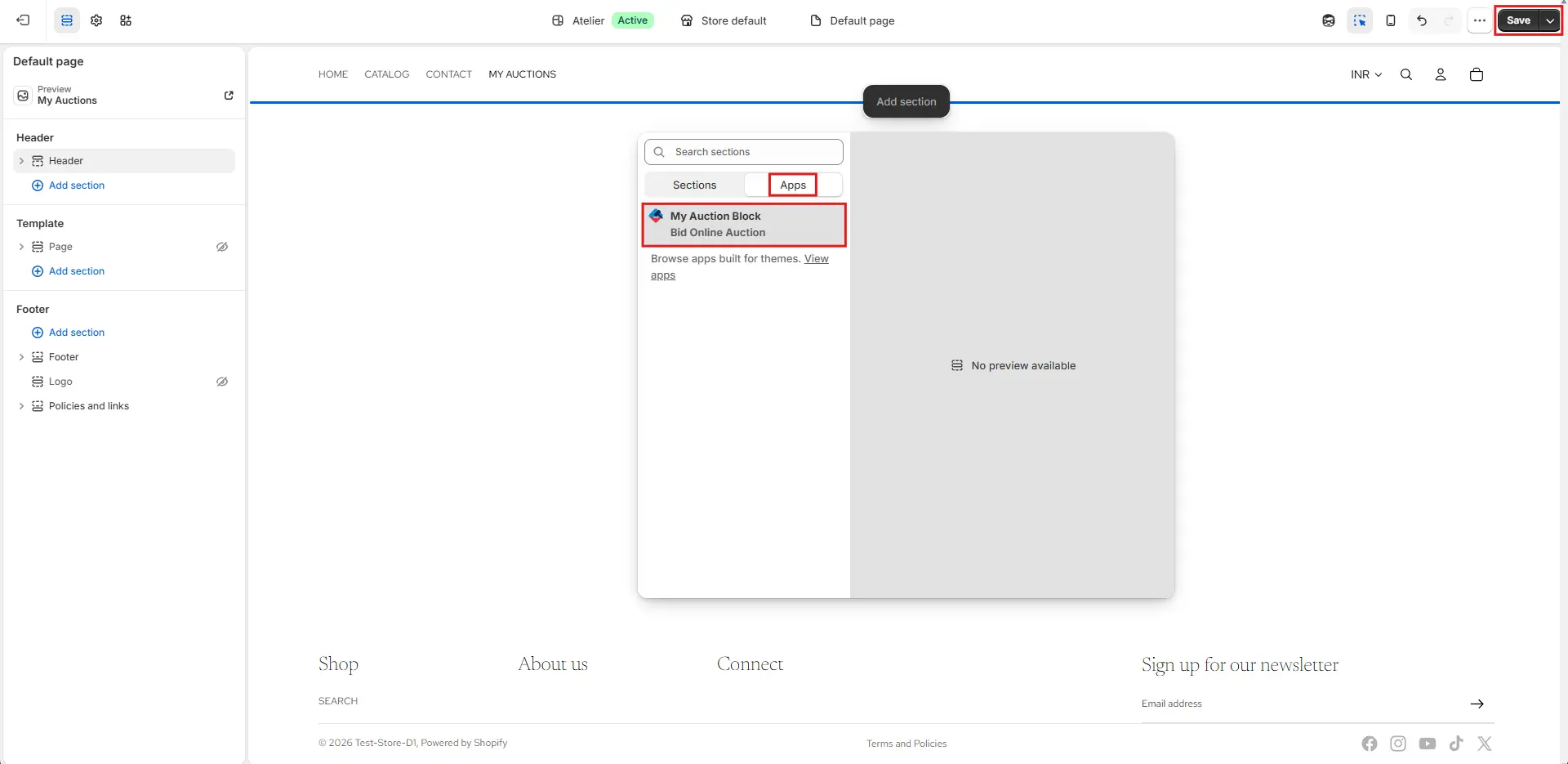
In the popup that appears:
- Go to the Apps tab
- Select the My Auctions Block
This will add the My Auctions table section to your page. After making your changes, click Save in the theme editor.
Step 6: Place a Bid to Populate the Table
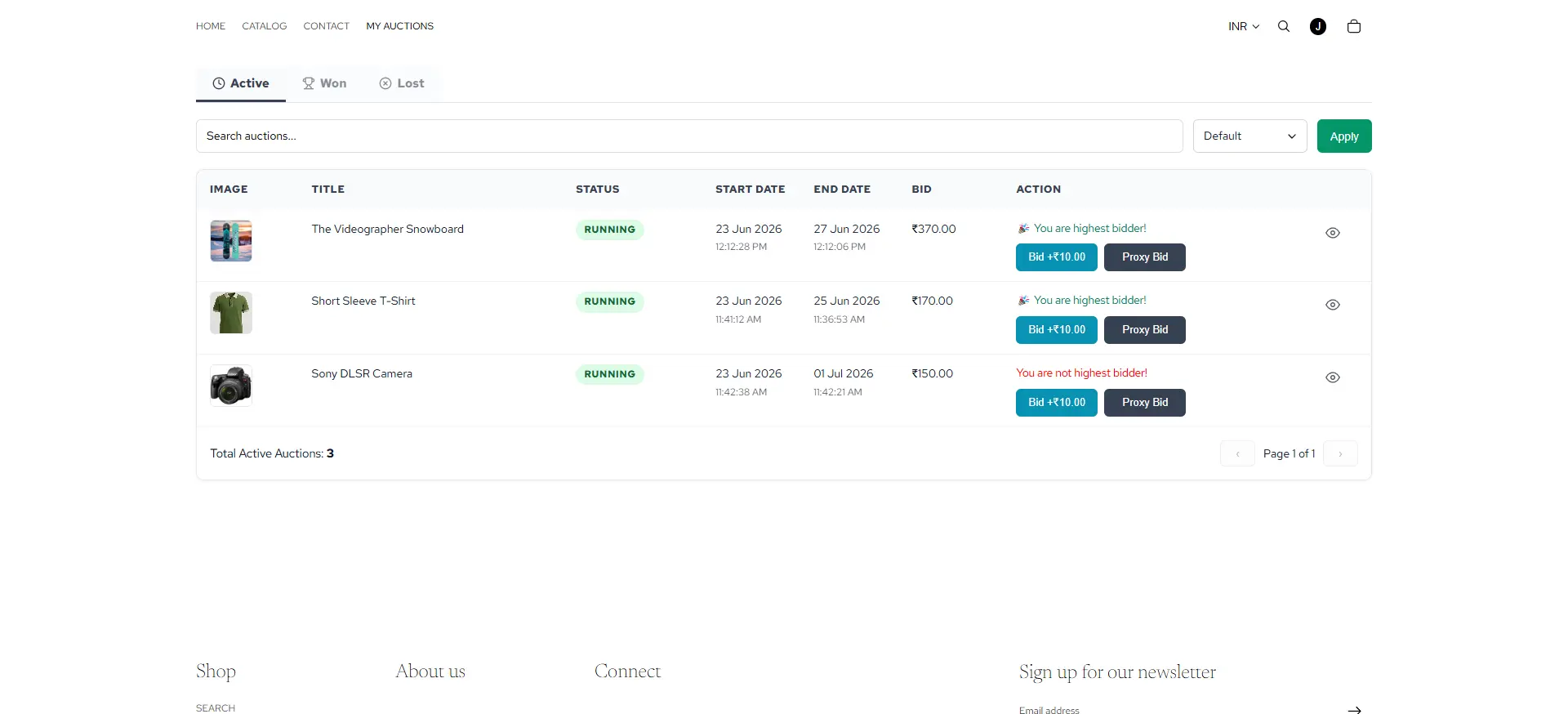
Once set up, customers simply need to place a bid on any auction on your storefront. That auction will automatically appear in their My Auctions table under the Active tab.
Step 7: Manage Auctions Across Three Tabs
When customers visit the page with the My Auctions Block, they will see their auctions organized across three tabs:
- 🟢 Active – All currently running auctions on which the customer has placed a bid. Customers can place bids directly from this tab without navigating away.
- 🏆 Won – All auctions the customer has won. Customers can create an order directly from this tab for their winning products.
- ❌ Lost – All completed auctions where the customer placed a bid but did not win.